When a workflow runs, a live execution panel slides in from the right of the builder and shows the run as it happens. Rather than waiting for the whole workflow to finish, you watch each node execute and each result arrive, one node at a time.
Opening the panel
The panel opens automatically when you run a workflow, whether you click Run for a manual test or a trigger fires. Close it with the X in its header; it reopens on the next run.
The header
At the top, the panel names the run state:
- Running while nodes are still executing, with the current node named for Local runs.
- Completed at a time when the run finishes cleanly.
- Failed at a time if a node errors.
A small icon shows whether the run is Local or Cloud.
The stat row
Below the header, three stats track the run:
- Elapsed: how long the run has been going.
- Progress: how many nodes have completed out of the total, for example 3/5.
- Mode: Local or Cloud.
Node cards
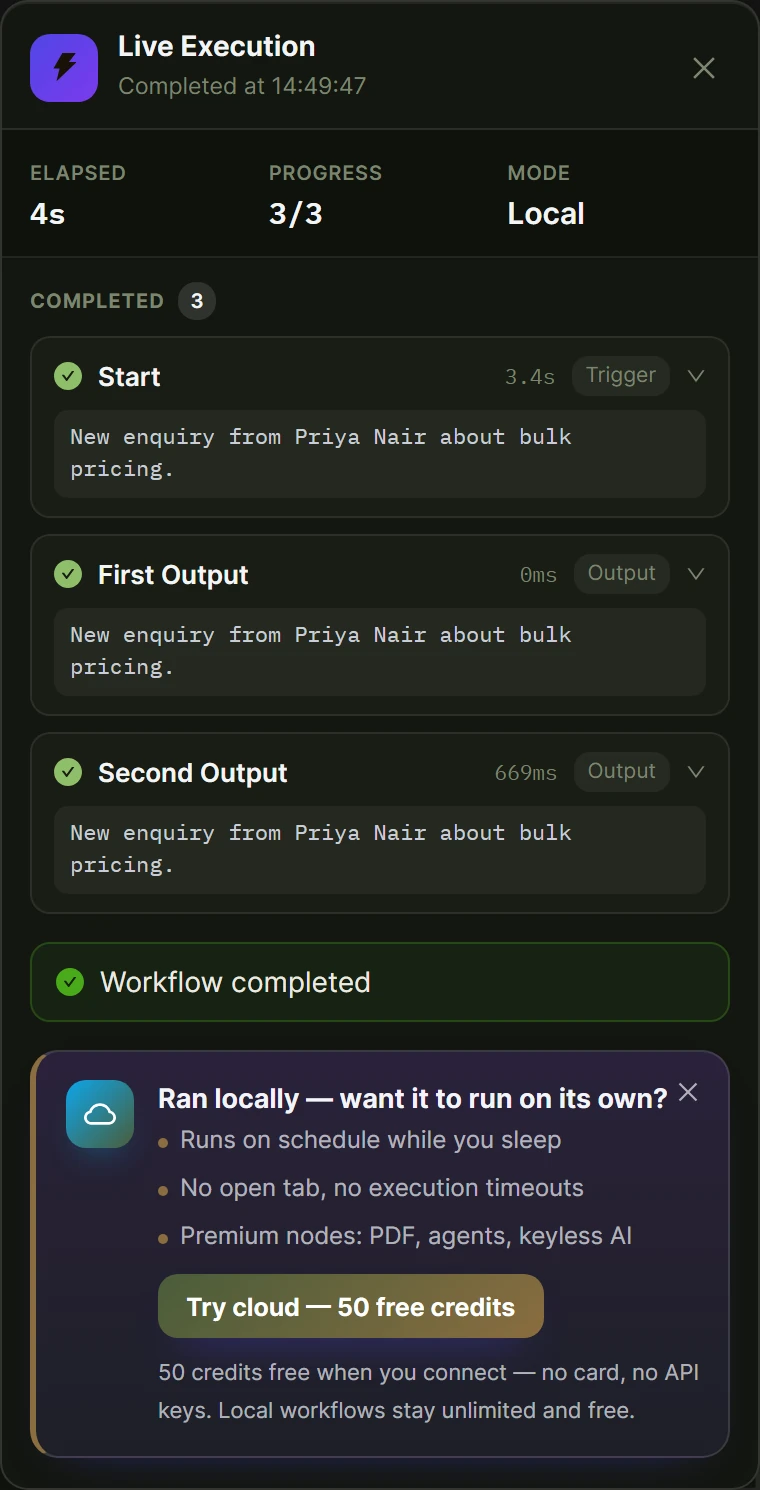
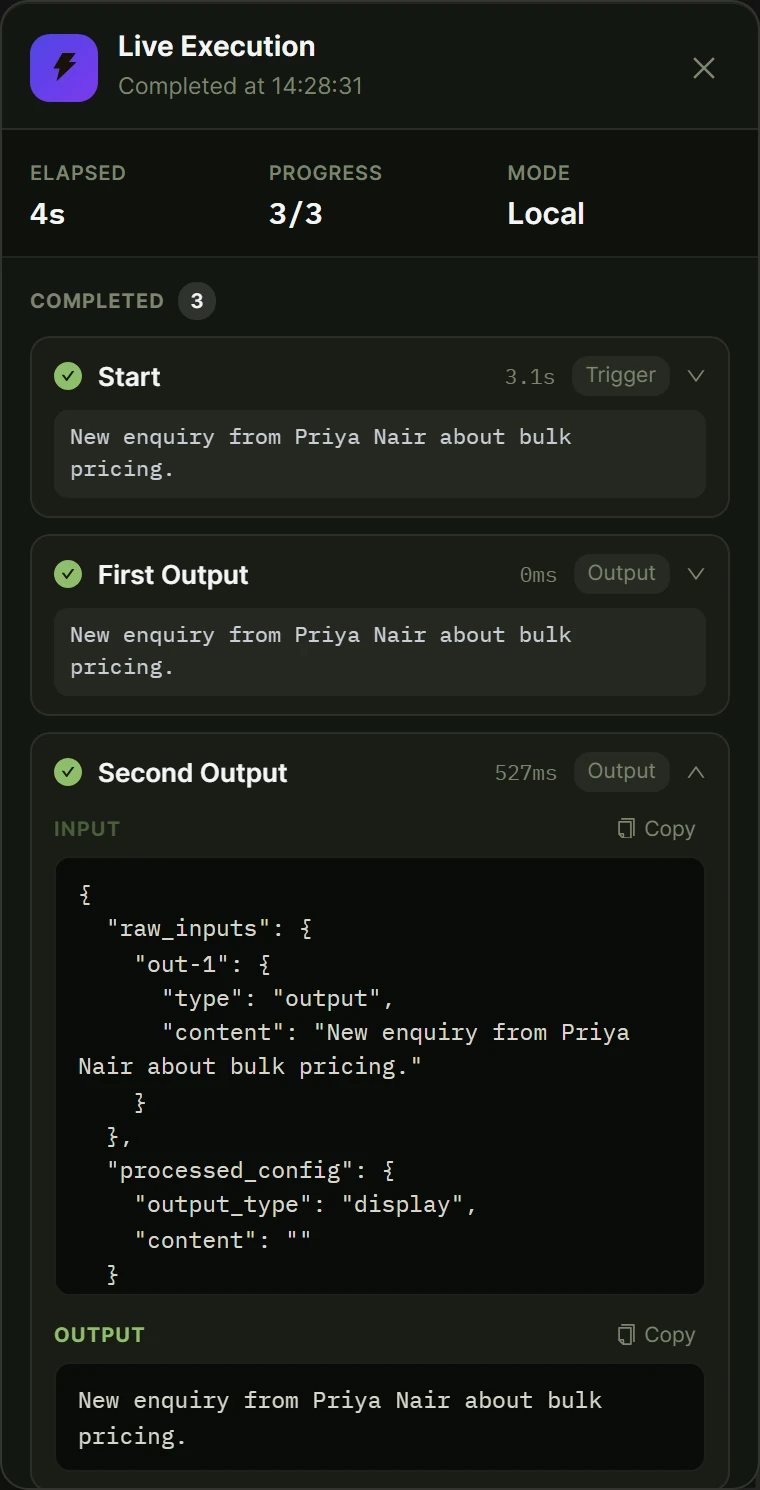
Each node appears as a card, grouped by status into Executing, Completed, Failed, and Queued. A collapsed card shows a status dot, the node name, a one-line preview of its result, and, for Local runs, an approximate duration.
Expand a card to see two labeled boxes:
- Input: the data that came into the node, with variable references already resolved.
- Output: the data the node produced.
Both boxes are pretty-printed, scrollable, and copyable, so you can inspect exactly what each step sent and received. This is the fastest way to debug a workflow: if a result is not what you expected, open the node and compare its input and output.
Results stream in as they finish
The panel updates node by node. As soon as a node settles, its card moves to Completed (or Failed) and its result becomes available, so you see the workflow fill in progressively rather than all at once at the end. Cloud runs stream their per-node history from the platform; Local runs read each node’s output the moment it finishes on your server.
When a node fails
A failed node states its reason inline on its card, so you can see what went wrong without digging through server logs. The panel also shows an overall failure notice with the error message.