To send AI-summarized Slack alerts from WordPress, you trigger a workflow on an event such as a form submission or new order, have AI summarize the details, then post it to a Slack channel. AI Workflow Automation, a free WordPress plugin, connects WordPress to Slack among 2,700+ apps, so your team gets a concise, AI-written alert instead of a raw data dump.
I am Navid, the developer of the plugin. This is the workflow I run on my own site for inbound leads, and it took about ten minutes to build. AI Workflow Automation is a free WordPress plugin with a visual drag-and-drop builder that runs AI workflows, agents, and chatbots inside your own site, using your own API keys, with no external subscription required.
Why do AI-summarized alerts beat raw notifications?
A raw notification makes a human do the parsing. A summarized alert does the parsing first, so the person reading it decides in two seconds instead of twenty. Across a team getting 40 alerts a day, that difference is the whole reason the channel stays useful instead of getting muted.
| Raw notification | AI-summarized alert | |
|---|---|---|
| What arrives | Every field, in submission order | Two sentences plus the fields that matter |
| Reader effort | Read all of it to find the point | Read the first line |
| Priority signal | None, everything looks identical | Explicit, the AI states urgency or intent |
| Long messages | A 600-word enquiry floods the channel | Capped by the summary length you set |
| Typical outcome | Channel gets muted within a month | Channel stays read |
The cost of noisy alerts is measurable. In the CHI 2008 study “The Cost of Interrupted Work: More Speed and Stress,” Mark, Gudith and Klocke found that people compensate for interruptions by working faster, but at a price: more stress, higher frustration, time pressure and effort. Every alert you send is an interruption you are spending. Make each one carry its own conclusion.
Which WordPress events are worth alerting on?
Alert on events where a human needs to act within hours, and log everything else. That filter alone removes most of the noise before you write a single node.
- Form submissions from high-intent forms. Demo requests, quote requests, and enterprise contact forms. Not newsletter signups.
- New WooCommerce orders above a threshold. A Condition node checking order value keeps the channel for orders that matter.
- Support or complaint messages. An AI summary that flags an angry tone gets a response faster than a raw ticket.
- Failed payments or refund requests. Time sensitive, and the details always need summarizing.
- Workflow failures. An alert when an automation breaks is often the most valuable one you build.
What I do not alert on: every page view, every subscriber, every low-value order. Those belong in a weekly digest, which is the same workflow with a schedule instead of an event trigger.
How do you connect WordPress to Slack?
There are two supported paths in AI Workflow Automation, and they suit different situations. The Connect an App node handles authentication for you and exposes Slack’s real actions. A Slack incoming webhook needs no account connection at all and posts to one fixed channel.
Path 1: the Connect an App node
The Connect an App node gives workflows access to 2,700+ third-party apps as actions, with authentication handled by Composio rather than by pasting OAuth secrets into WordPress. Credentials sit with the auth provider, not on your site, and you can disconnect an account at any time.
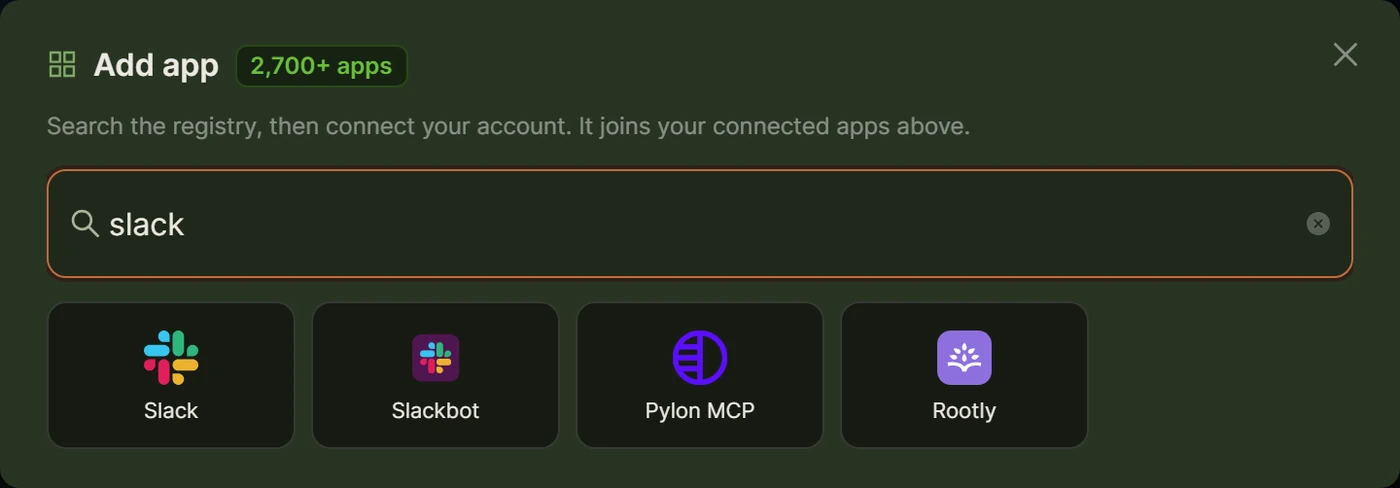
- Drag a Connect an App node onto the canvas.
- On the App tab, click Add app and search for Slack.
- Complete the hosted sign-in. Slack asks which workspace to authorize.
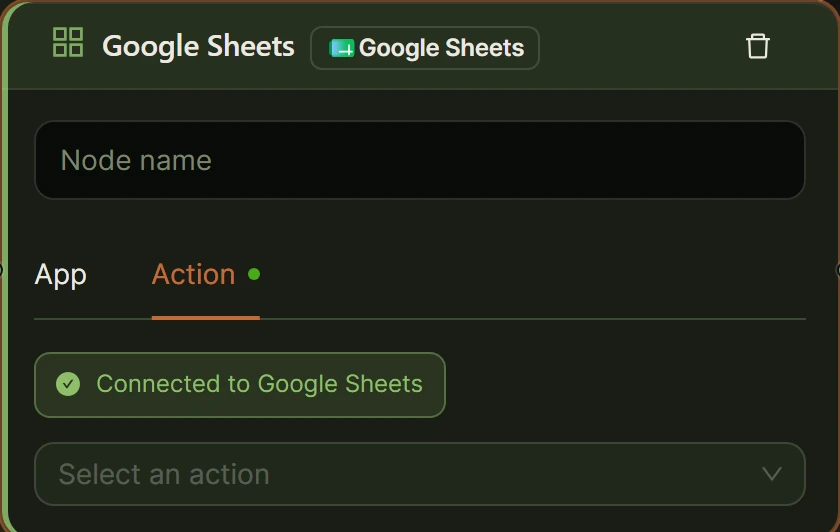
- Switch to the Action tab and pick the send-message action.
- Fill the fields that load for that action. Text fields accept variable tags from earlier nodes.
Path 2: a Slack incoming webhook
Slack’s own documentation describes incoming webhooks as “a way to post messages from apps into Slack.” You create one in your Slack app settings, and Slack gives you a URL shaped like https://hooks.slack.com/services/T00000000/B00000000/XXXXXXXXXXXXXXXXXXXXXXXX. Sending a message means POSTing JSON to it with a Content-type: application/json header. The minimal body is {"text": "Hello, world."}.
In the plugin you can send that with either an Output node set to Send to Webhook, mapping a single key called text, or with the API Call node when you want the response back. In the API Call node set the URL to the hook, the method to POST, add a header of Content-Type: application/json, and put {"text": "[Input from summaryGenerator-1]"} in the request body. Set Retry Count to 2 so a transient failure does not silently drop the alert.
One limit to design around: Slack rate limits incoming webhooks to “1 per second,” with short bursts above that allowed. That is generous for alerting and tight for bulk sends, so batch anything high volume into a digest.
How do you build the event to summary to Slack workflow?
Three nodes do the whole job: a trigger, a Summary Generator, and a Slack step. Here it is with a Gravity Forms submission as the event.
- Create a workflow and add a Trigger node. Choose Gravity Forms from the Form submissions group and pick your form. The node loads that form’s fields underneath the selector.
- Note the field names it exposes. They use the form’s own labels, so you reference them as
[[Email] from trigger-1]or[[Message] from trigger-1], and[Input from trigger-1]for the whole submission. The Gravity Forms trigger documentation covers the details. - Add a Summary Generator node. Put
[Input from trigger-1]into Content and set Maximum Length to 60. The field accepts 50 to 500 words, and short is the point here. - Add your Slack step: a Connect an App node with the Slack send-message action, or an API Call node pointed at your incoming webhook.
- Compose the message body from a mix of static text and variables, for example:
New enquiry from [[Email] from trigger-1] :: [Input from summaryGenerator-1]. - Submit the form once on your own site and confirm the message lands in the channel.
- Save and activate the workflow.
The same shape works with a WordPress Core trigger for orders and posts, a Webhook trigger for external systems, or WPForms, Contact Form 7, Ninja Forms, and Elementor Forms triggers for other form plugins. Only the first node changes.
What makes a good summary prompt?
A good alert summary answers three questions in its first sentence: who, what they want, and how urgent it is. If your prompt does not ask for those explicitly, the model will produce a neutral paraphrase that is no faster to read than the original.
- Lead with the verdict. Instruct the summary to open with the action needed, not with context.
- Cap the length hard. Maximum Length of 50 to 60 words forces a real summary. Anything above 150 words is a second thing to read.
- Ask for a priority label. “Start the summary with HIGH, MEDIUM, or LOW based on buying intent” makes the channel scannable.
- Name the fields that must survive. “Always include the email address and the company name verbatim.”
- Forbid invention. “Use only information present in the submission. If a detail is missing, say it is missing.”
When you need more than a summary, swap in an AI Model node with structured output so it returns named fields such as priority, intent, and next step, then map those into separate parts of the Slack message. Node options are in the Summary Generator documentation.
How do you route alerts to the right channel or person?
Routing is a Condition node placed between the summary and the Slack step. It reads any value from an upstream node and sends the workflow down a True or False branch, with a different Slack destination on each.
- Add a Condition node after the Summary Generator.
- Set its input to the value you want to test, for example
[[priority] from aiModel-1]or an order total from the trigger. - Put your urgent Slack step on the True branch and the routine one on the False branch, each with its own channel: #sales-urgent on one side, #sales-log on the other.
- To ping a specific person, include their Slack member ID in the message text in the form
<@U12345678>, which Slack renders as a real mention. - Chain a second Condition node when you need three or more destinations.
Resist routing everything. Two channels covers almost every team I have seen, and a third usually gets ignored within a month.
What other destinations work the same way?
The pattern is destination-agnostic. Trigger, summarize, deliver. Only the last node changes.
- Email. The Send Email node posts the same summary to an inbox, which suits daily digests better than Slack does.
- Microsoft Teams or Discord. Both accept inbound webhooks, so the API Call node handles them exactly like Slack with a different URL and payload shape.
- Google Sheets or Notion. Available as actions in the Connect an App node when you want a log rather than a ping.
- Your own systems. Any endpoint that accepts JSON works through the Output node’s Send to Webhook type.
A useful pattern is doing two at once: a short Slack ping for awareness and a row appended to a sheet for the record. Both nodes can hang off the same Summary Generator output.
Frequently asked questions about WordPress Slack notifications
Can WordPress send messages to Slack without Zapier?
Yes. AI Workflow Automation posts to Slack directly from your site, either through the Connect an App node with an authorized Slack account or by POSTing JSON to a Slack incoming webhook URL with the API Call node. No relay service sits in the middle, so nothing leaves your site except the message you send to Slack.
How do I get a Slack webhook URL?
Create a Slack app in your workspace, enable incoming webhooks, and add one for the channel you want. Slack issues a URL shaped like https://hooks.slack.com/services/T00000000/B00000000/XXXXXXXXXXXXXXXXXXXXXXXX. Treat it as a secret, because anyone holding it can post to that channel. Paste it into the API Call node or an Output node set to Send to Webhook.
Does the AI summary send my customer data to a third party?
It sends whatever you put in the Summary Generator’s Content field to your AI provider, so yes, that text leaves your server. In Local mode it goes to your own OpenAI, Anthropic, or Google account under your terms. If a form collects sensitive data, summarize only the fields the team needs and leave the rest out of the prompt.
Can I send Slack alerts for WooCommerce orders too?
Yes. Swap the Gravity Forms trigger for a WordPress Core trigger that fires on the order event, then keep the rest of the workflow identical: Summary Generator, optional Condition node for an order-value threshold, then the Slack step. The same three-node pattern covers forms, orders, comments, and posts.
Build your first alert workflow
Pick one form, one channel, and a 60-word summary cap. That single workflow will tell you within a week whether your team reads alerts, and it is easy to widen once it earns its place. Install AI Workflow Automation from the WordPress plugin directory, or read the plugin overview for the full list of triggers and destinations first.