To generate a branded PDF from a WordPress form submission, you trigger a workflow on submit, let AI compose the document from the entry data, then create and email the PDF. AI Workflow Automation, a free WordPress plugin, does this without a paid form-plugin addon: it turns a form entry into an AI-written report, quote, or summary and delivers the PDF automatically.
I built this feature because the existing route annoyed me. Every form plugin sells PDF generation as a premium add-on, and every one of those add-ons fills a fixed template. If you want a document whose wording changes based on what the person actually submitted, templates cannot do it.
AI Workflow Automation is a free WordPress plugin with a visual drag-and-drop builder that runs AI workflows, agents, and chatbots inside your own site, using your own API keys, with no external subscription required.
When does an AI-composed PDF beat a static template?
A static template wins when the document is the same every time and only the values change. An invoice is a template problem: same layout, same headings, different numbers. Do not put a language model near it.
An AI-composed PDF wins when the prose itself should change based on the input. A property valuation explaining why this house is priced this way. A fitness plan whose notes reflect the goals someone selected. A proposal whose scope section reads differently for a three-page site than a three-hundred-page one. In each, a fixed template produces a document that reads like a form printout, because it is one.
| Static template add-on | AI-composed document | |
|---|---|---|
| Wording | Fixed, only merge fields change | Written per submission from the entry data |
| Best for | Invoices, receipts, entry copies | Quotes, reports, assessments, personalised plans |
| Setup time | Minutes | Twenty to thirty minutes for the first one |
| Cost per document | Add-on licence, then free | Model tokens plus render cost |
| Review needed | No | Yes, at least until you trust the prompt |
The paid-add-on route is well documented if a static template is genuinely what you need. WPBeginner’s guide to generating PDFs from form entries walks through the WPForms PDF add-on, noting that “the PDF generation feature only works with WPForms Pro or higher plans.” That is a fair trade for a fixed invoice. It is the wrong tool for a document that should read differently every time.
What do you need to build this?
Three things, and one of them is optional.
- A form. AI Workflow Automation triggers on Gravity Forms, WPForms, Contact Form 7, Ninja Forms, and Elementor Forms. Any of them works. You need at least one existing form on the site.
- The free plugin and an AI provider key (OpenAI, Anthropic, or OpenRouter) added under Settings, for the step that writes the document copy.
- A connected account if you want a rendered, styled PDF. This is the honest caveat: the Generate PDF node renders through a hosted render service and is metered at 2 credits per document, so it needs a connected account. If you would rather stay entirely local, the Create File node runs on your own site and outputs txt, docx, or html at 1 credit per run, and a docx opens fine in Word and Google Docs.
How do you build the form-to-PDF workflow?
The build below produces a branded PDF emailed to the submitter within seconds of them pressing send. Open AI Workflows in your WordPress admin menu and create a workflow.
- Add a Trigger node and pick your form. Choose Gravity Forms from the form submissions group, then select the form from the dropdown. The plugin loads that form’s fields underneath the selector automatically, so you can see exactly what you have to work with.
- Note your field tags. Each captured field becomes a named variable such as
[[Email] from trigger-1]or[[Message] from trigger-1], and[Input from trigger-1]passes the whole submission. Write down the two or three you need before you go further; guessing at field names is the most common reason these workflows produce blank documents. - Add an AI Model node to compose the document copy. Feed it the specific fields, not the whole submission blob, and tell it exactly what sections to produce. More on the prompt in the next section.
- Add a Generate PDF node. On the Template tab, pick one of the six built-in templates: invoice, report, letter, certificate, proposal, or one-pager. Then use Data mapping to fill each labelled spot on the document with either a literal value or a variable tag, including the AI output from step 3.
- Check the live preview. The node renders a free, non-credit preview showing exactly where each value lands on the page. Blank fields show sample content. Use this before every run; it costs nothing and it catches mapping errors instantly.
- Set the output options. Paper is A4 or Letter, Landscape is a toggle, and File name (optional) accepts variable tags, so
quote-[[Name] from trigger-1]gives you documents that are findable later instead of forty files called document.pdf. - Add a Send Email node. Map To from the submitter’s email field, write the Subject and Body (both accept variable tags), turn on Send as HTML if you want formatting, and reference the PDF node’s output in Attachments. There is also a Delay option in minutes, hours, or days if the document should not arrive instantly.
- Test with a real submission. Submit the form yourself and read the resulting PDF end to end before this goes anywhere near a customer.
The Gravity Forms trigger costs zero credits and the Send Email node costs 1. The two metered pieces are the AI composition step and the PDF render.
How do you write the prompt that composes the document?
Prompt the AI Model node for structure, not for style. A document prompt has a different job from a chat prompt: you know exactly what sections you want, so say so, and constrain everything you can.
What works, in order of how much difference it makes:
- Name the sections explicitly. “Produce three sections labelled Summary, Recommendation, and Next Steps.” Vague prompts produce documents whose shape changes per submission, which makes layout impossible.
- Cap the length of each section. “Summary: two sentences. Recommendation: one paragraph, maximum 90 words.” PDFs have fixed page boundaries, and a model that writes 600 words where you budgeted 150 will overflow the page.
- Forbid invention. “Use only the values provided. If a value is missing, write ‘not provided’ rather than estimating.” This single line prevents the failure that matters: a quote document containing a price nobody quoted.
- Give it the field values individually. Pass
[[Budget] from trigger-1]rather than dumping the whole entry, so the model is not guessing which number is the budget.
For documents where a wrong sentence has real consequences, such as anything quoting a price, add a Human Input node set to Approval Required between the AI step and the PDF step. The workflow pauses, a task appears under the Tasks menu, and nothing renders or sends until someone approves.
How do you handle branding, layout, and merge fields?
Two routes, and the choice is about how much control you need.
Built-in templates handle branding through data mapping. Each of the six templates has labelled fields you fill from the workflow, so your company name, logo reference, and contact details go in once as literal values while the variable content comes from the form and the AI step. This is the fast route and it looks professional out of the box.
Custom HTML gives you full control. Switch the Generate PDF node to its Custom HTML tab and supply a complete HTML document with your own CSS, using variable tags anywhere in the markup, for example <h1>Hello [Input from trigger-1]</h1>. Your existing brand stylesheet mostly transfers.
One security constraint to design around: the renderer strips scripts, iframes, and remote or file URLs. That means no JavaScript-driven layout, no CDN web fonts, and no hotlinked images. Inline your styles, embed images as data URIs, and stick to standard fonts. The limitation is deliberate: a renderer that fetches arbitrary remote URLs on your behalf is a server-side request forgery waiting to happen.
Worth knowing if you are archiving these: the PDFs produced here are ordinary PDFs, not PDF/A. PDF/A is the archival subset defined by ISO 19005-1, published in September 2005, which requires everything needed to reproduce the document to be embedded in the file and bans features unsuitable for long-term preservation. If a regulator requires PDF/A specifically, convert the output with a dedicated tool rather than assuming.
Where should the finished PDF go?
Emailing it to the submitter is the obvious destination, but it should rarely be the only one. Attach the PDF node’s output in the Send Email node, and add a second copy of your team’s address in Cc or Bcc so you have a record of what went out.
For durable storage, add a Save to Google Drive node. You pick the target folder, set the file format (TXT, DOCX, CSV, or PDF), optionally name the file, and it uploads over OAuth 2.0 after a one-time Google integration setup in Settings. Two limits to plan around: 5MB maximum per file, and the node creates files rather than modifying existing ones.
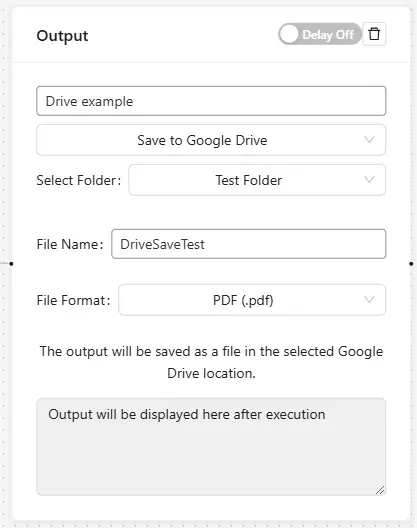
If you would rather keep everything on your own server, the Create File node has a Save to Media Library checkbox that stores the document in WordPress and returns a file URL or media ID you can reference downstream.
What are people actually building with this?
The four patterns I see most often, all built from the same three-node spine:
- Instant quotes. A pricing enquiry produces a proposal PDF with a scope section written from what the prospect described, emailed within a minute while their attention is still on you.
- Assessment reports. A questionnaire produces a personalised report explaining what the answers mean. This converts best as a lead magnet, because the document only exists because they filled in the form.
- Certificates. A course completion or event registration form fires the certificate template with the participant’s name and date. Almost no AI involved, same delivery pipeline.
- Client onboarding packs. An intake form produces a summary confirming what the client told you, catching misunderstandings on day one rather than in week six.
Frequently asked questions
Can I generate a PDF from a WordPress form without a paid add-on?
Yes. AI Workflow Automation is a free plugin whose form triggers, AI nodes, and email node work with your own provider API key, so you do not need WPForms Pro, Gravity Forms Fillable PDFs, or a Ninja Forms extension. The one metered piece is the Generate PDF node, which renders through a hosted service at 2 credits per document. For fully local output, the Create File node produces docx or html on your own server instead.
Which WordPress form plugins work with AI PDF generation?
AI Workflow Automation triggers on Gravity Forms, WPForms, Contact Form 7, Ninja Forms, and Elementor Forms. You select the form from a dropdown and the plugin loads its fields automatically, exposing each one as a named variable such as [[Email] from trigger-1] for use in later nodes. The rest of the workflow is identical whichever form plugin you use.
How do I put my own branding on an automatically generated PDF?
Two ways. The Generate PDF node’s built-in templates (invoice, report, letter, certificate, proposal, one-pager) let you map your company details into labelled fields. Or switch to the Custom HTML tab and supply a full HTML and CSS document using your own brand styles. Note that the renderer strips scripts, iframes, and remote URLs, so inline your CSS and embed images as data URIs rather than linking them.
Is the AI-written content in the PDF reliable enough to send to a client?
Not without a guardrail, if the document contains prices, dates, or commitments. Constrain the prompt to use only supplied values and to write “not provided” rather than estimating, and for anything financial insert a Human Input node set to Approval Required before the PDF renders. The workflow pauses, the draft appears as a task in wp-admin, and nothing sends until a person approves it.
Build your first one
Install AI Workflow Automation from the WordPress plugin directory, point a trigger at a form you already have, add an AI Model node and a Generate PDF node, and use the free live preview to get the layout right before you spend a single credit. Then add the Send Email node once the document reads the way you want.
If you want to see AI-composed documents before building anything, the AI Resume Generator demo runs the same form-to-document pattern live.