Order confirmation automation means adding a personalised layer on top of the receipt WooCommerce already sends: a short note about what someone actually bought, a business acknowledgement that quotes your real lead time, and an internal alert when an order looks unusual. AI Workflow Automation, a free WordPress plugin, builds that layer from WooCommerce’s own order webhook, without touching WooCommerce’s built-in emails.
AI Workflow Automation is a free WordPress plugin with a visual drag-and-drop builder that runs AI workflows, agents, and chatbots inside your own site, using your own API keys, with no external subscription required. This guide keeps WooCommerce’s transactional emails exactly as they are and adds a separate workflow next to them: a webhook fires when an order is created, an AI Model node writes a short, order-specific note, and a Send Email node delivers it through your site’s own mailer.
What does WooCommerce already send, and where does AI actually add value?
WooCommerce sends its own order emails automatically: a processing order notice, a completed order notice, and others, each built from the order’s real data. AI Workflow Automation does not replace any of that. What it adds is a second layer: a short, personalised note, a lead-time acknowledgement pulled from your own policy document, and an alert to your team when an order needs a second look.
WooCommerce’s documentation puts the default email plainly: “The system sends this order notification to customers containing order details after payment” (WooCommerce, Emails). That email is reliable and arrives immediately. It just reads the same whether the customer is buying one item for the first time or placing a large repeat order, which is exactly the gap an AI note can fill.
Order status is what a workflow reacts to, so it is worth being precise about it. WooCommerce’s documentation defines the processing status directly: “Payment has been received (paid), and the stock has been reduced” (WooCommerce, Order statuses). That is the moment most stores want an AI follow-up to fire too, not before payment has actually cleared, so if your payment methods can leave new orders pending, add a Condition that checks for the processing status before the note is written.
| Aspect | WooCommerce’s own order email | What the AI workflow adds |
|---|---|---|
| Content | Order number, items, totals, addresses | A short note about the specific items bought |
| Personalisation | Same template for every order | Usage tips or context matched to what was ordered |
| B2B acknowledgement | Not built in | Lead-time language pulled from your own policy document |
| Delivery dates | Only what your shipping setup provides | Never invented by the AI; left to real data or general wording |
| Unusual orders | No alert | An internal email when a condition you set is met |
How do you connect a WooCommerce order to an AI Workflow Automation workflow?
A WooCommerce order reaches an AI Workflow Automation workflow through a webhook: WooCommerce posts the order’s data to a URL the moment an order is created, and the plugin’s Webhook trigger receives it and starts the workflow. WooCommerce keeps sending its own emails at the same time, untouched by any of this.
WooCommerce’s own documentation defines a webhook simply: “A webhook is an event notification sent to a URL of your choice” (WooCommerce, Webhooks), and orders are one of the event types it can fire on. Setting one up means working in two screens: the Webhook trigger node, which generates the URL, and the Webhooks screen inside WooCommerce, which needs that URL and a Topic of Order created.
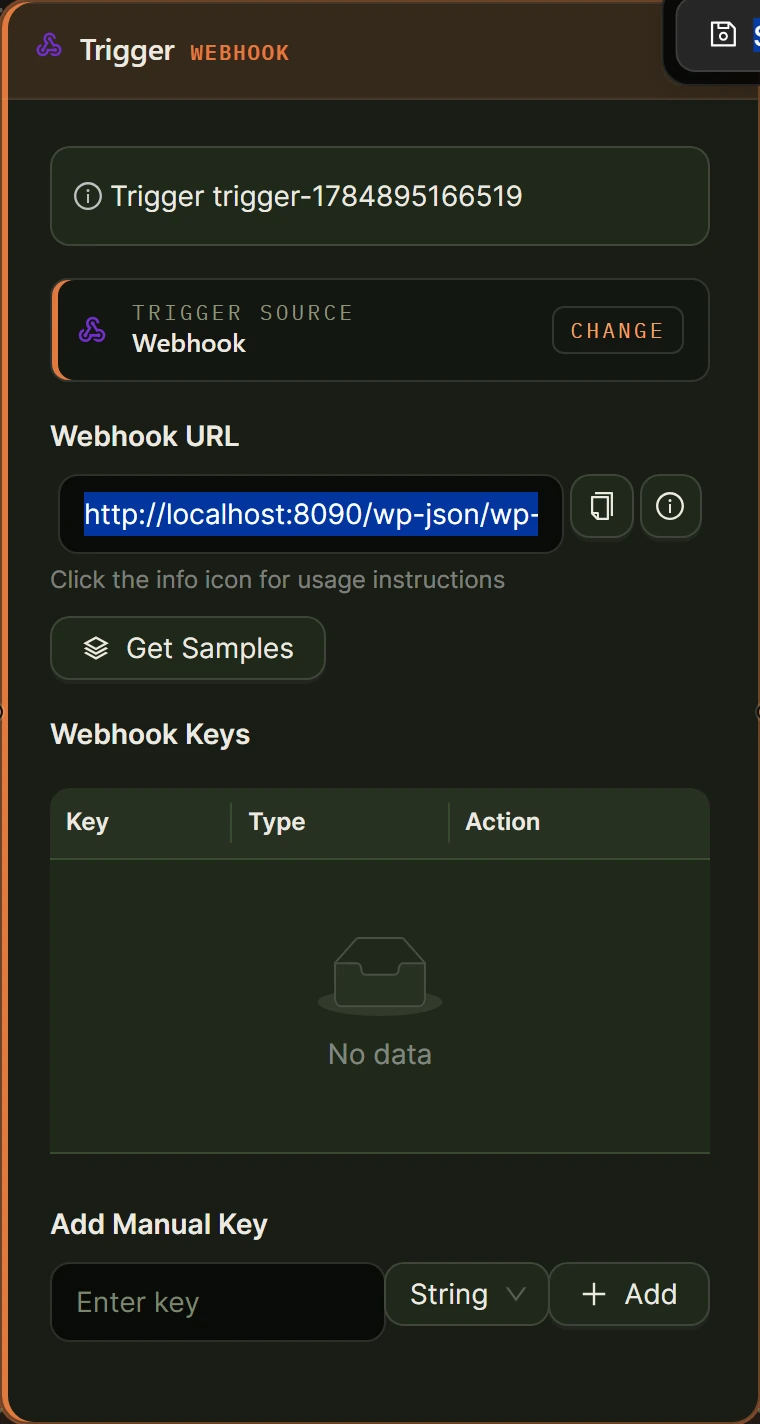
Once a real order reaches that URL, the Webhook trigger’s Get Samples button reads the field names straight from the payload, whatever your store happens to label them. The data flow and variable handling documentation covers how to reference those fields downstream. This all runs in Local mode with your own AI provider key at no extra cost; an optional cloud mode runs workflows on our hosted engine for credits, and the Local versus Cloud documentation is worth reading for a high-volume store.
How do you build the AI-personalised follow-up, step by step?
Building the follow-up itself takes four more nodes after the webhook: a Condition node to split out anything unusual, an AI Model node to write the note, a Send Email node to deliver it, and your own judgement about what the prompt may say.
- Add your AI provider key in Settings if you have not already, create a new workflow, and name it something like Order follow-up.
- Add a Trigger node, choose Webhook, and copy the generated Webhook URL, as set out above.
- In WooCommerce, add the webhook with Topic set to Order created and the copied URL as the Delivery URL.
- Place a test order, then click Get Samples on the Webhook trigger node so it captures the real field names.
- Add a Condition node after the trigger. Leave the false branch, the ordinary path, running on to the next step for now; the true branch is covered further down.
- Add an AI Model node on the false branch. Write a prompt that turns the order’s line items into two or three sentences: what was bought, and one specific way to use it. Tell it plainly not to mention a delivery date or shipping estimate.
- Add a Send Email node. Set To to the customer’s email field from the trigger, keep the subject plain, and put the AI Model node’s output in the body, alongside or below the order details you already include.
- Save, run the test order through again, and read the live execution panel before you trust the note on a real order.
None of this costs credits in Local mode with your own key. On keyless AI, only the AI Model step is metered, at 2 credits per run; the trigger, condition and email nodes stay free either way.
How do you handle a B2B acknowledgement without letting AI invent a delivery date?
A business customer placing a large order usually wants more than a receipt: an acknowledgement that references your actual lead time. AI Workflow Automation can generate that wording from your own policy document, using a Knowledge Base attached to the AI Model node. What it must not do is calculate or guess an actual delivery date, because the model has no way to know your real stock or shipping status.
Build the Knowledge Base from your fulfilment policy, uploaded as a PDF, DOCX or TXT file (PDF and DOCX uploads need a LlamaParse key in Settings), or drawn from a page already on your site. Attach it to the AI Model node handling B2B orders, and instruct the prompt to quote the policy’s lead-time wording in its own words, something like “ships within our standard lead time” rather than a specific date. If a customer genuinely needs a date, that has to come from your order management or shipping system, not from the model’s best guess.
Route B2B orders to this path from the same Condition node, testing whether the order total or product category matches your wholesale threshold, and wiring that branch to its own AI Model node with the Knowledge Base attached.
How do you alert your team when an order looks unusual?
An internal alert is the Condition node’s true branch doing something useful: instead of routing to the customer confirmation, it routes to a Send Email node addressed to your own team, so someone looks before it ships. What counts as unusual is your call, not the AI’s: an order total far above your average, an unusually large quantity, or a shipping address that does not match the billing country.
Wire the Condition node’s true handle, from earlier in this guide, to a second Send Email node addressed to your fulfilment inbox rather than the customer, with the order details in the body. The Condition node costs nothing to run in either Local or Cloud mode, and it forwards the order data down whichever branch fires.
A fixed threshold is a reasonable start, not the ceiling. If it stops being enough, our guide to fraud detection in shops covers judging orders on more than one number.
What should an AI order confirmation never do?
The biggest risk in this workflow is confidence: an AI-written note that sounds certain about something it cannot actually know. Keep it away from delivery dates, shipping status and stock availability unless you feed it real data for that specific order, and never let it promise a discount, a refund or an exception that customer service has not actually agreed to.
- A specific delivery date or shipping window it was not given as real data.
- Stock or availability claims it has not been told are true for that order.
- Discounts, refunds, or policy exceptions nobody has actually approved.
- Anything that contradicts the order details WooCommerce already sent in its own email.
Test the prompt against a handful of real orders, including an odd one, before it runs unattended on every sale. A note that reads well on one order can still read strangely on the next.
Frequently asked questions
Does this replace WooCommerce’s order confirmation email?
No. WooCommerce keeps sending its own processing and completed order emails exactly as configured. AI Workflow Automation adds a separate workflow that reacts to the same order data through a webhook, so the customer can receive both: WooCommerce’s transactional email and a short, AI-written follow-up next to it.
What triggers the AI workflow, WooCommerce’s email or the order itself?
The order itself. WooCommerce fires a webhook on the order event you pick, most often Order created, and that webhook calls the plugin’s Webhook trigger directly. WooCommerce’s email sending and the AI workflow both react to the same event independently, so a delay or failure in one does not affect the other.
Can the AI tell a customer when their order will arrive?
Only if you give it real data to say it with. The AI Model node has no way to know actual stock or carrier timing on its own, so a prompt that asks it to guess a delivery date will eventually produce a confident-sounding wrong answer. Keep delivery estimates in WooCommerce’s own fields, or leave that sentence out of the AI’s note entirely.
How much does an AI order confirmation cost to run?
Nothing extra if you run it in Local mode with your own AI provider key, since you pay your provider directly for the AI calls. If you use keyless AI instead of your own key, the AI Model step costs 2 credits per run and is the only metered node in this workflow; the trigger, condition and email nodes cost nothing either way.
Do I need a developer to set up the WooCommerce webhook?
No. Adding a webhook in WooCommerce is a form: choose a topic such as Order created, paste in a delivery URL, and save. The URL itself comes from the Webhook trigger node in AI Workflow Automation’s builder, which generates it for you. Both sides are settings screens, not code.
Install AI Workflow Automation free from the WordPress plugin directory to try this on your own store’s orders, and if post-purchase engagement is the bigger goal beyond the confirmation itself, our guide to optimising the post-purchase experience covers what to do next.