To extract data from an uploaded PDF in WordPress, you run a workflow that reads the document, pulls the fields you need, and returns clean structured data. AI Workflow Automation, a free WordPress plugin, does this with its extract-information and parser nodes: a visitor uploads a resume, invoice, or contract, and AI returns the key values ready to save, email, or route.
I built this feature because of a support email. A recruiter was pasting candidate details out of PDF resumes into a spreadsheet, roughly forty a week, and asked whether the plugin could just read the file. It can, and the setup takes about twenty minutes. AI Workflow Automation is a free WordPress plugin with a visual drag-and-drop builder that runs AI workflows, agents, and chatbots inside your own site, using your own API keys, with no external subscription required.
This guide walks through the real node-by-node build, including the parts that go wrong.
What does AI data extraction from documents actually mean?
AI document extraction is a two-stage job: first convert the file into text, then turn that text into named fields. Those are separate problems, and in AI Workflow Automation they are separate nodes.
Stage one is parsing. A PDF is a layout format, not a data format. The Document Parser node handles the conversion, including tables, multi-column pages, and scanned text, and hands back one block of readable text.
Stage two is extraction. The Extract Information node takes that text and returns only the values you asked for, each under a field name you chose, so downstream nodes can reference them individually.
The distinction matters. If you skip the parser and feed a raw PDF URL to an AI prompt, you usually get a confident answer built on nothing, because the model never saw readable text. Parse first, extract second.
Which document jobs does this handle well?
AI Workflow Automation handles the document jobs where the values you want are stated somewhere in the text but never in the same place twice. Below are the four builds I see most often, with the fields people actually define.
| Document type | Fields to extract | Typical destination |
|---|---|---|
| Resume or CV | name, email, phone, years_experience, skills (list), last_employer | Google Sheet or recruiting CRM |
| Supplier invoice | invoice_number, invoice_date, vendor, line_items (list), total, currency | Custom database table |
| Signed contract | parties (list), effective_date, renewal_date, notice_period, governing_law | Database table plus a calendar reminder |
| Grant or membership application | applicant, organisation, amount_requested, project_summary, eligibility_flags (list) | Sheet plus an email to the review team |
| Insurance or medical form | policy_number, claimant, incident_date, claim_amount | Database table with a human review step |
The pattern is the same in every row. You are not asking the AI to summarise the document. You are asking it for a fixed list of values, which is a far more reliable request.
How do you build the upload-to-extraction workflow?
Here is the build in AI Workflow Automation, using the exact node names you will see in the sidebar. Add your AI provider key in Settings first, or the AI nodes will not run.
- Create the workflow and set the trigger. Open AI Workflow Automation in wp-admin, create a new workflow, and name it at the top. Click the Trigger node and pick your form under the Form submissions group, for example Gravity Forms Trigger. Select the form that has the file upload field. The node lists the captured fields beneath the selector.
- Add the Document Parser node. Drag it onto the canvas and connect the trigger’s right handle to the parser’s left handle. On the Input tab, leave Input Type set to Document URL, then use the variable inserter to drop in the upload field, for example
[[Resume] from trigger-1]. Form plugins store the uploaded file and pass its URL through as that field’s value. - Tune the parser if the document needs it. On the Settings tab, set Language, and switch on Preserve Columns for two-column layouts like resumes. For a long PDF where only page one matters, set Target Pages to
1. The Parsing Instructions box takes plain English, for example “the invoice line items are in the table on the last page”. - Add the Extract Information node. Connect the parser to it. In the content box, insert
[Input from parser-1]so it reads the parsed text rather than the raw upload. - Define your extraction fields. Click Add Extraction Field once per value. Each field takes a Field Name and a Field Description, and has an “Is list” toggle for values that can repeat. More on this in the next section.
- Add an Output node and choose the destination. Set the output type to Save to Google Sheets or Save to Database, then map each column to a field, for example
[[email] from extractInformation-1]. - Run it on a real document. Save, then click Run. The live execution panel opens on the right and shows each node in turn, so when a field comes back empty you can see whether the parser or the extractor is at fault.
While you are still building, you can switch the parser’s Input Type to File Upload and attach a sample document directly in the node. That lets you test extraction quality without submitting the form over and over.
How do you define the fields the AI should extract?
The Field Description is what determines accuracy, and it is where most builds go wrong. The AI reads that description as its instruction, so vague descriptions produce vague values.
Write descriptions that state the format and resolve ambiguity. “Extract the date” is weak, because an invoice has an issue date, a due date, and often a delivery date. “The invoice issue date, in YYYY-MM-DD format, not the payment due date” is strong.
Turn on “Is list” for anything that can legitimately appear more than once: skills, line items, contract parties, attached document names. Leave it off for single values, because a list toggle on a single value returns an array you then have to flatten downstream.
Keep the field count honest. Fifteen fields in one node produces more misses than two nodes of eight. If a document has clearly separate sections, use one Extract Information node per section and let each one focus.
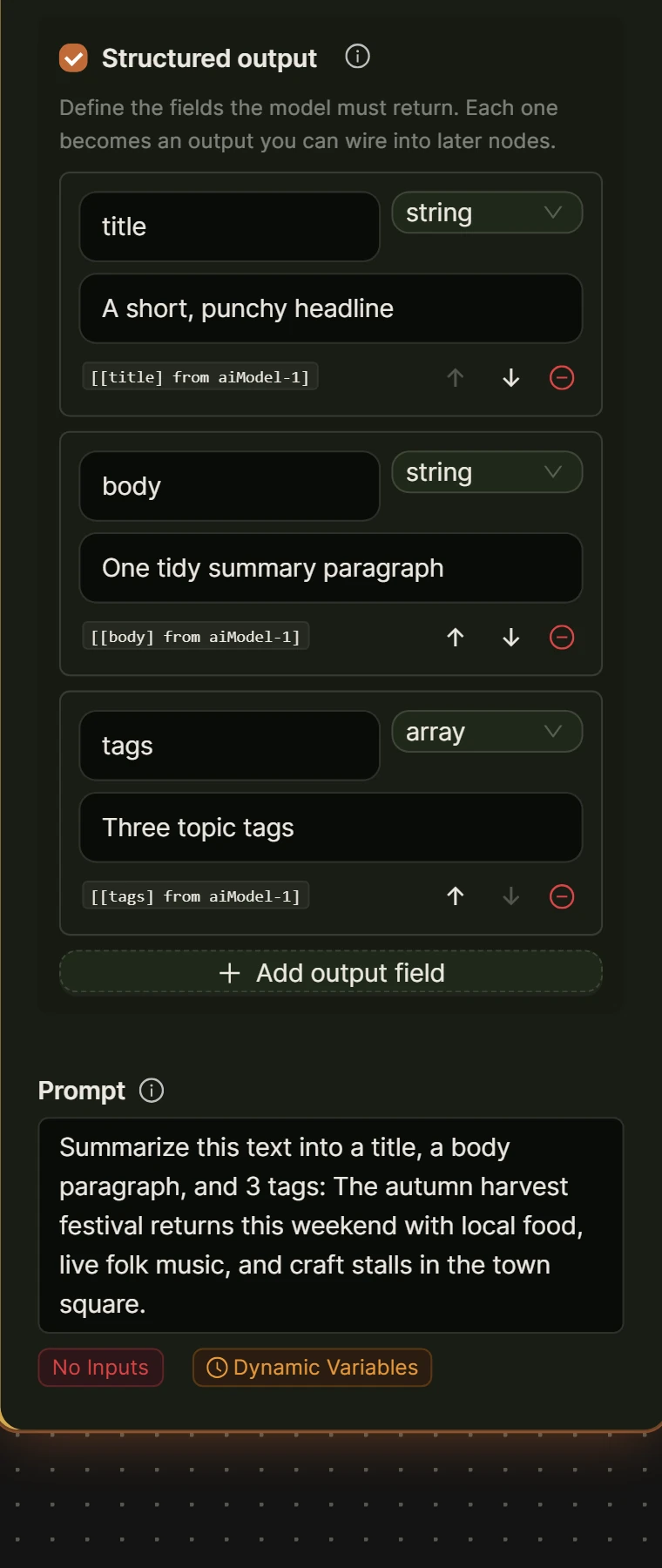
There is a second route worth knowing about. The AI Prompt node supports structured output, where you define a schema on the node itself and the model is constrained to return exactly those keys. OpenAI’s own documentation describes this guarantee plainly: Structured Outputs “ensures the model will always generate responses that adhere to your supplied JSON Schema”. Use the AI Prompt node with structured output when you want extraction and reasoning in a single step. Use Extract Information when you are post-processing text another node produced.
How do you validate the output before it is saved?
Validate before you save. A missing field that reaches your database is a row you have to find and fix later, and nobody ever finds it.
Three guardrails cover most cases:
- Gate on the field that must exist. Add a Condition node after extraction and branch on the one value the record is worthless without, usually an email, an invoice number, or a policy number. Send the empty branch to a notification instead of the database.
- Add a human review step for anything financial or legal. The Human Input node pauses the run and posts the extracted values to the Tasks screen in wp-admin, where a reviewer approves or edits before the workflow continues. I would not run invoice or contract extraction without it.
- Store the parsed text alongside the fields. Add one extra column holding
[Input from parser-1]. When a value looks wrong three weeks later, you can check it against what the parser actually read, rather than re-uploading the original.
Where can you save the extracted data?
The Output node in AI Workflow Automation covers the destinations most sites need, and you can attach more than one to the same extraction step.
Save to Database writes a row to a table on your own WordPress site each run. You define the columns yourself from the Tables page, so a custom table for parsed invoices takes a minute to create and keeps the data inside your hosting. This is the option to pick when the documents contain personal data you would rather not send anywhere else.
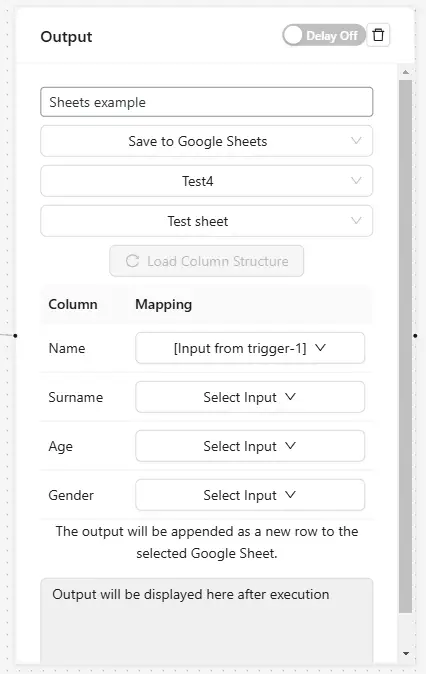
Save to Google Sheets appends a row to an existing spreadsheet. Connect your Google account under Settings, pick the sheet and tab, click Load Column Structure, then map each column to an extracted field.
For a CRM or any other application, use the Connect an App node, which reaches 2,700+ third-party apps as workflow actions, or the API Call node when you need to hit a specific endpoint yourself.
How accurate is document extraction, and what should you still check?
Accuracy depends far more on the document than on the model. Clean digital PDFs with plain paragraphs extract close to perfectly. Scanned faxes, dense financial tables, and multi-column layouts are where errors concentrate.
The public benchmarks agree on the shape of this. OmniDocBench, the document-parsing benchmark most 2026 comparisons run against, scores text extraction, table parsing, and formula recognition separately precisely because a system can be excellent at one and weak at another. Character accuracy on body text tells you very little about whether a model got the right number out of the right column.
So my honest guidance, from watching real runs:
- Spot-check the first twenty documents of any new workflow against the originals. Patterns of error show up fast, and they are almost always fixable with a better Field Description.
- Treat numbers and dates as the risky fields. Names and email addresses are rarely wrong. Totals pulled from a table with subtotals are wrong often enough to matter.
- Never auto-approve money. Route anything that triggers a payment, a refund, or a contract renewal through the Human Input node.
- Re-check after a model change. Swapping providers changes extraction behaviour, so re-run your sample set rather than assuming parity.
Frequently asked questions
Can WordPress read a PDF without a plugin?
No. WordPress stores uploaded PDFs in the media library but never reads their contents, so nothing in core can pull a value out of one. You need a plugin that parses the file into text first. AI Workflow Automation does this with its Document Parser node, which converts PDFs and office files into readable text that a second node can then extract fields from.
Does the document leave my WordPress site?
Partly, and it depends on the node. The Document Parser node sends the file to a hosted parsing service to convert it to text, and the AI node sends that text to your chosen AI provider. Everything else, including the workflow logic and the Save to Database output, runs on your own server under your own API keys.
Can it extract data from scanned or photographed documents?
Yes, within limits. The Document Parser node handles scanned pages, and extraction quality tracks scan quality: a clean 300 dpi scan usually works, a phone photo at an angle often does not. If you rely on scans, set the Language field on the parser’s Settings tab and test with your worst realistic sample rather than your best one.
How much does it cost to process each document?
With your own API keys the plugin itself is free and you pay only your provider’s token charges, which for a short document is typically a fraction of a cent. Longer documents cost more because the parsed text is larger. In cloud mode the Document Parser node costs zero credits and the Extract Information node costs 2 credits per run.
If you want to try the flow before building it, the resume demo runs a live document workflow in the browser. When you are ready to build your own, install the plugin free from the WordPress plugin directory, add your API key, and start with a five-field extraction on a single sample document. Get that right, then add the fields you actually need.