To schedule automated AI content in WordPress, you attach a recurring schedule to an AI workflow so it runs daily, weekly, or monthly without you touching it. AI Workflow Automation, a free WordPress plugin, includes scheduled execution: set the cadence, and the workflow generates and queues fresh posts on time, every time, as drafts you approve.
I am Navid, the developer of the plugin, and scheduling is the feature people misconfigure most. The mistakes are always the same three: too frequent, no monitoring, and no draft gate. AI Workflow Automation is a free WordPress plugin with a visual drag-and-drop builder that runs AI workflows, agents, and chatbots inside your own site, using your own API keys, with no external subscription required.
Why schedule AI content instead of running it on demand?
Scheduling removes the one thing that kills content programs: remembering to do it. A workflow set to run every Monday produces 52 drafts a year whether or not anyone opens the WordPress admin, and it produces them at a consistent quality because the prompt does not drift the way a rushed human brief does.
The second benefit is timing. A scheduled run at 06:00 means the draft is waiting when your editor starts work rather than being commissioned then, which pulls a day out of every content cycle. The third is cost predictability: a weekly workflow costs the same every week, so you can forecast API spend instead of guessing.
How do scheduled runs differ from manual and event triggers?
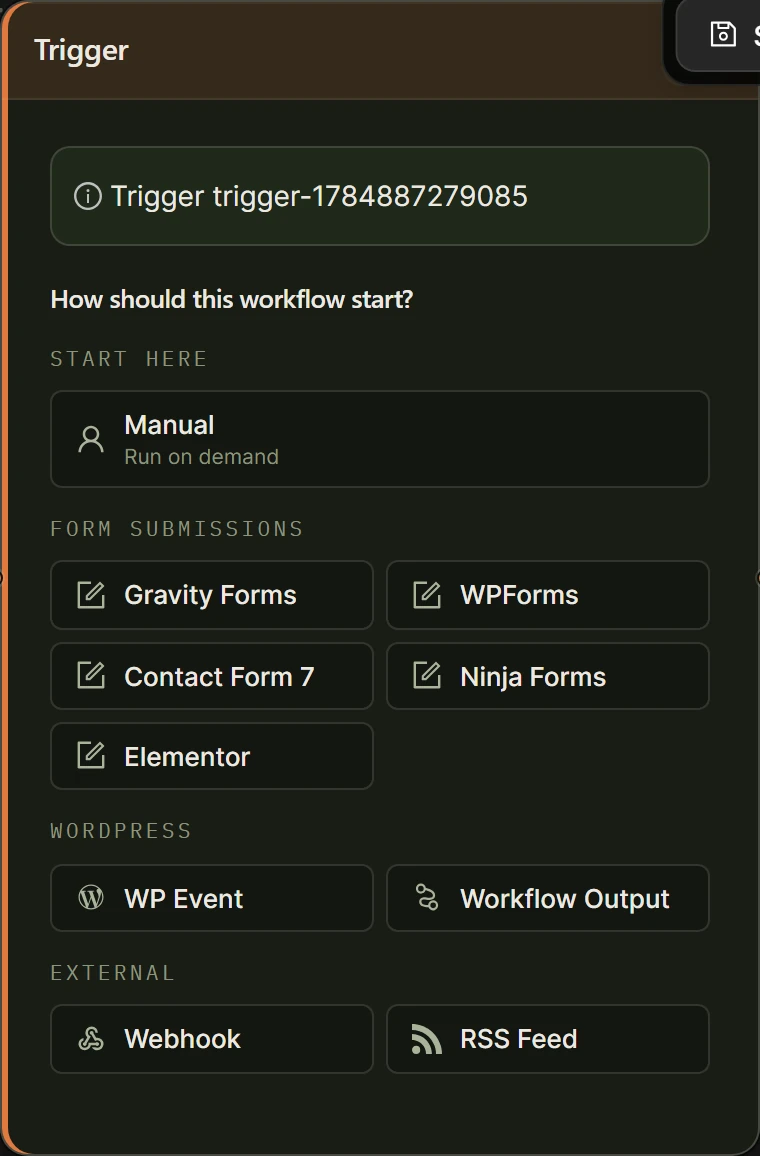
In AI Workflow Automation, scheduling is not a trigger type. Triggers answer “what event starts this workflow,” while the schedule answers “how often does this workflow run on its own.” You set the trigger on the canvas and the schedule on the Management page, and the schedule works with any trigger you have chosen.
| Run type | Where you set it | Fires when | Best for |
|---|---|---|---|
| Manual trigger | Trigger node, Start Here group | You click Run in the builder | Testing and one-off generation |
| Form submission trigger | Trigger node, Form submissions group | Someone submits a Gravity Forms, WPForms, CF7, Ninja, or Elementor form | Reacting to a visitor |
| WordPress Core trigger | Trigger node, WordPress group | A core event happens, such as a post being published | Reacting to site activity |
| Webhook trigger | Trigger node, External group | An outside app POSTs to the generated URL | Reacting to another system |
| RSS trigger | Trigger node, External group | A watched feed publishes a new item, polled every 5 minutes to 24 hours | Source-driven content |
| Workflow schedule | Management page, Schedule Workflow modal | Every N minutes, hours, days, weeks, or months | Recurring content on a calendar |
The trigger types are listed in full in the trigger nodes documentation.
How do you set up a recurring content workflow?
You build the workflow first, prove it works with a manual run, then attach the schedule. Scheduling a workflow you have never successfully run is how people end up with 30 broken drafts before they notice.
- Build the content workflow on the canvas. At minimum: a Trigger node, a Write an Article node, and a Create Post node with Post Status set to Draft.
- Run it once from the builder and read the output end to end. Fix the prompt now, not after 20 runs. Then save and activate.
- Open the Management tab in the AI Workflows admin screen. Every workflow appears as a row.
- Click the clock icon in the Actions column. The Schedule Workflow modal opens.
- Set Repeat Every to a number and Unit to Minute(s), Hour(s), Day(s), Week(s), or Month(s). “1” and “Week(s)” gives you a weekly post.
- Optionally set an End Date so the schedule stops on its own. I use this for campaign content so it cannot run forever unattended.
- Click Save Schedule. The row now shows a Scheduled badge, and hovering it displays the cadence and end date.
To stop a schedule later, reopen the same modal and click Delete Schedule. The workflow stays intact and can still be run manually.
Worth knowing how this works underneath. Local scheduled runs use WP-Cron, and the WordPress Plugin Handbook is blunt about what that means: “WP-Cron works by checking, on every page load, a list of scheduled tasks to see what needs to be run,” and “WP-Cron does not run constantly as the system cron does; it is only triggered on page load.” On a quiet site, a 06:00 job can fire at 09:20 because nobody visited in between.
Two fixes. Point a real server cron at wp-cron.php, which the handbook covers in hooking WP-Cron into the system task scheduler, or run the workflow in Cloud mode, where schedules execute server side with no PHP timeout. See the execution and scheduling documentation.
What cadence and volume are actually safe?
Publish on a schedule your review capacity can sustain. One good post a week that a human read beats seven a week that nobody did. My default recommendation for a new site is one scheduled workflow producing one draft per week, reviewed the same day.
Concrete guidance by situation:
- Solo site or small team: 1 scheduled content workflow, Repeat Every 1 Week(s). Roughly 52 drafts a year, all reviewable.
- Team with a dedicated editor: 2 to 3 workflows on different topics, each weekly. Still one review session per week.
- News or feed-driven site: use an RSS trigger rather than a schedule, so you react to real items instead of manufacturing posts on a clock.
- Never: Repeat Every 1 Hour(s) on a content workflow. That is 8,760 posts a year and it is exactly the pattern Google names as scaled content abuse.
Google’s spam policies define the risk precisely: “Scaled content abuse is when many pages are generated for the primary purpose of manipulating search rankings and not helping users,” and the policy explicitly includes “using generative AI tools or other similar tools to generate many pages without adding value for users.” Frequency is not the violation. Frequency without value is.
Minute and hour units exist because non-content workflows need them: a sync job, a monitoring check, an inbox poller. Use them there, not on a publishing pipeline.
How do you keep scheduled output on-brand?
Scheduled output drifts when the prompt is generic, because there is no human adding context at run time. The fix is to make the workflow carry the context that a person would otherwise supply.
- Put concrete voice rules in the Writing Style field of the Write an Article node. Name the person, the sentence length, the words you ban.
- Paste two or three sentences of your real published writing into the Content field as a style sample. A sample outperforms a description every time.
- Vary the input, not just the prompt. Feed the workflow from a topic list, an RSS item, or a Research node so each run starts from different material.
- Read the first four runs in full. Voice problems appear immediately and are cheap to fix in the prompt.
Keep the Create Post node’s Post Status on Draft. If you want the approved post to go live later at a fixed time, that node also offers a Schedule status with a Schedule Date field, which is WordPress post scheduling and is separate from the workflow schedule.
How do you monitor scheduled runs and failures?
A schedule you do not watch is a schedule that silently stopped three weeks ago. AI Workflow Automation gives you two screens for this and you should look at both weekly.
- Open the Queue tab. It lists runs with columns for Status, Consumption, Next run, Created, and Updated, so you can see whether the last scheduled run succeeded and when the next is due.
- Check Next run first. A next run in the past means WP-Cron did not fire, which points at the page-load problem rather than a workflow bug.
- Open the Management tab and read the Last Execution and Status columns for each workflow.
- Watch Consumption for drift. A run that suddenly costs far more than usual means a prompt is receiving more input than you expected.
Honest limitation: WordPress does not tell you when a cron event quietly stops being registered. That is the strongest practical argument for Cloud mode on anything business critical.
Example: how do you build a weekly roundup post?
A weekly roundup is the best first scheduled workflow because the input changes on its own, which keeps the output fresh without prompt engineering.
- Add a Trigger node set to Manual while building.
- Add a Research node with the query “most notable developments in [your topic] this week,” Search Recency set to Past week, and citations on.
- Add a Write an Article node fed from
[Input from research-1], Word Count 900, Writing Style describing a roundup format with one paragraph per item. - Add a Human Input node set to Approval Required and assigned to your editor role.
- Add a Create Post node: Post Type post, Post Status Draft, content from
[[Approved Content] from humanInput-1]. - Run it manually once and read every cited link, then go to Management, open Schedule Workflow, set Repeat Every 1 and Unit Week(s), and save.
More content workflow patterns are on the content creation hub.
Frequently asked questions about scheduling AI content in WordPress
Can WordPress publish AI posts automatically on a schedule?
Yes. AI Workflow Automation lets you attach a recurring schedule to any workflow from the Management tab, with a Repeat Every value and a unit of minutes, hours, days, weeks, or months. The workflow then generates content on that cadence unattended. Set the Create Post node to Draft so a person still approves each piece before it goes live.
Why did my scheduled WordPress workflow not run on time?
Almost always WP-Cron. WordPress does not run a real clock: WP-Cron checks for due tasks on page load, so on a low-traffic site a job scheduled for 06:00 runs whenever the next visitor arrives. Fix it by pointing a real server cron job at wp-cron.php, or by running the workflow in Cloud mode where schedules execute server side.
How often should I schedule AI blog posts?
Once a week for most sites, and never more often than you can genuinely review. One reviewed post per week is sustainable and safe. Hourly or daily generation on a small site produces pages nobody checks, which is the pattern Google describes as scaled content abuse: many pages made to manipulate rankings rather than help users.
What is the difference between scheduling a workflow and scheduling a post?
They are two different clocks. The workflow schedule, set in the Schedule Workflow modal, controls how often the automation runs and produces new drafts. WordPress post scheduling, set through the Create Post node’s Schedule status and Schedule Date field, controls when an individual finished post becomes publicly visible. Most content pipelines use both.
Put your content on a clock
Build one workflow, run it manually until the output is genuinely good, then give it a weekly schedule and a draft gate. That single loop does more for a content program than any amount of prompt tuning. Install AI Workflow Automation from the WordPress plugin directory and read the execution and scheduling documentation before you pick a cadence.