You can auto-respond to WordPress form submissions with AI by triggering a workflow the moment a form is submitted, sending the entry to an AI model, and emailing a tailored reply. AI Workflow Automation, a free WordPress plugin, connects natively to Gravity Forms, WPForms, Contact Form 7, and Ninja Forms, so each submission gets a personalized AI answer without Zapier or any external automation service.
I develop AI Workflow Automation, so this uses the real trigger names, field labels, and variable syntax from the builder. AI Workflow Automation is a free WordPress plugin with a visual drag-and-drop builder that runs AI workflows, agents, and chatbots inside your own site, using your own API keys, with no external subscription required.
What does an AI auto-response to a form submission actually do?
An AI auto-response reads the content of the submission and writes a reply specific to it, rather than sending the same confirmation text to everyone. The generic version says “Thanks, we received your message.” The AI version answers the question that was asked, or at least demonstrates that someone read it.
The workflow has four moving parts:
- A trigger fires the instant the form is submitted, carrying the entry data.
- An AI model reads the fields and produces a reply, usually alongside a subject line and a classification.
- An email node sends that reply to the submitter.
- Optional branches route, tag, or escalate the lead based on what the AI found.
What it is not: an inbox replacement. A good auto-response buys you time and answers the easy 60%, while flagging the rest for a human faster than an unread inbox would.
Which WordPress form plugins work with AI Workflow Automation?
Five form plugins have native trigger nodes, so there is no webhook or middleware in between. WPBeginner’s contact form plugin comparison ranks WPForms, Gravity Forms, and Formidable Forms as the most widely used options, with WPForms alone reporting over 6 million active installations.
| Form plugin | Trigger node | Field variable syntax | Requirement |
|---|---|---|---|
| Gravity Forms | Gravity Forms Trigger | [[Email] from trigger-1] by field label |
Plugin active, at least one form |
| WPForms (Lite or paid) | WPForms Trigger | [[Name] from trigger-1] by field label |
Plugin active, at least one form |
| Contact Form 7 | Contact Form 7 Trigger | [[your-email] from trigger-1] by mail tag |
Plugin active, at least one form |
| Ninja Forms | Ninja Forms Trigger | By field key | Plugin active, at least one form |
| Elementor Forms | Elementor Forms Trigger | By field label | Elementor Pro forms |
All of these triggers cost 0 credits and run in both local and cloud execution modes. The submission itself is always captured on your WordPress site, regardless of which mode the rest of the workflow runs in.
The syntax difference matters in practice. Gravity Forms, WPForms, and Elementor expose fields by their human-readable labels, so [[Message] from trigger-1] works. Contact Form 7 uses its mail tags, so the same field is [[your-message] from trigger-1]. For the whole submission as one object, every trigger supports [Input from trigger-1].
How do you build the form-to-AI-to-email workflow?
Six nodes, about ten minutes. This is the version I recommend people start with, because it works and it is small enough to debug.
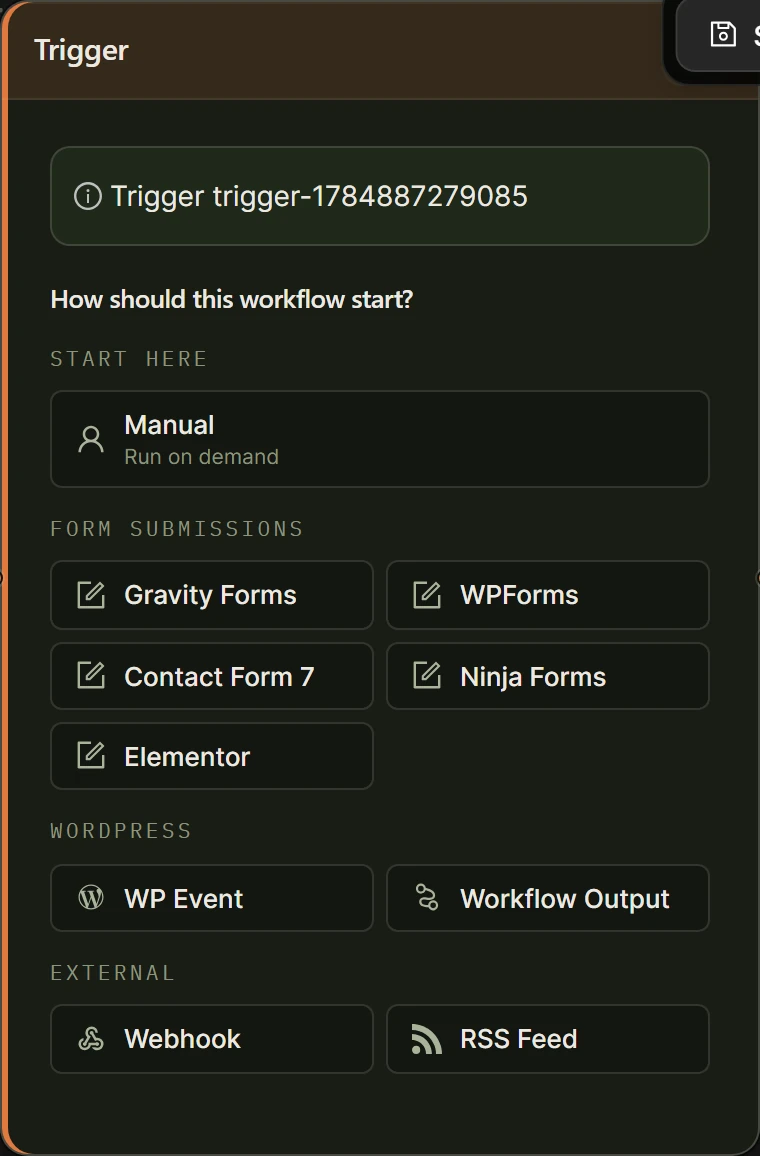
- Add a Trigger node and pick your form plugin. Open the trigger picker, choose your plugin from the Form submissions group, then select the specific form. The node loads and displays the form’s fields underneath the selector so you can confirm the names before you reference them.
- Add a Sentiment Analysis node (optional but useful). Feed it the message field. It classifies the sentiment of the text and is designed to sit upstream of a Condition node, which is how you route angry submissions differently.
- Add an AI Prompt node with Structured output on. Define four schema fields:
subject,reply,category, andpriority. One node then produces everything the rest of the workflow needs, each separately addressable as[[reply] from ai-1]. - Add a Condition node. Branch on
[[priority] from ai-1]. High-priority submissions take the escalation path, everything else takes the auto-reply path. - Add the Send Email node. Set To to
[[Email] from trigger-1], Subject to[[subject] from ai-1], and Body to[[reply] from ai-1]. Turn on Send as HTML if your reply contains formatting. The node also supports Cc, Bcc, Attachments, and a Delay measured in minutes, hours, or days. - Test with a real submission. Fill in your own form on the front end. Do not rely on the builder’s Run button alone, because a manual run does not carry real entry data.
A small trick worth using: set the Send Email node’s Delay to two or three minutes. An instant reply reads as automated. A reply that arrives a few minutes later reads as attentive, and it also gives you a window to catch a misfire before it lands.
How do you write prompts that personalize each reply?
The quality of the reply is set almost entirely by the prompt, and the most common mistake is asking for a reply without giving the model anything to reply with.
Four things every auto-response prompt should contain:
- The actual submission fields. Interpolate them individually rather than dumping the raw object, so the model knows which value is the name and which is the question.
- Your business facts. Opening hours, turnaround times, what you do not sell, where you do not ship. Without these the model guesses, and a confident wrong answer in an outbound email is worse than no answer.
- Explicit boundaries. “Never quote a price. Never promise a delivery date. If the question involves an existing order, say a team member will follow up within one business day.”
- A length and format instruction. “Under 120 words, no bullet points, sign off as the team.” Auto-responses that run long read as generated.
Include the visitor’s name and reference their specific question in the first sentence. That single instruction does more for perceived quality than any amount of tone tuning.
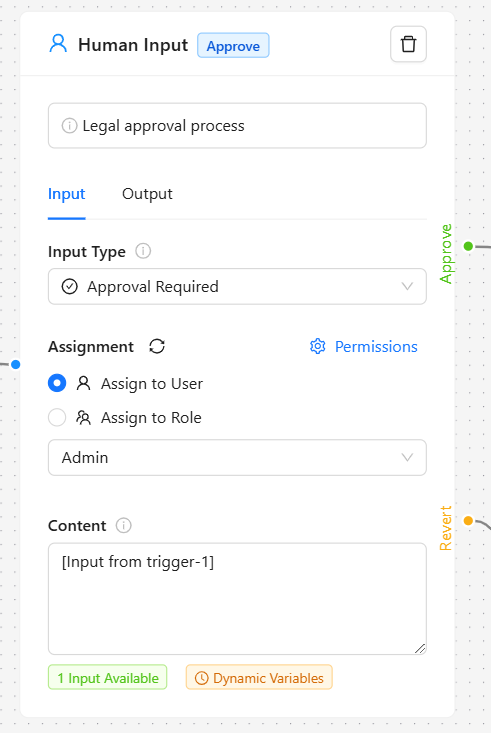
If a category of enquiry is too sensitive for an automated reply, do not try to prompt your way around it. Route it to a Human Input node instead, set to Approval Required and assigned to a user or role. The assignee gets an email and a counter on the Tasks menu in wp-admin, and the reply only sends after they click Approve.
How do you route and tag leads with AI?
The same AI Prompt node that writes the reply can classify the submission, which turns your contact form into a triage system at no extra cost per run.
Useful classification fields to add to the structured output schema:
- category: sales, support, partnership, recruitment, spam.
- priority: low, normal, high.
- intent_summary: one sentence, for the notification subject line.
- requires_human: a boolean the Condition node can branch on directly.
Downstream, the Condition node sends each branch somewhere different. Sales enquiries can go to a Connect an App node that adds a row to Google Sheets or posts to a Slack channel. Support enquiries can go to a second Send Email node addressed to your team with the summary in the subject. Spam can simply end the branch.
This is where an in-WordPress workflow earns its keep against an external automation platform: the entry never leaves your site to be classified. If you are weighing that trade-off in general, I have written separate breakdowns of AI Workflow Automation vs Zapier and AI Workflow Automation vs n8n.
Where does the data go, and is it private?
In local execution mode, which is the default, the workflow runs on your own server. The form entry is captured by WordPress, processed by PHP on your host, and the only outbound call is to the AI provider whose API key you configured. There is no automation vendor in the middle holding a copy.
The entry also stays where your form plugin keeps it. Gravity Forms stores submissions in its own tables and surfaces them on the Entry List page, where you can browse, filter, and export them independently of any workflow.
Three privacy points worth being precise about:
- The AI provider does see the submission text. That is unavoidable when you call a hosted model. Check your provider’s data retention and training terms, and exclude sensitive fields from the prompt if needed.
- You choose the provider. Because the plugin uses your own key, you can pick a provider whose terms and jurisdiction suit you, rather than inheriting a SaaS vendor’s choice.
- Cloud mode changes the picture. If you switch a workflow to cloud execution, the payload is processed on the hosted engine. Keep form workflows in local mode if that matters to you.
What goes wrong with AI form auto-responses?
Five failure modes account for nearly everything I get asked about.
- Referencing a field that does not exist. The trigger node lists the real field names below the selector. Use those, and remember Contact Form 7 uses mail tags rather than labels.
- Emails not arriving. This is almost always WordPress mail delivery, not the workflow. Install an SMTP plugin and verify delivery before blaming the AI.
- The bot answering questions it should not. Add explicit boundaries to the prompt and route sensitive categories through a Human Input node.
- Replying to spam. Add a spam category to the classification and branch it to a dead end. Auto-replying to a spambot wastes tokens and can get your domain flagged.
- No fallback path. If the AI node fails, the submitter should still get the plain confirmation email. Wire a second Send Email node to the failure branch.
An auto-response that answers the wrong question confidently does more damage than no auto-response at all. Constrain the prompt, then test with the ten weirdest submissions you have ever received.
Frequently asked questions
Can Gravity Forms send an AI-generated auto response?
Yes. AI Workflow Automation adds a Gravity Forms Trigger node that fires on submission and exposes each field as [[FieldLabel] from trigger-1]. You pass those into an AI Prompt node and send the result with the Send Email node. The trigger costs 0 credits and needs no webhook or third-party automation service.
Does this work with WPForms and Contact Form 7?
Yes. WPForms (both Lite and paid), Contact Form 7, Ninja Forms, and Elementor Forms all have native trigger nodes alongside Gravity Forms. The only practical difference is variable syntax: Contact Form 7 exposes fields by mail tag, such as [[your-email] from trigger-1], while the others use field labels.
Do form submissions leave my WordPress site?
In local execution mode the workflow runs on your own server and the only outbound call is to the AI provider whose key you configured. The entry itself stays in your form plugin’s tables. If you switch the workflow to cloud execution, the payload is processed on the hosted engine instead, so keep form workflows local if that matters.
How do I stop the AI from promising something it should not?
Put explicit boundaries in the prompt (no prices, no delivery dates, no order-specific claims) and add a requires_human field to the structured output. Branch on it with a Condition node so sensitive submissions route to a Human Input node set to Approval Required, where a person approves the reply before it sends.
Where to go next
Install AI Workflow Automation from the WordPress.org plugin directory, add a trigger for the form plugin you already use, and send yourself a test submission before you point it at real enquiries. The Trigger Nodes documentation lists every available trigger and the exact variable syntax for each one.
The human approval step is a smart approach here. A lot of businesses hesitate with AI automation because they worry about losing control, but keeping review points for sensitive actions makes it much easier to adopt AI while still improving speed and efficiency.