A WordPress AI chatbot makes things up when it answers from the model’s general training instead of your actual content, so the fix is to ground every reply in your own material, tell it explicitly to admit when it does not know, and hand hard questions to a person. AI Workflow Automation, a free WordPress plugin, builds all three controls into its Chatbot node.
We build this plugin, and a chatbot that tells a customer something untrue is one of the fastest ways a support conversation turns into a complaint. AI Workflow Automation is a free WordPress plugin with a visual drag-and-drop builder that runs AI workflows, agents, and chatbots inside your own site, using your own API keys, with no external subscription required. This guide covers why a chatbot invents answers and the fixes, in order of impact.
Why does a WordPress AI chatbot make things up?
A WordPress AI chatbot invents an answer, usually called a hallucination, when the underlying language model has no real source to check against and fills the gap with a plausible guess. A widely cited survey of hallucination in natural language generation (Ji et al., ACM Computing Surveys) describes the same pattern across every kind of text generator: fluent output that is not supported by the source it was given. Five causes account for most of it on a WordPress site.
| Cause | What it looks like | Fix |
|---|---|---|
| No grounding | The chatbot answers from general training instead of your site, so specifics get invented | Attach a Knowledge Base (RAG) on the Model tab |
| Stale content | The knowledge base was built once and never updated, so it answers from an old price or an old policy | Re-ingest pages and files whenever the source content changes |
| Vague instructions | The system prompt never says what to do when the answer is not there, so it guesses instead of saying so | Add an explicit refusal rule on the Instructions tab |
| Too-creative settings | A high temperature lets the model elaborate well past what it actually retrieved | Lower temperature and top-p on the Model tab |
| Questions outside scope | A visitor asks something the chatbot was never meant to cover, and it answers anyway | Turn off unrelated tools and set a handoff trigger |
How does grounding a chatbot in your own content stop hallucinations?
Grounding means the chatbot retrieves real passages from your own content before it answers, rather than relying only on what the model absorbed during training. Researchers call this pattern retrieval-augmented generation, or RAG, and it is the single highest-impact fix for a chatbot that guesses. In AI Workflow Automation it lives in the Knowledge Base (RAG) feature, attached to the Chatbot node’s Model tab.
The technique was introduced in 2020 to fix models whose “ability to access and precisely manipulate knowledge is still limited“, by pairing a language model with a retriever that pulls in real source material at answer time. Security guidance treats it as a core mitigation too: the OWASP GenAI Security Project defines the risk plainly, noting that misinformation “occurs when LLMs produce false or misleading information that appears credible“, and its recommended fix is retrieval from a trusted, verified source rather than the model’s own memory.
In the plugin, retrieval is opt-in and fails open: a node with no knowledge base selected behaves as before, and an unreachable store just means the run continues without the extra context. When one is attached, the plugin finds the passages that best match a visitor’s question, adds them to the prompt, and tells the model to say when nothing relevant turned up rather than invent a reply.
How do you set up a knowledge base for your WordPress chatbot?
Setting up a knowledge base means connecting a small vector database, adding your content to it, and pointing the Chatbot node at it. You need the plugin installed, an OpenAI API key added under Settings (it generates the embeddings, even if the chatbot answers on a different model), and a free Supabase project, since that is where your content’s vectors are stored.
- Add your OpenAI key. Open Settings and add an OpenAI API key under AI provider and API settings.
- Connect Supabase. Open Settings, Knowledge Base Management, and stay on the Supabase (RAG) tab. Paste your Supabase project URL and API key, then save.
- Run the setup SQL. Copy the setup SQL shown on that tab and run it once in the Supabase SQL editor. It enables pgvector, creates the table, and adds the match function the plugin queries.
- Test the connection. Click Test connection. A green result confirms WordPress can reach Supabase.
- Create a knowledge base. On the same tab, create one and name it, for example “Support docs.”
- Add your content. Open the knowledge base and add content by pasting text, ingesting existing WordPress posts and pages, or uploading TXT, MD, CSV, PDF, DOC, DOCX, or RTF files. PDF, DOC, DOCX and RTF uploads also need a LlamaParse API key in Settings; plain-text files do not. Mix all three sources freely.
- Attach it to the chatbot. Open the Chatbot node, go to the Model tab, turn on Knowledge base, and select the one you just built.
- Preview before you publish. Use the node’s preview to ask it real questions and confirm it answers from your content, then save and paste the shortcode onto a page.
How do you tell the chatbot to admit when it does not know?
You tell the chatbot to admit uncertainty by writing that rule directly into its system prompt, on the Instructions tab of the Chatbot node, since that tab is the one place that sets the agent’s role, personality, and rules. A single explicit line does more for accuracy than any model setting: something like “if the retrieved content does not clearly answer the question, say you are not sure rather than guessing.”
This matters even with a knowledge base attached, because retrieval only supplies the source material. The model still decides how to use it, and a vague prompt leaves room to fill gaps with confident-sounding invention. Spell out what “not sure” should look like too, such as saying so plainly and offering to hand off, rather than leaving the model to decide.
Model parameters play a smaller but real part. On the Model tab, Temperature and top-p control how much the model elaborates beyond what it retrieved, and maximum response length caps how far a single reply can run on. A lower temperature keeps answers closer to the source text; a high one produces more inventive prose.
How do you keep the chatbot from answering questions outside its scope?
You keep a chatbot inside its scope by only enabling the tools it needs, since every Chatbot node fails closed: a capability not turned on in the Capabilities table is never offered to the model, so it cannot call it. This lives on the Actions tab, and it is worth treating as a checklist rather than a set of defaults to leave alone.
Search posts and pages, and Search products for WooCommerce, are both off by default, so a chatbot meant only for support questions never accidentally searches your catalogue unless you turn that on. The same goes for any action you build yourself: it only exists as a tool if you added it.
Narrowing scope is a writing job too, not just a settings job. An instruction that states what the agent covers, such as “you answer billing and account questions only,” gives the model a boundary it can recognise, and one it can therefore decline to cross.
When should the chatbot hand off to a person instead of guessing?
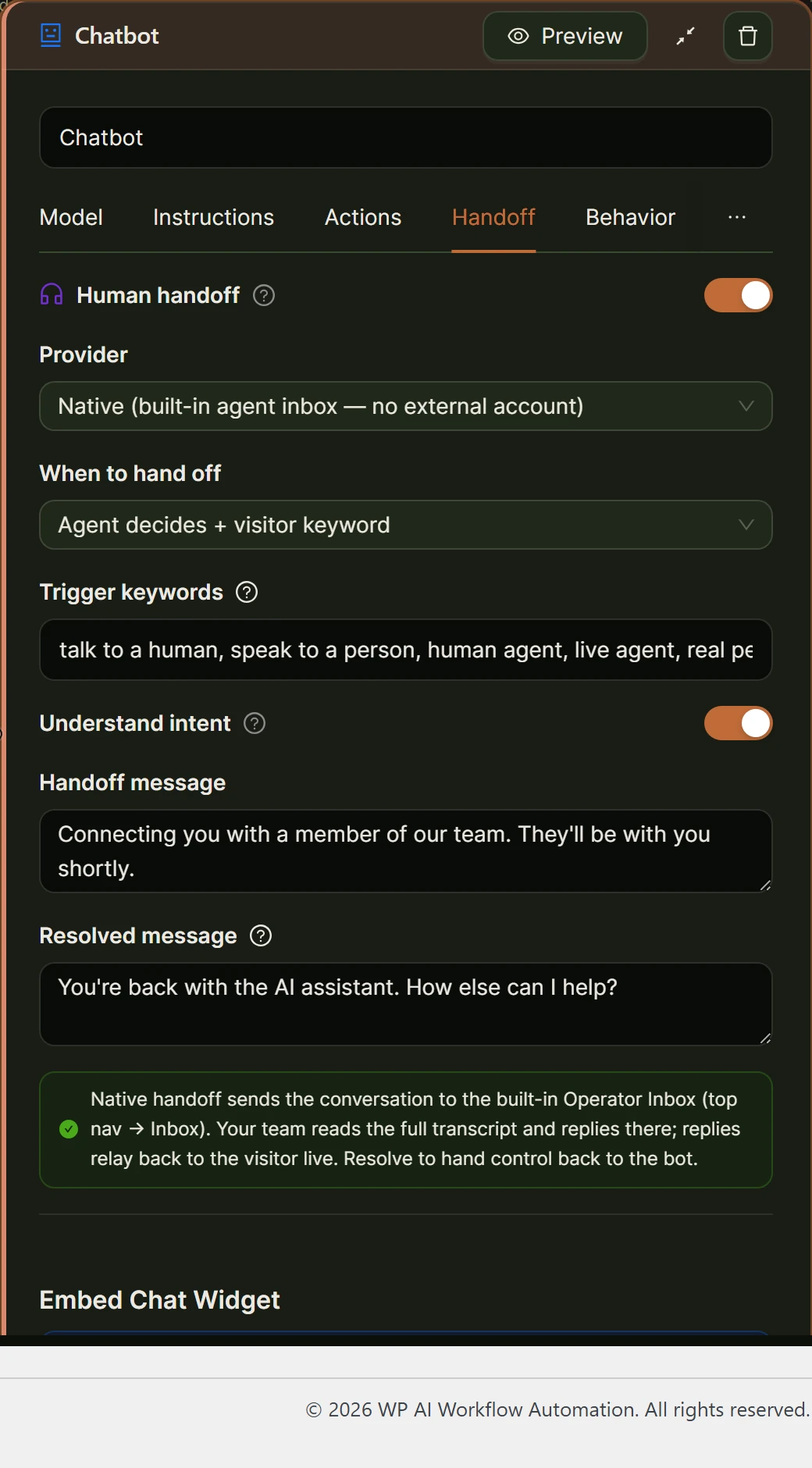
A chatbot should hand off whenever a question falls outside what it can answer accurately, whenever a visitor asks for a person directly, or whenever the topic carries real consequences, such as a refund. Human handoff, configured on the Handoff tab, pauses the bot and relays messages between the visitor and your team until someone resolves the conversation.
The built-in option, Native, needs no external account: handed-off conversations go straight to the Operator Inbox inside wp-admin. Chatwoot, Zendesk Sunshine Conversations, and Intercom are also supported if your team already runs one of those.
You choose when a handoff starts: the agent deciding on its own, an exact visitor keyword such as “talk to a human,” or both together, which is the default.
How do you test a chatbot for accuracy before you launch it?
You test a chatbot for accuracy by asking it real questions, the ones visitors actually type, not tidy examples invented for a demo. Use the node’s preview to run fifteen or twenty of them before you publish the shortcode, and check every reply against your own content rather than trusting that it sounds right.
Once it is live, review transcripts regularly. Conversations that reach a human handoff appear in the Operator Inbox labelled Visitor, Bot, and You, so you can see exactly what the chatbot said before anyone stepped in, and that is where wrong answers surface fastest.
When something does go wrong, Settings has a diagnostic-log download that captures recent errors without exposing your keys. Fix the specific case in the Instructions tab, one line at a time, and re-test it. Most hallucinations that survive a knowledge base are instruction problems, not model problems.
Frequently asked questions
Does adding a knowledge base completely stop a chatbot from hallucinating?
No. A knowledge base sharply reduces how often a chatbot invents an answer, because it gives the model real passages to check against, but it does not remove the risk entirely. The model can still misread a retrieved passage or blend it with its own training. Pair it with an explicit refusal instruction and real testing rather than treating it as a complete fix.
Why does my chatbot still make things up even though I attached a knowledge base?
The most common reason is that the content it needed was never added to the knowledge base, or was added but never re-ingested after the source page changed. Check what was actually retrieved for that question before assuming the model is at fault: if the right passage was never in the store, no instruction will fix it.
Does lowering the temperature setting fix hallucinations on its own?
Not on its own. A lower temperature on the Model tab keeps a chatbot closer to the words it retrieved, which helps, but it does nothing if the chatbot has no source material to draw from. Treat temperature as a small tuning knob you adjust after grounding and instructions are already in place, not as the main fix.
How do I know if my chatbot is giving wrong answers after it goes live?
Read transcripts, not just satisfaction ratings. Conversations that hand off to a human appear in the Operator Inbox with the full exchange labelled by who said what, which is the fastest way to catch a wrong answer early. For anything that never reaches a human, have a colleague try real questions periodically and compare the answers to your content.
The fastest way to see this working is to ground a small chatbot in one page of your content and try to break it with a question it should refuse. Install AI Workflow Automation free from the WordPress plugin directory, and for a longer look at grounding, read how to train a WordPress AI chatbot on your content.