A prompt library for a content team is a set of tested, reusable prompts built once and run the same way by anyone on the team, instead of a shared document people copy and paste from. AI Workflow Automation, a free WordPress plugin, lets you save each prompt as a workflow node with its own variables and defined output fields, so the prompt behaves the same way every time it runs.
Most content teams already have prompts, living in a Google Doc or someone’s Slack history, pasted into an AI tool with small, unrecorded changes each time. AI Workflow Automation is a free WordPress plugin with a visual drag-and-drop builder that runs AI workflows, agents, and chatbots inside your own site, using your own API keys, with no external subscription required. Saved as workflow nodes instead of a document, the same prompts run the same way for everyone, and a fix to one is a fix everyone gets.
What is a prompt library, and why does a content team need one?
A prompt library is a collection of prompts a team can run without rewriting them from scratch, each one tested against real work and kept in one place. A content team needs one because prompt quality drifts the moment more than one person is writing: word choice, structure, and output format all shift from post to post. A library fixes the target, not the writer’s memory.
IBM puts the underlying reason plainly: “The basic rule is that good prompts equal good results.” A library keeps that rule from depending on who happens to be writing that day. A shared document fails in three ways: a writer improves their copy and never pushes the fix back, nobody can say which version produced a given post months later, and the prompt has no memory of what fields the output should contain, so every writer reformats the result by hand afterward.
What makes a prompt reusable instead of a shared doc?
A reusable prompt pairs well-written text with two things a document cannot hold: named variables that pull in real data at run time, and a defined output structure the next step can read automatically. Both live on the AI Prompt node in AI Workflow Automation, turning a paragraph of instructions into a working part of a workflow.
Type a forward slash in the node’s Prompt box and a menu lists every upstream node you can pull data from; picking one inserts a pill such as [Input from trigger-1] for a whole result, or [[title] from ai-1] for one named field. See the data flow and variable handling guide for the full tag syntax. These prompts work pasted into ChatGPT too, but a document only ever gives you the wording, not everyone using that wording with the same output shape automatically.
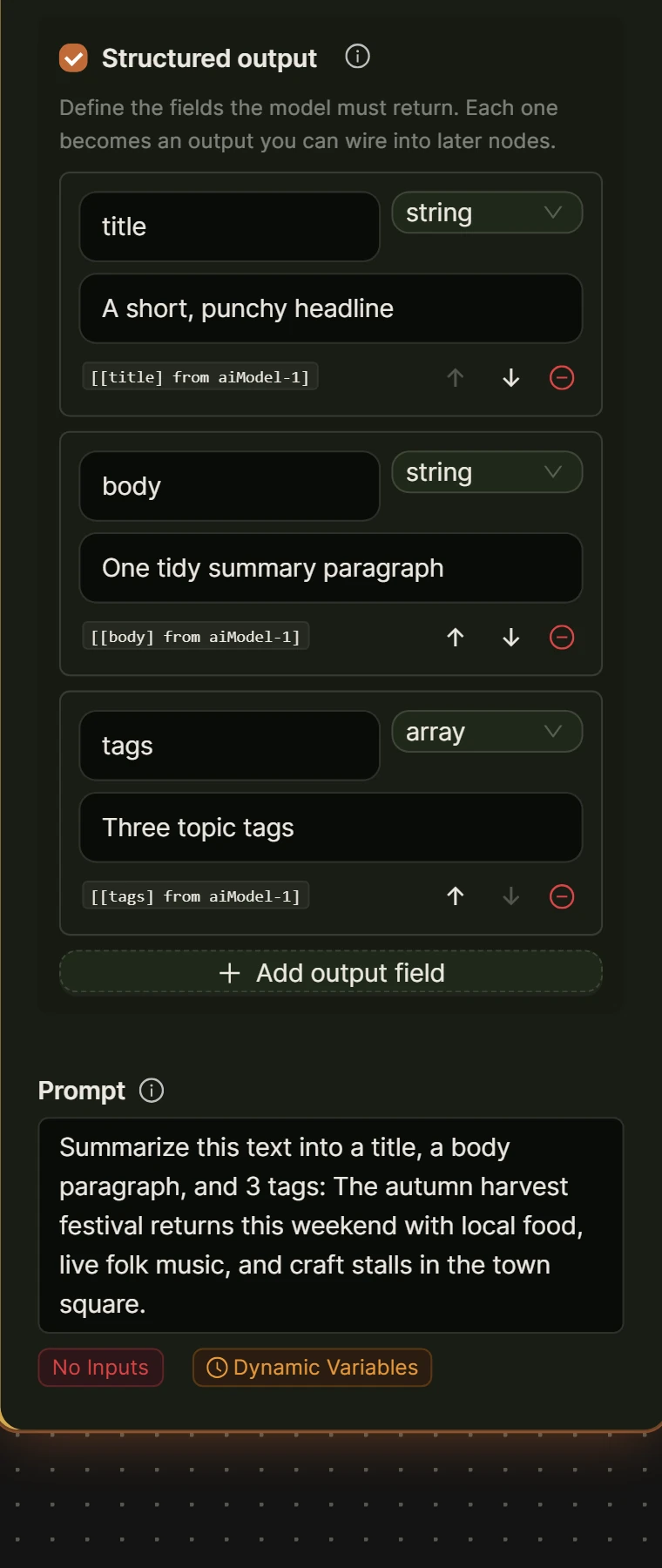
Turn on Structured output on the node’s Model tab and it returns named, typed fields instead of one block of prose. See the AI Model node documentation for the field types. Anthropic’s own guidance for its Claude models explains why wording still matters even with structure in place: “Claude responds well to clear, explicit instructions.” OpenAI says its GPT models “benefit from more explicit instructions around how to accomplish tasks.” A structured output field is that explicitness made permanent, instead of retyped by whoever is prompting that day.
How do you turn five prompts into one saved workflow?
Building a prompt library in AI Workflow Automation means creating one workflow that chains several AI Prompt nodes together, each one a named step in your content process, then saving it so the whole chain runs the same way for anyone on the team. You need the plugin installed and an API key for your AI provider added under Settings before you start.
- Open AI Workflow Automation in wp-admin, choose Start from Scratch, and name the workflow, for example “Blog post: brief to social.”
- Set the trigger to Manual. It gives one text box, not separate fields, so agree on a typing convention as a team, for example “Topic: ___. Audience: ___. Keyword: ___,” referenced downstream as [Input from trigger-1].
- Add five AI Prompt nodes in a chain, named Brief, Outline, Draft, Meta, and Social. For each, open the Model tab, pick a provider and model, paste in that node’s prompt from the templates below, turn on Structured output, and add that template’s fields.
- Wire each node to the one after it. The builder numbers AI Prompt nodes as it creates them (ai-1, ai-2 and so on), so the templates below assume you add Brief first and Social last; if yours differ, insert each reference with the forward-slash menu instead of typing it.
- Unsure a prompt is right? Open the in-canvas AI assistant at the bottom of the builder, which needs a connected account with credits since it runs separately from your local, key-based nodes. Chat explains what a node’s prompt is likely to produce; Edit proposes a change to the canvas for you to approve.
- Save the workflow, then run it on a real topic and read the live execution panel to see what each node actually produced, not only the last one’s output.
New to the builder itself? The step-by-step guide to creating workflows covers dragging, connecting, and running nodes in more detail than fits here.
What are five real prompt templates for a content team?
These five prompts cover a typical blog post from idea to social promotion: a brief, an outline, a draft, a title and meta description, and a social caption. Each one is written to go straight into an AI Prompt node’s Prompt box, with structured output fields listed underneath it, and each one after the first reads its input from the node before it rather than from scratch.
- Brief. Turns a topic into a one-page brief before anyone drafts anything. Prompt: “You are a content strategist. Read the topic, audience and target keyword below and produce a brief, not an article. Topic and context: [Input from trigger-1]. Return an angle in one sentence, the audience’s key questions, four to six key_points in order, and one primary_cta.” Structured output: angle (string), audience_needs (array), key_points (array), primary_cta (string).
- Outline. Turns an approved brief into headings a reader would actually search for. Prompt: “You are an editor. Angle: [[angle] from ai-1]. Points to cover: [[key_points] from ai-1]. Return an ordered list of H2 headings covering every point, in a logical order, avoiding generic labels such as Introduction or Conclusion, plus a rough word budget per heading.” Structured output: headings (array).
- Draft. Writes the first full draft from the outline, not from the topic again. Prompt: “You are a staff writer. Angle: [[angle] from ai-1]. Outline: [[headings] from ai-2]. Write one idea per paragraph in two to four sentences, use concrete nouns and only numbers you can support, and stop once the outline is covered.” Structured output: body (string).
- Meta. Writes a title and meta description once the draft exists, never before. Prompt: “Draft: [[body] from ai-3]. Original brief and keyword: [Input from trigger-1]. Return a title under 60 characters that includes the target keyword named in the brief, and a meta_description of 140 to 155 characters that gives a genuine reason to click.” Structured output: title (string), meta_description (string).
- Social. Writes one honest caption promoting the finished piece. Prompt: “Article title: [[title] from ai-4]. Article summary: [[body] from ai-3]. Write one caption for a small business audience, not a media brand: state the one useful thing the reader learns and end with a plain invitation to read the piece, under 280 characters, no hashtags.” Structured output: caption (string).
How do you version prompts and share them with your team?
Versioning a prompt library means being able to change one prompt, test the change, and roll back if it performs worse, without breaking the copy everyone else is using. AI Workflow Automation handles this through workflow export and import rather than a separate version control system: exporting turns the whole chain into a JSON file, and importing recreates it on a canvas.
Before editing a prompt the team depends on, export the working workflow first: the file holds the node names, prompts, structured output fields, and connections, though not execution history, so it is a snapshot of the design, not of what any past run produced. Import it into a new, empty workflow and change the prompt there instead of on the live version. Once the result holds up, rename it with a version number, for example “Blog post: brief to social, v2,” and tell the team which one to use. The exported file carries no API keys or connected app accounts, so a team member importing it onto a different site still needs their own provider key added there first.
How do you add a review step before anything publishes?
A review step is a pause built into the workflow itself, not a separate approval process someone has to remember to run. In AI Workflow Automation, the Human Input node does this: placed after the Social node in a content prompt library, it stops the run and waits for a person before the piece goes anywhere near a live page.
Set its Input Type to Modification Required rather than Approval Required, since an editor usually wants to fix a word, not just accept or reject the whole piece. Assign it to a role, for example Editor, rather than one named person, so review does not stall when someone is out. The task appears on the Tasks page in wp-admin with the draft, meta description, and social caption together, so the reviewer sees the whole piece once. Only after approval should the chain reach a Create Post/Product node set to Draft, its default status, keeping a person between the model and anything public.
Frequently asked questions
What should go in a content team’s prompt library?
Start with the prompts every piece needs: a brief, an outline, a draft, and a title and meta description, since those cover most of a writer’s actual workflow. Add specialized prompts only once a pattern repeats often enough to be worth saving, for example a social caption format or a product description style. A library with three prompts everyone actually uses beats one with thirty nobody remembers.
How is a prompt library different from a document of saved prompts?
A document holds text that a person has to copy, paste, and adapt by hand every time, and nothing stops small differences from creeping in between writers. A prompt library built as workflow nodes runs the exact same prompt with the exact same structured output every time, and a fix to the prompt applies to every future run without anyone retyping it.
How often should a team update its prompts?
Update a prompt when you notice a specific, repeated problem in its output, not on a fixed schedule. Keep a short note of what changed and why next to the workflow name, export the working version before you touch it, and test the change on a few real topics before the rest of the team relies on it.
What makes a good AI prompt for content writing?
A good content prompt states the role, the input it should read, the exact output it must return, and what to avoid, rather than describing the topic in general terms and hoping for the best. Reference real input instead of retyping context, and tell the model when to stop, since an open-ended prompt tends to keep writing past the point that was useful.
Start with the three-node version: Brief, Draft, and one review step. Install AI Workflow Automation free from the WordPress plugin directory, and see the same idea running in the blog content creation workflow example.