To import a supplier CSV to WooCommerce with AI, you parse the file, split it into rows, and send each row through an AI step that writes a clean title, short description, long description, and attribute list before the product is saved as a draft. AI Workflow Automation, a free WordPress plugin, builds this as a visual workflow: a Document Parser node, a Loop node, two AI Prompt nodes, then a Create Post/Product node.
We build this plugin, and a supplier feed is one of the messier inputs it deals with: inconsistent columns, half-written names, specs buried inside one free-text field. AI Workflow Automation is a free WordPress plugin with a visual drag-and-drop builder that runs AI workflows, agents, and chatbots inside your own site, using your own API keys, with no external subscription required. This guide covers the real node chain for turning that mess into drafts worth publishing.
Why not just use WooCommerce’s own CSV importer?
WooCommerce already has a free CSV importer under Products, Import, and it works well when a supplier’s Name and Description columns are already clean. What it does not do is improve that text: whatever is in the file lands on the product page unchanged. Supplier feeds are rarely written for a storefront, so this is usually where the real work starts.
The problems repeat across suppliers: an empty description column, a manufacturer sentence copied onto every reseller’s site, or a specs field that jams material, size, and compatibility into one run-on line. None of these break a plain CSV import, they just produce a product page nobody wants to read. An AI step earns its place here, writing a title and two descriptions from whatever facts the row actually contains, instead of copying them through unchanged.
What do you need before you build this workflow?
Four things need to be in place before you start: AI Workflow Automation installed on the store, an API key from your AI provider, a WooCommerce catalogue to add products to, and a CSV export from your supplier saved somewhere the workflow can reach. None of this needs a platform account, because the workflow below runs entirely in Local mode.
- The plugin, with a provider key added. Add an OpenAI or OpenRouter key under Settings before you build the AI steps.
- WooCommerce, active on the same site. The Create Post/Product node needs the product post type to exist.
- The supplier’s CSV, uploaded or reachable by URL. Upload it in the builder, or host it somewhere the Document Parser node can fetch it.
- A small test batch in mind. Plan to run five to ten rows first and read every field before trusting the rest of the file.
How do you build the CSV-to-product workflow, step by step?
Five nodes do the work: a Document Parser reads the CSV, an AI Prompt node splits it into rows, a Loop node repeats the next two steps once per row, a second AI Prompt node writes the copy, and a Create Post/Product node saves the result as a draft. Build them in this order.
- Create the workflow, trigger set to Manual. Runs on demand from the Run button while you build and test.
- Add a Document Parser node. Set Input type to Upload and add the supplier’s file. It is documented for PDFs and office files and returns one block of text; run it once on your CSV and check the output. If a supplier file does not parse cleanly, skip this node and paste the CSV rows straight into the Manual trigger’s text box instead.
- Add an AI Prompt node, connected to the parser. Turn on Structured output on the Model tab, one field named
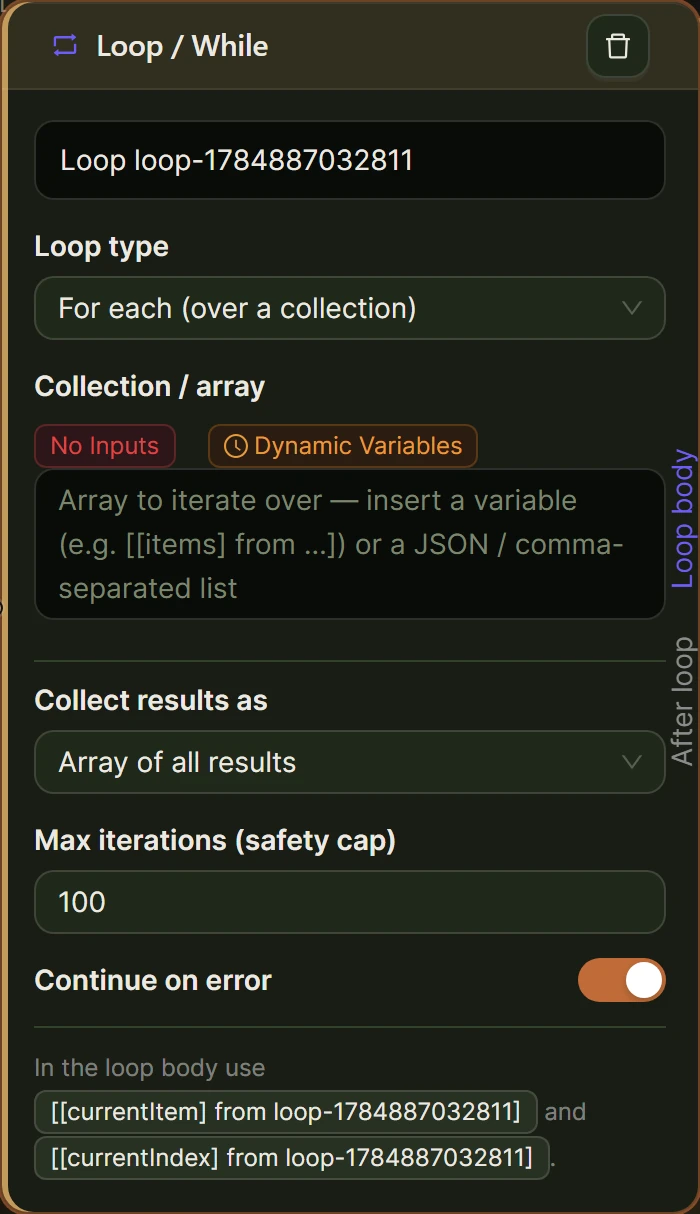
rows, type array. Ask the prompt for one array entry per product row, header skipped, each row’s values kept on one line. - Add a Loop node, connected to that AI Prompt node. Loop type For each, Content set to
rows. Set Max iterations to 5 for your first run, not the default 100.
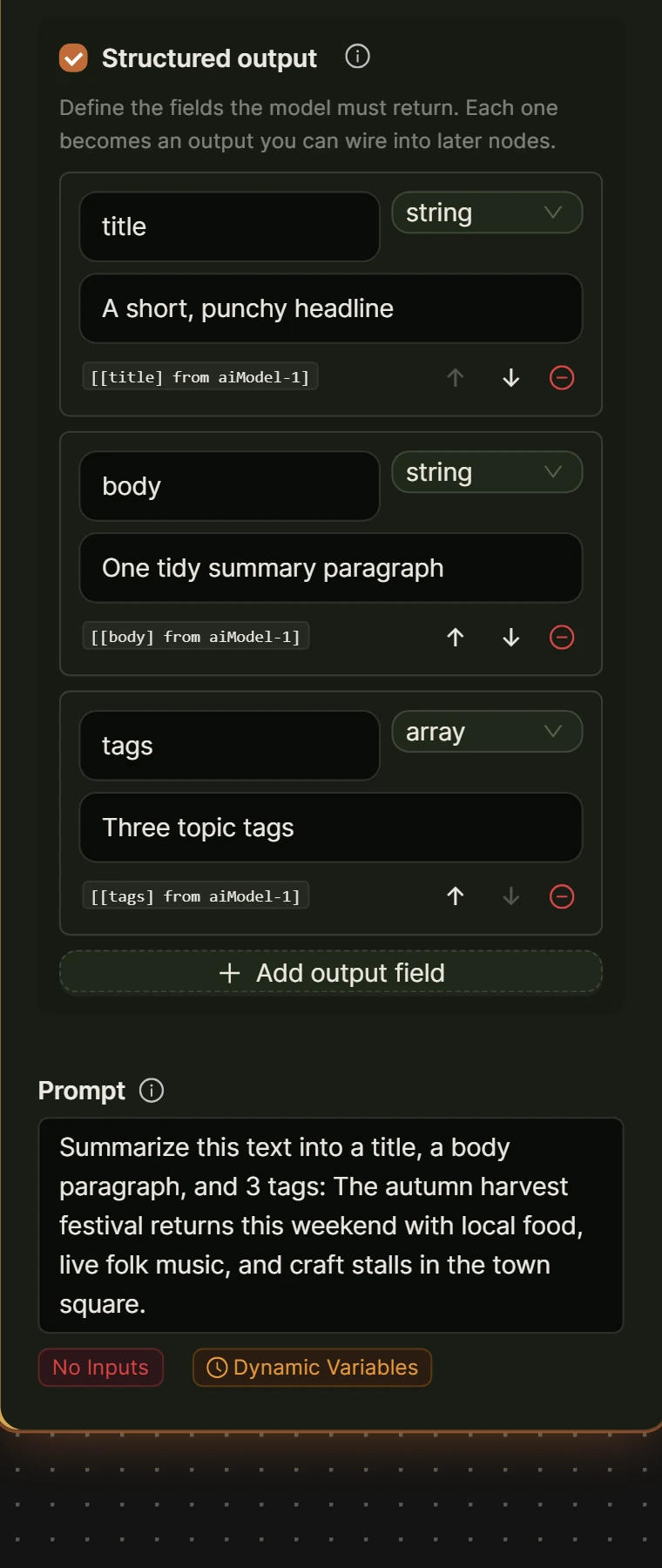
- From the body handle, add a second AI Prompt node. Turn on Structured output again and define four string fields:
title,short_description,long_description, andattributes. Reference the current row and instruct the model to write only from what that row contains, leaving a field blank rather than inventing a spec.
- Add a Create Post/Product node to the same branch. Set Post type to product, Post status stays on its default of draft. Map post_title to
title, post_content tolong_description, and excerpt toshort_description. See Data Flow and Variable Handling for how these references work. - From the Loop node’s after handle, add an Output node set to Display. This gives one summary once the batch finishes.
- Save, then Run. The live execution panel shows each node firing per row, so you catch a bad field before it reaches WordPress.
What data ends up where on the finished product?
Each field the second AI Prompt node writes has one job on the product, decided by the Create Post/Product node’s field mappings.
| AI-written field | Maps to | What it becomes |
|---|---|---|
| title | post_title | The product name shown on the page and in search results |
| short_description | excerpt | The short summary WooCommerce shows above the fold |
| long_description | post_content | The full product description |
| attributes | a custom, ACF, or WooCommerce field, if your product template uses one | Whatever structured detail your theme or catalogue relies on |
How do you handle messy or risky CSV formatting before it reaches the AI?
Spreadsheet software is a common source of a broken import: a saved encoding shifts, a delimiter changes between comma and semicolon, or a stray line break inside a description cell pushes every column after it out of place. WooCommerce’s own product CSV importer documentation puts it plainly, noting that spreadsheet applications can change formatting or character encoding, so review the saved CSV before importing it. Open the file in a plain text editor first and check the row and column counts.
There is also a narrower risk if you open the file in Excel or Sheets before uploading it. OWASP describes what it calls CSV Injection, which “occurs when websites embed untrusted input inside CSV files”: a cell starting with an equals, plus, or at sign can be read as a formula rather than text. A supplier list is an unusual place to find this, but it costs nothing to glance at the raw file first.
If the file is large, do not run it in one pass. WooCommerce’s own guidance is to split large CSV files into smaller batches and import each one separately, which is what the Loop node’s Max iterations field is for.
How do you avoid creating duplicate products when supplier SKUs repeat?
The workflow above creates a new draft product on every pass through the Loop node, because nothing in this chain looks up whether a product with that SKU already exists. WooCommerce’s own CSV importer handles this differently: it can match rows to existing products by ID or SKU, so a repeated SKU there updates one product instead of creating a second. This workflow has no equivalent check, so a repeated SKU in the supplier file becomes two draft products.
Treat SKU deduping as a spreadsheet step, not a workflow step. Before you upload the file, sort the SKU column and use a duplicate-highlighting or COUNTIF-style check to find repeats. Decide by hand whether each one is a duplicate line the supplier sent by mistake, a genuine reorder, or a variant that needs its own SKU. That five-minute pass is cheaper than deleting fifty duplicate drafts afterward.
How do you review a batch before anything goes live?
Every product this workflow creates is a draft, because the Create Post/Product node’s status setting defaults to draft, so nothing reaches the storefront until someone opens it in wp-admin and publishes it by hand. Keep that default even after the workflow is proven.
- Run five rows first. Read every generated field against the source row it came from.
- Check for invented facts. A model given a thin row sometimes fills gaps with a plausible-sounding material or claim. Reject or edit anything you cannot verify.
- Confirm the SKU pass caught what it should. A duplicate here is a spreadsheet problem to fix before the next run, not a workflow problem.
- Raise Max iterations once the small batch looks right. Then spot-check a random sample of the full result, not just the first few products.
For a team that needs a formal sign-off, a Human Input node set to Approval Required can sit on the Loop node’s after handle, so a batch waits for approval before anyone treats the drafts as ready. Our fuller checklist for spot-checking AI-written catalogue copy is in the guide to bulk-generating WooCommerce product descriptions.
Frequently asked questions
Can I import a supplier CSV into WooCommerce without AI?
Yes. WooCommerce has a free, built-in CSV importer under Products, Import that maps columns like SKU, Name, and Description onto new or existing products with no extra plugin. It suits a feed whose own text is already good enough to publish. AI Workflow Automation is worth adding when that text is thin, jammed into one field, or copied verbatim from a manufacturer catalogue other stores are also running unchanged.
Will the AI invent details that are not in the supplier data?
It can, especially when a row is missing information the prompt asks for. Instruct the AI Prompt node to write only from what the row provides, leaving a field blank rather than guessing at a material, certification, or compatibility claim. Then check a sample of drafts against the original spreadsheet before you publish, since a plausible but wrong spec is an expensive mistake to carry.
What happens if the same SKU appears twice in the supplier file?
This workflow creates a new draft on every pass through the Loop node, so two rows sharing a SKU become two draft products rather than one updated product. Sort and check the SKU column in your spreadsheet before you upload the file, and decide by hand whether a repeat is a duplicate line, a genuine reorder, or a variant needing its own SKU.
Does running this workflow cost anything?
In Local mode, which is the mode this workflow runs in, you pay only your AI provider for the tokens each row uses, at that provider’s own rate. There is no charge from the plugin itself. An optional cloud mode runs workflows on our hosted engine for credits, but it is not needed for a one-off catalogue import.
Can this workflow update products that are already in my store?
Not as built here: this chain creates new draft products. The Create Post/Product node can also update existing posts and products, so a separate workflow that works through the products you already carry is the better route for rewriting their descriptions, with a review step before anything changes on the live page.
Install AI Workflow Automation free from the WordPress plugin directory, export twenty or thirty rows from your supplier’s file as a test batch, and run the workflow above before pointing it at the whole catalogue. If what you actually need is rewriting descriptions on products you already carry, the guide to bulk-generating WooCommerce product descriptions covers that path instead.