An AI assignment generator for teachers is a tool that turns a topic, a grade level and a set of learning outcomes into a finished assignment, complete with instructions, a rubric and an answer key. AI Workflow Automation, a free WordPress plugin, lets you build one yourself: a form collects the brief, an AI Model node drafts the assignment against your own syllabus, and a teacher approves it before any student sees the result.
We build this plugin, and the pattern we see most in schools is not a shortage of AI ideas, it is nobody trusting the output enough to hand it to students. AI Workflow Automation is a free WordPress plugin with a visual drag-and-drop builder that runs AI workflows, agents, and chatbots inside your own site, using your own API keys, with no external subscription required. This guide builds a generator that keeps a teacher in the approval seat by design.
What is an AI assignment generator, and how does it work in WordPress?
An AI assignment generator is software that produces a complete assignment, not just a paragraph of text, from a short brief: a topic, a level, and the outcomes it should teach to. In AI Workflow Automation the generator is a small workflow: a form captures the brief, an AI Model node writes the assignment against your own syllabus, and a review step sits before anything reaches a student.
Purpose-built products such as MagicSchool AI, Eduaide.ai and CK-12 already generate assignments, worksheets and quizzes for teachers, and Canva has templates for the same job. Building the same job as a workflow on your own site is a different trade: it reads your syllabus from a knowledge base you control, saves the result inside your own WordPress, and pauses for your review before anything goes further, in exchange for about fifteen minutes of setup.
What are the building blocks of an AI-generated assignment?
An AI-generated assignment in AI Workflow Automation comes from five parts: a form that captures the brief, a knowledge base built from your syllabus, an AI Model node that drafts the assignment as named fields, a Human Input approval gate, and a Create File node that saves the approved draft as a Word document a student can open.
- The brief. A form plugin such as WPForms collects the topic, the level, and the learning outcomes the assignment must hit. Nothing about a student goes into this form.
- The syllabus. A knowledge base built from your course content grounds every draft in what you actually taught, using retrieval-augmented generation so the model answers from your material instead of guessing.
- The draft. An AI Model node with structured output turns the brief into named fields: a title, instructions, a set of questions, a rubric, and an answer key, each addressable on its own.
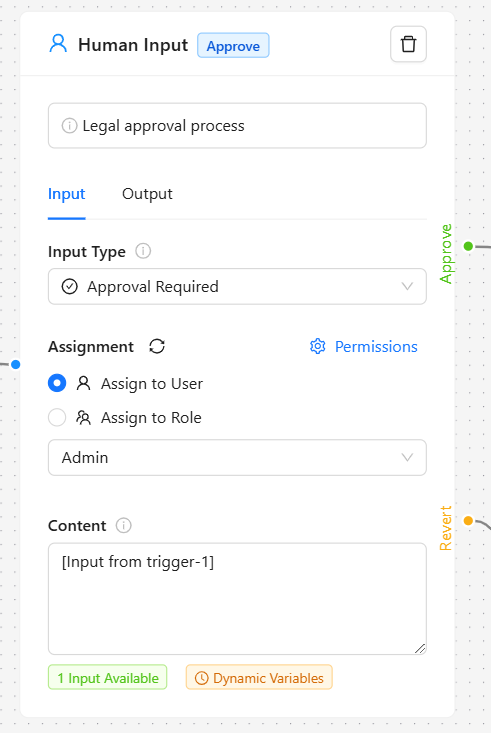
- The check. A Human Input node pauses the workflow and puts the full draft in front of a teacher before anything downstream can use it.
- The document. A Create File node writes the approved fields into a docx file you can email or drop into your LMS, and can save a copy to the Media Library.
How do you build an AI assignment generator step by step?
Building this workflow takes five nodes and one setup step outside the canvas. Before you start: install AI Workflow Automation, add your own OpenAI or OpenRouter API key under Settings, and have a form plugin such as WPForms active with a form for topic, level and outcomes.
- Create a new workflow and add a Trigger node. Choose WPForms, or whichever form plugin you run, and select the form that captures topic, level and outcomes.
- Build a knowledge base from your syllabus. Under Settings, then Knowledge Base Management, complete the one-time Supabase setup, then create a knowledge base and add your syllabus: use WordPress content if it already lives on a page, or Upload files for a plain TXT or MD copy. A PDF syllabus needs a LlamaParse API key first.
- Drag the AI Model node, labelled AI Prompt in the palette, onto the canvas and connect it to the trigger. On the Model tab, pick an OpenAI or OpenRouter model, or WordPress AI if you run WordPress 7.0 or later with a site provider configured.
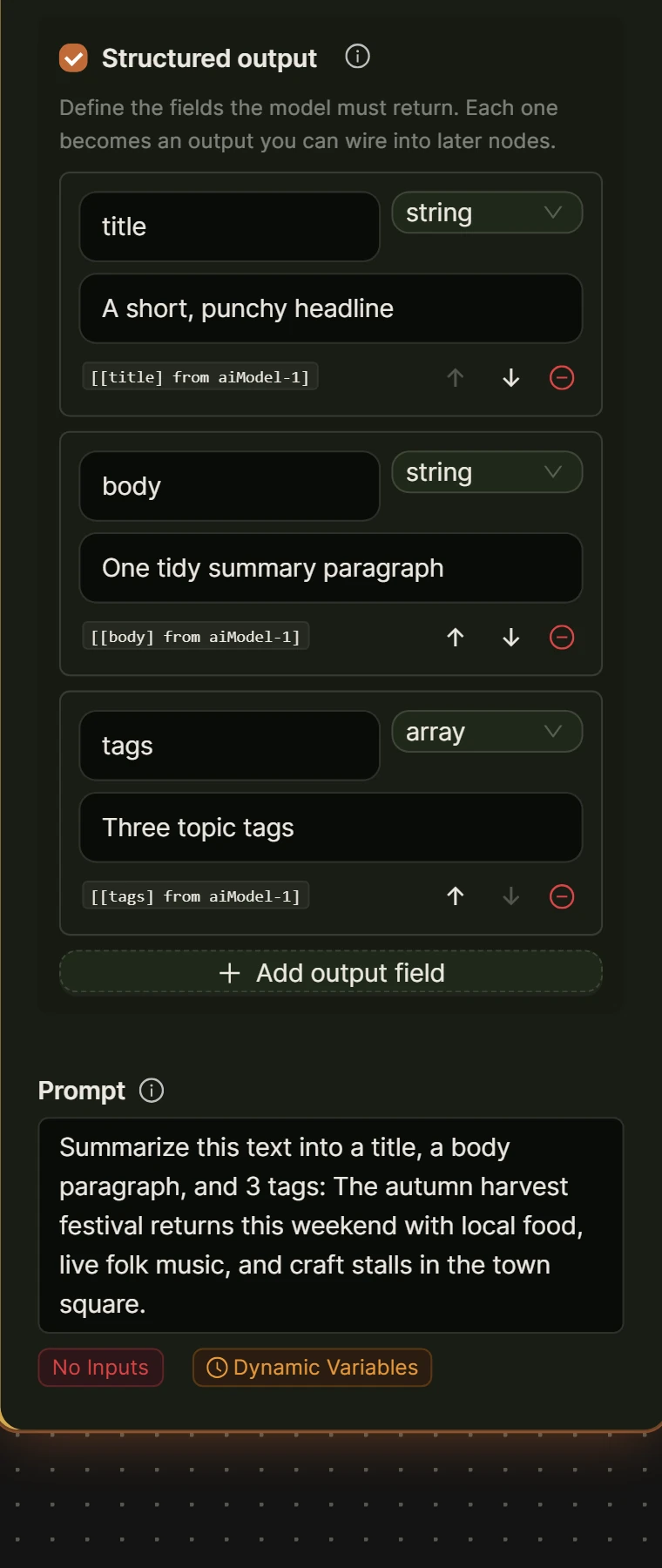
- Turn on Knowledge Base (RAG) and select your syllabus knowledge base. Turn on Structured output and add fields for title, instructions, questions, rubric and answerKey, giving questions an array type so each item comes through as its own list entry.
- Write the prompt, referencing the form fields with the forward-slash picker, for example [[topic] from trigger-1] and [[outcomes] from trigger-1], and tell the model to stay inside the retrieved syllabus passages and the stated outcomes. See Data Flow and Variable Handling for the full tag syntax.
- Add a Human Input node set to Approval Required, assigned to yourself or to a role given task access under Settings, Task Management Access. Its content is the AI Model node’s output, so the reviewer sees the assignment, rubric and answer key together.
- Add a Create File node after the Approve path. Set File format to docx, File name to something like assignment-[[topic] from trigger-1], and build File content from [[title] from ai-1], [[instructions] from ai-1] and [[questions] from ai-1], leaving rubric and answerKey out of the student-facing file. Turn on Save to Media Library if you want a copy on the site.
- Wire the Create File node into a Send Email node, inserting its output as the attachment with the forward-slash picker, and address it to yourself or your department. Save the workflow, leave it set to Local mode, and run it once with a real topic.
How much does it cost to run?
Running this workflow in Local mode costs nothing in platform credits: the trigger, the AI drafting step, the approval gate, the Create File node and the email all run on your own site, and the only bill is your AI provider’s token charge for the draft. No connected account is needed. Create File is a Local-only node, which suits a workflow whose most important step is a teacher’s approval on your own site.
| Step | Runs | Platform credits |
|---|---|---|
| Trigger (form submission) | Your site | 0 |
| AI Model (assignment, rubric, answer key) | Your site, your own key | 0 |
| Human Input approval | Your site | 0 |
| Create File (docx) | Your site | 0 |
| Send Email | Your site | 0 |
If you need a designed PDF from a template instead, the Generate PDF node renders one, but it is a Cloud-only node that needs a connected account and costs about 2 credits per PDF; keep the approval step in a Local workflow either way.
How do you keep AI-generated assignments academically honest?
Keeping an AI-generated assignment academically honest is a judgment call, not a setting. A model can draft to your stated outcomes, but only a teacher can tell whether a question still tests the right thing once a student can ask a similar AI for the answer, which is why the approval gate sits before the document is created, not after it.
UNESCO’s guidance on generative AI in education and research, published in September 2023, recommends “a human-agent and age-appropriate approach to the ethical validation and pedagogical design processes.” Treat that as the standard for the review step: read the full draft, not just the questions, before you approve it.
- Ground every draft in your syllabus, so questions test what you taught rather than what a general model assumes a class at that level covers.
- Read the answer key before you approve. If it is generic enough that any AI would reproduce it from the question alone, change the question, not just the wording.
- Ask for process, not only answers. A structured output field can request worked steps or a short explanation alongside a final answer, which is harder to paste from a chatbot than a single number.
- Keep the rubric and answer key out of the student-facing file. This workflow already separates them into their own fields, so leaving them off the export is one field mapping, not a rewrite.
What happens to student data when you use an AI assignment generator?
An AI assignment generator built this way never needs to touch student data, because the form only collects the topic, level and outcomes from the teacher; no student name, grade or submitted work goes anywhere near the AI Model node. That distinction matters, because education records carry legal protections a topic-and-outcomes brief does not.
Grading or commenting on real student submissions is a different job with different rules. Under US law, a vendor can only handle education records the way a school’s own staff would, under the “school official” exception in 34 CFR 99.31, when it “performs an institutional service or function for which the agency or institution would otherwise use employees” and stays under the school’s control. Keep this workflow to generating the assignment, not grading student work, unless your school’s data agreements cover that.
Your own API key never leaves your WordPress install and is never sent to us; the syllabus text in your knowledge base lives in your own Supabase project too, not ours.
Frequently asked questions
Is it okay for teachers to use AI to write assignments?
Using AI to draft an assignment is a starting point, not a finished product. The model turns a topic and outcomes into a full draft quickly, but a teacher still has to check the facts, confirm it tests what was taught, and decide whether the questions hold up once a student can reach for the same kind of AI. Skip the review and you are publishing an unverified draft, not teaching from one.
Does an AI assignment generator store student data?
Not if you build it this way. The form only asks the teacher for a topic, level and outcomes, so no student name, grade or submitted work ever reaches the AI Model node or the knowledge base. Connecting the same tools to grade real student work is a separate job, one that falls under your school’s own privacy rules, including FERPA in the US.
How do you stop students from just asking AI to answer an AI-written assignment?
No question format is fully immune, so the honest answer is you reduce the risk rather than remove it. Ask for the process behind an answer, not only the final number, require a short explanation in the student’s own words, or add an in-class component the AI cannot see. The approval gate in this workflow forces you to review every question yourself, which catches the ones too easy to paste into a chatbot before students see them.
What is the difference between an AI assignment generator and an AI worksheet generator?
In practice the two names describe the same technique aimed at different jobs. A worksheet generator usually produces short, repetitive practice items, like ten similar equations. An assignment generator, as built in this guide, produces a graded task tied to specific outcomes, with instructions, a rubric and an answer key attached. The nodes are the same either way; only the structured output fields and the prompt change.
The fastest way to see whether this fits your workflow is to build the smallest version first: one form, one AI Model node, one approval step. Install AI Workflow Automation free from the WordPress plugin directory, and see the other builds schools are running with the same nodes on the education workflows page.