The Generate PDF node turns workflow data into a polished PDF. You can start from a built-in template or render your own HTML, drop in data from earlier nodes, and preview the layout for free before you spend anything.
What it does
- Renders a PDF from one of six professional templates, or from custom HTML and CSS.
- Fills template fields with values from earlier nodes using variable tags.
- Shows a free live preview so you can see exactly where your data lands before running.
- Returns a PDF file URL you can email, save, or link to.
Templates
Choose the source mode, then a template:
- Template mode uses a built-in design: invoice, report, letter, certificate, proposal, or one-pager. You fill in the template’s fields.
- Custom mode renders your own HTML and CSS document. Scripts and iframes are stripped by the renderer for safety.
Configuration reference
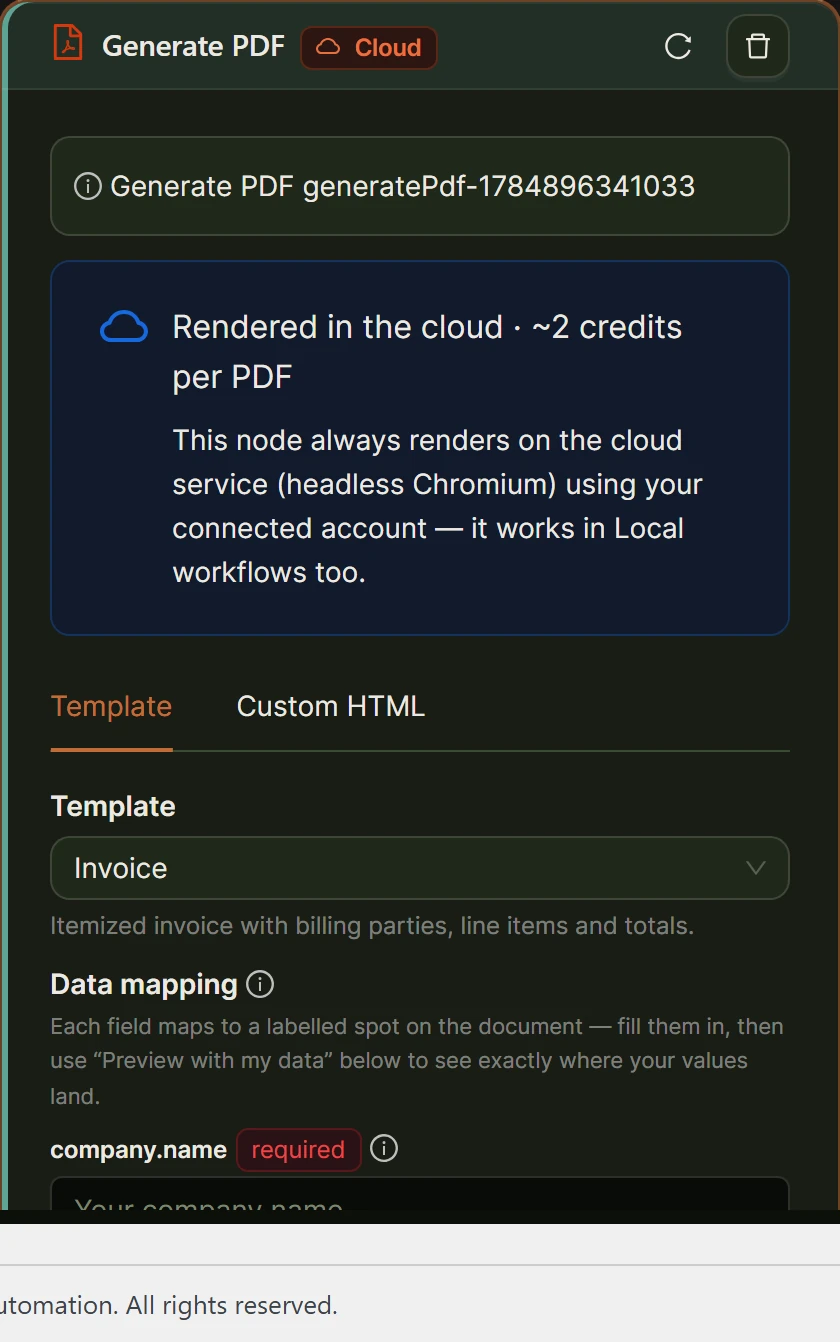
| Field | Required | What it does |
|---|---|---|
| Source mode | Yes | Template or Custom. Defaults to Template. |
| Template | When Template | invoice, report, letter, certificate, proposal, or one-pager. |
| Template data | No | Maps each template field to a value. Values accept variable tags, and JSON values are parsed for array or object fields. |
| Custom HTML | When Custom | The HTML and CSS document to render. Supports variable tags. |
| Paper | No | A4 or Letter. Defaults to A4. |
| Landscape | No | Render in landscape orientation. Off by default. |
| File name | No | Output file name without the extension. Supports variable tags. |
Preview before you spend
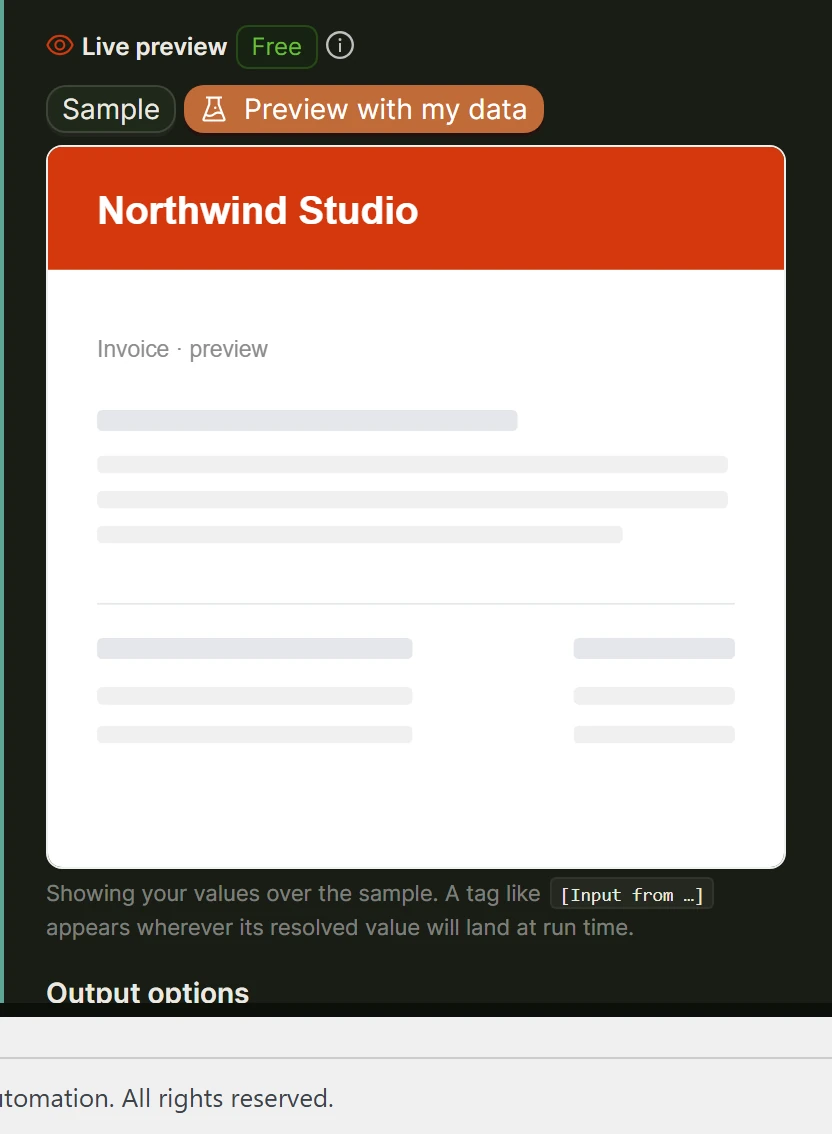
The node includes a free PNG preview so you can confirm your data lands in the right place. Nothing is metered until you render the final PDF in a run.
Cloud only, and cost
Generate PDF runs on the cloud render service, so it is a Cloud-only node and needs a connected account. It costs 2 credits per PDF. See Local vs Cloud execution and Cost and usage tracking.
Using the result in later nodes
The node produces a PDF file URL. Reference it downstream with [Input from <this-node-id>], for example as an attachment on a Send Email node.
Worked example: build an invoice
- Set source mode to Template and pick the invoice template.
- Map template fields, for example
company.nameto your company andinvoice.numberto[Input from trigger-1]. - Set a file name like
invoice-[[date] from trigger-1]. - Preview, then wire the result into a Send Email node as an attachment.
Related
- Create File node for txt, docx, and html files
- Data flow and variables
- Send Email node
Was this helpful?
Contact us