AI inventory management for WooCommerce works best as something you add to WooCommerce’s own stock alerts, not a replacement for them. WooCommerce already emails you when a product crosses a low stock threshold. AI Workflow Automation, a free WordPress plugin, can turn that single alert into a daily digest with product context, a drafted supplier reorder email that a person approves before it sends, and a running log of every low stock event.
We build this plugin to sit next to WooCommerce, not to replace what it already does well. AI Workflow Automation is a free WordPress plugin with a visual drag-and-drop builder that runs AI workflows, agents, and chatbots inside your own site, using your own API keys, with no external subscription required. This guide sticks to what a workflow can honestly add on top of WooCommerce’s stock system: no demand forecasting, no guessing at reorder timing, just a clearer, faster path from a low number to a supplier being asked to send more.
What does WooCommerce already do for low stock, and where does it stop?
WooCommerce’s own inventory settings cover the basics of low stock without any extra plugin. Under WooCommerce, Settings, Products, Inventory you can turn on stock management and set a store-wide low stock threshold and out of stock threshold, and WooCommerce’s own settings documentation lists “inventory management, stock notifications” as part of the same Products panel. When a product crosses the threshold, WooCommerce emails the site administrator.
That single email is useful but limited. It goes to one inbox, it does not group several low products into one message, and nothing about it is saved anywhere you can look back on next month. If what you actually need is demand forecasting and automated purchase orders, a dedicated paid extension such as WooCommerce.com’s own Inventory Management add-on is built for exactly that job and goes further than anything in this article.
What can an AI workflow add on top, without forecasting demand?
An AI workflow adds three things WooCommerce’s own alert does not: a single daily digest instead of one email per product, a first-draft reorder email addressed to your actual supplier with the right products and quantities filled in, and a dated log of every low stock event you can look back on. None of this predicts future demand. It reports what your store’s own data already shows, faster and in one place.
Predicting how much stock you will need means modeling historical sales, seasonality, and supplier lead times together, which is a different job from reading today’s numbers. We would rather say plainly that the workflow below does not do that than dress up a stock report as a forecast. If you also want AI help with the product side of your catalog, our guide to writing WooCommerce product descriptions in bulk covers that separate job.
How do you get WooCommerce stock data into a workflow?
WooCommerce stock data reaches a workflow one of two ways: an API Call node that reads your store’s own REST API on a schedule, or a native WooCommerce webhook that posts a product’s data the moment it changes. The API Call route suits a daily digest. The webhook route suits an alert the instant one product drops below its threshold.
For the API Call route, generate a key under WooCommerce, Settings, Advanced, REST API with Read permission, then point an API Call node at your own site’s /wp-json/wc/v3/products endpoint with Auth set to basic, using that key as the username and its secret as the password. Every product in the response carries a stock_quantity and, where you have set one, a low_stock_amount, which the WooCommerce REST API documents as the “Low stock amount for the product” on each product resource.
For the webhook route, create one under WooCommerce, Settings, Advanced, Webhooks with the topic set to Product updated, and paste in the plugin’s Webhook trigger URL as the delivery URL. WooCommerce’s own webhook screen lets you enter “a secret key used to generate a hash of the delivered webhook”, included in the request headers, but the plugin’s Webhook trigger does not check that hash. Its unique, hard-to-guess URL is the only real gate, so treat it like a password and never paste it anywhere public.
How do you build a daily low-stock digest and a supplier email draft?
Building a daily low stock digest takes one workflow with five connected nodes: an API Call node that pulls your product list, an AI Model node that reads it, a Condition node that skips the run on a day with nothing to report, a Human Input node that holds the supplier email for approval, and two Send Email steps. You need WooCommerce running, the plugin installed, and an OpenAI or OpenRouter key added under Settings before you start.
- In wp-admin, open AI Workflows and create a new workflow. Name it something like Daily stock digest.
- Leave the Trigger node on Manual for now; the daily schedule is added to the saved workflow in the last step.
- Drag an API Call node onto the canvas and connect it to the trigger. Set the URL to your product endpoint, for example
https://yoursite.com/wp-json/wc/v3/products?per_page=100, the method to GET, and the auth type to basic using your WooCommerce REST API key. - Add an AI Model node connected to the API Call node. In the prompt, reference
[Input from apiCall-1]and ask the model to list only the products where stock_quantity is at or below low_stock_amount, or a threshold you state for products with none set, and to draft a short reorder email to your supplier for those items. Turn on structured output and add three fields: digest, supplierDraft, and lowStockCount. - Add a Condition node connected to the AI Model node with one condition: input
[[lowStockCount] from ai-1], comparison greater than, value 0. Wire the true handle onward and leave the false handle unconnected, so a day with nothing to report simply stops. - From the true handle, add a Send Email node to your own inventory inbox, subject Daily stock digest, body
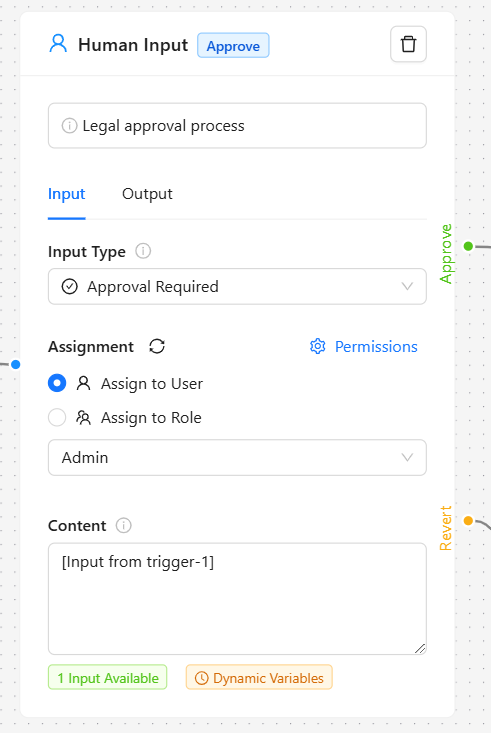
[[digest] from ai-1]. This one sends on its own since it is informational. - From the same true handle, add a Human Input node set to Modification Required, assigned to whoever approves reorders, with its content set to
[[supplierDraft] from ai-1]. This is where a person checks quantities and wording before anything reaches a supplier. - Connect the Human Input node’s output to a second Send Email node addressed to your supplier, using the reviewed content as the body.
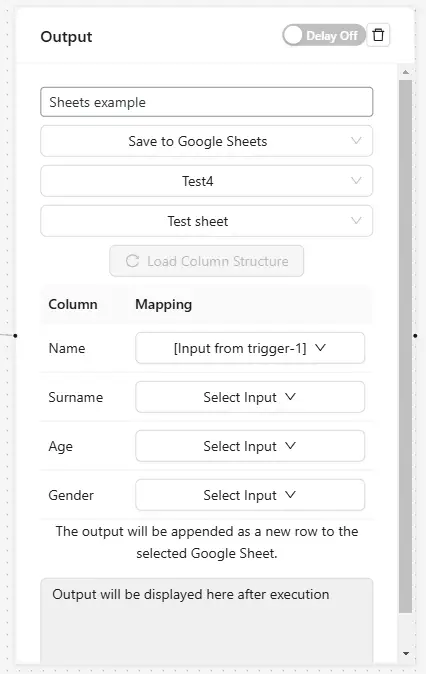
- Add an Output node set to Save to Google Sheets, connected directly to the AI Model node so every run is logged, even a day with nothing low. Map a date column plus
[[lowStockCount] from ai-1]and[[digest] from ai-1]to their own columns. - Save the workflow, click Run once, and check the digest, the draft, and the sheet row against your real store data.
- From the Workflows management list, click the clock icon in the Actions column to open the Schedule Workflow modal, set Repeat Every to 1 and Unit to Day, and save.
What if you want a real-time alert instead of a daily digest?
A real-time alert skips the schedule and reacts to WooCommerce’s own webhook the moment a product changes. Wire the Webhook trigger from the section above straight into a Condition node comparing [[stock_quantity] from trigger-1], less than, a number you choose, then send the true branch to a Send Email node the same way as the digest. You lose the once-a-day summary and gain a message the moment a single product crosses the line, which suits a fast-moving product more than a full catalog check.
What does this cost, and does it work for free?
Run the workflow above in Local mode and it costs nothing beyond your own AI provider’s token usage: the API Call node talks to your own site, and the AI Model node uses your own OpenAI or OpenRouter key, so no platform credits are involved at all. This build is designed for Local mode, with the approval step running on your own site next to the orders it concerns.
On a quiet site, keep in mind that WordPress runs scheduled jobs when someone visits, so a daily digest can arrive later than the hour you picked. If that matters, a real server cron that pings the site on a fixed clock is the usual fix, and your host can usually set one up.
Frequently asked questions
Does WooCommerce send low stock alerts without any extra plugin?
Yes. WooCommerce’s own Products settings include inventory management and stock notifications: turn on stock management, set a low stock and out of stock threshold, and WooCommerce emails the site administrator when a product crosses it. What that native alert does not do is group several products into one message, draft anything for a supplier, or keep a log you can review later, which is the gap an AI workflow fills.
Can an AI workflow predict how much stock I will need?
Not in the setup described here. Predicting future demand means modeling historical sales, seasonality, and supplier lead times together, a different and harder problem than reading today’s stock numbers. If that is what you actually need, a dedicated forecasting extension such as WooCommerce.com’s own Inventory Management add-on is built for it. What the workflow above does is report what your store’s data already shows, faster and in one place.
Do I need a developer to connect WooCommerce to a workflow?
No, but you do need one WooCommerce credential. Generate a REST API key under WooCommerce, Settings, Advanced, REST API with Read permission and paste it into an API Call node’s Auth fields. If you would rather react to changes as they happen instead of pulling data on a schedule, a WooCommerce webhook posted to the plugin’s Webhook trigger works without writing any code either.
Will an AI workflow email my supplier without anyone checking it first?
Not if you build it the way this guide does. A Human Input node set to Modification Required holds the drafted reorder email until a person reviews or edits it and submits it, and only then does a Send Email node send it on. Nothing reaches a supplier automatically unless you deliberately remove that approval step.
Start with the digest alone: pull your product list once, read what the AI Model node reports, and leave the supplier email step disconnected until you trust the numbers. Install AI Workflow Automation free from the WordPress plugin directory, and if you have not built a workflow before, the quick start guide covers the basics before you connect anything to WooCommerce.