An automated newsletter from your WordPress posts is a workflow that pulls your recent posts, has AI summarize them and draft an intro and subject line, then sends the result after a person checks it. AI Workflow Automation, a free WordPress plugin, builds this on a visual canvas: an API call fetches the posts, an AI step writes the copy, and a Send Email node delivers it.
We build this plugin, and in a newsletter workflow the part that takes judgment is never the writing. It is deciding what goes out unreviewed and what a person reads first. AI Workflow Automation is a free WordPress plugin with a visual drag-and-drop builder that runs AI workflows, agents, and chatbots inside your own site, using your own API keys, with no external subscription required. This guide builds the whole loop, pull posts, summarize, draft, approve, send, and stays honest about where your site’s mailer stops being the right tool.
What do you need before you start?
Before building this workflow you need AI Workflow Automation installed and active, an API key from a provider such as OpenAI or OpenRouter added under Settings, and a WordPress mailer that already works, since the newsletter goes out through the same path as your password-reset emails. If outgoing mail is unreliable today, fix that first; no workflow step compensates for a mail setup that already drops messages.
Everything below runs in Local mode, using your own key, free and entirely on your own server. Cloud mode is worth knowing about too, and we come back to it under scheduling.
How do you build an automated newsletter workflow from your WordPress posts?
The workflow chains six nodes: a Trigger, an API Call node that fetches your recent posts, a Loop node that summarizes each one, an AI Prompt node that writes the subject and intro, a Human Input node for approval, and a Send Email node that delivers the result. Fields that need data from an earlier step accept a variable tag, inserted with the “/” picker rather than typed by hand.
- Create the workflow. In wp-admin, open AI Workflow Automation, create a new workflow, and give it a name you will recognize later, such as “Weekly newsletter.”
- Add a Trigger node and choose Manual. Manual is the right pick here, because the actual cadence gets set on the workflow itself later, not on the trigger.
- Add an API Call node and point it at your own posts. Set the URL to your site’s REST endpoint, for example https://your-site.example/wp-json/wp/v2/posts?per_page=5, method GET. The WordPress REST API posts endpoint already sorts newest first by date, so the first results are your latest posts. Reference the list downstream as
[[data] from apiCall-1]. - Add a Loop / While node. Set Loop type to For each and Content to
[[data] from apiCall-1], so the body runs once per post. - From the loop’s body handle, add a Summary Generator node (AI Summary Generator in the node palette) and set Content to
[[currentItem] from loop-1]. This condenses each post before the digest gets written. - From the loop’s after handle, add an AI Prompt node (the AI Model node). Turn on Structured output and add two fields, subject and intro, both type string. Prompt it for a subject line and a short intro, based on
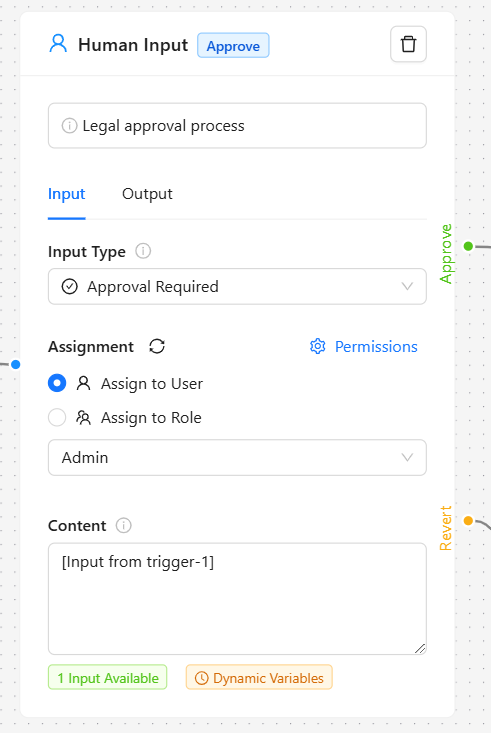
[Input from loop-1], the accumulated summaries. - Add a Human Input node set to Modification Required, and assign it to yourself or whoever signs off on outgoing mail. This is the pause where a person reads the draft before anything sends.
- Add a Send Email node. Set To to your list, Subject to
[[subject] from ai-1], and build the Body from[[intro] from ai-1]followed by the approved summaries, with Send as HTML turned on. - Save, then click Run to test the whole chain against your real posts before you put it on a schedule.
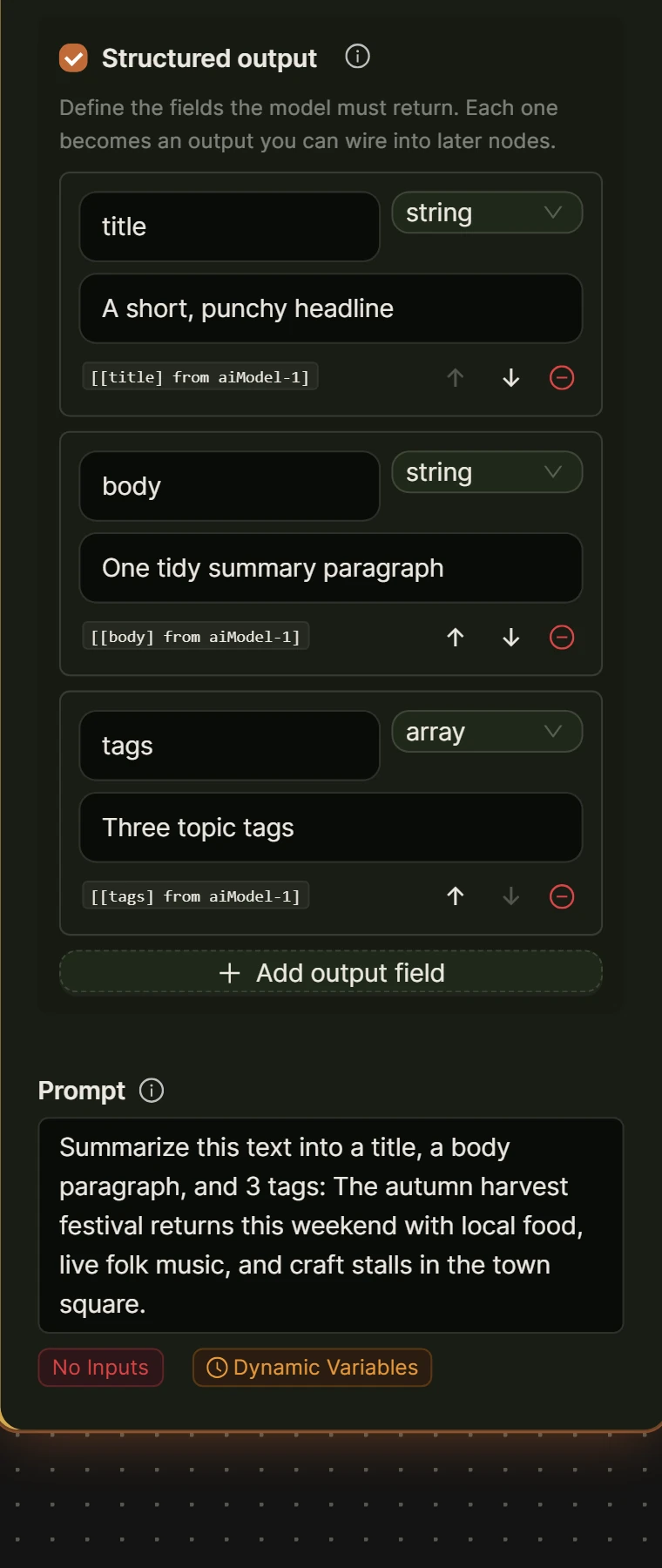
The AI Model node‘s structured output does real work in step 6. Without it, you get one block of prose and have to guess where the subject ends and the intro begins. With it, subject and intro are two separate fields, which is what lets the Send Email node use the subject cleanly in step 8.
How do you keep a human in the loop before it sends?
A Human Input node set to Modification Required keeps this from becoming an unsupervised newsletter: the workflow pauses, the draft lands on the Tasks screen for whoever it is assigned to, and nothing reaches an inbox until they submit it. Approval Required works too for a plain yes or no, but Modification Required fits better here, since an AI-written subject and intro are usually close, not perfect.
Assign the task to yourself while testing, and to a role once others may sign off. The assignee gets an email with the workflow name, a content preview, and a direct link to the task, so approving a routine week’s newsletter takes under a minute. Read the subject line hardest: it is the one part every recipient sees, whether or not they open the email.
How do you send it, and what are wp_mail’s limits for a bigger list?
The Send Email node delivers through your site’s own WordPress mailer, the same wp_mail path used for password resets and order confirmations, and that is right for a short list: your team, a handful of early subscribers, an internal digest. It stops being right once a list reaches into the hundreds, because a typical host’s mail setup carries no dedicated sending reputation, no bounce handling, and no unsubscribe management of its own.
Receiving mail servers judge exactly those things. Google’s own email sender guidelines state that anyone sending more than 5,000 messages a day to Gmail addresses must authenticate with SPF, DKIM, and DMARC and include one-click unsubscribe, warning that a sender who skips this “might not be delivered as expected, or might be marked as spam.” A single WordPress site rarely reaches that volume, but the same servers apply lighter versions of those checks well below it, and a newsletter sent from a generic hosting queue often has none of them configured.
| Send Email node (your site’s mailer) | Connect an App to a dedicated sender | |
|---|---|---|
| Best for | A handful of recipients: your team, a short beta list, an internal digest | A subscriber list in the hundreds or thousands |
| How it sends | Through WordPress’s own wp_mail, the same path as a password-reset email |
Through a connected account for an app in the registry, for example logging the approved draft to a Google Sheet your sending platform already reads |
| Deliverability and unsubscribe handling | Your responsibility; a shared host has no dedicated sending reputation | Handled by whichever platform you connect and already send from |
| Cost in the plugin | No credits in either mode; your site sends the mail | 1 credit per step in Cloud mode, free in Local mode |
For a real subscriber list, the honest move is to keep this workflow doing what it is good at, turning posts into a reviewed draft, and hand that draft to whichever platform you actually send bulk mail from. The Connect an App node reaches over 2,700 apps as action steps, sign-in handled through Composio rather than stored on your site, so you can drop the approved draft into a spreadsheet or workspace your sending tool already watches.
How often should it run?
A weekly cadence suits most posting schedules: enough new content to fill an email, not so often that the summaries start repeating themselves. Set the cadence on the workflow rather than on the Trigger node: in the Management list, click the clock icon in the Actions column to open the Schedule Workflow modal, then set Repeat Every to 1 and Unit to Week(s). The Manual trigger used here works with that schedule.
Worth knowing in Local mode: WordPress’s built-in task scheduler checks for due jobs on a page load, not a fixed clock, so a low-traffic site can run a job later than intended. The WordPress developer handbook is direct about it: WP-Cron “does not run constantly as the system cron does; it is only triggered on page load.” The plugin’s docs describe the same trade-off, noting that Cloud mode runs are “not limited by your server’s PHP execution time.” A loose day-of-week is fine on Local; if the exact hour matters on a quiet site, a real server cron that pings WordPress on a fixed clock is the usual fix.
Frequently asked questions
Do I need a separate email marketing plugin to automate a WordPress newsletter?
Not for a short list. AI Workflow Automation can gather your posts, summarize them, write the subject and intro, and send the result through your site’s own mailer, which covers a team digest or a small beta list end to end. Once the list passes a few hundred recipients, keep the workflow for content generation and hand the approved draft to a dedicated sending platform instead, since deliverability and unsubscribe handling are jobs a shared host’s mailer was never built for.
How do I stop an AI-written newsletter from sounding generic?
Write the prompt on the AI Model node like a brief, not a request: name the audience, the tone, and what to leave out, and give it one real example of a subject line you liked. The bigger lever is the Human Input node. Read every draft for the first month and edit the parts that sound flat, and the summaries and subject lines will steadily sound like your own voice.
Can WordPress send bulk newsletters on its own?
Technically yes, through wp_mail, but it is not built for volume. There is no built-in unsubscribe list, no bounce tracking, and no sending reputation separate from whatever else your host sends. Receiving mail servers weigh exactly those signals, and Google’s sender guidelines require authentication and one-click unsubscribe past 5,000 messages a day to Gmail addresses. A small internal list is fine on your site’s own mailer; a public list is better served by a platform built for bulk sending.
How much does this workflow cost to run?
Nothing extra in Local mode with your own AI provider key: you pay your provider directly for tokens, the same as any other AI call. In Cloud mode, a five-post run costs about 14 credits: 1 base credit, 1 for the API call, 2 for each of the five Summary Generator runs and 2 for the AI Model step, while the Send Email step costs nothing. New accounts start with 50 free credits, enough to test this a few times over before deciding whether Cloud is worth it.
Install AI Workflow Automation free from the WordPress plugin directory and build this on a workflow you can throw away if the first draft is rough. For the wider picture of what else runs the same way inside WordPress, see the automation plugin overview.