Most WordPress chatbots only reply with text. An action-taking chatbot actually does the task: it can look up an order, create a draft, save a lead, or call another app, then hand the conversation to a human when it is unsure. AI Workflow Automation, a free WordPress plugin, builds this agentic chatbot visually and connects it to 2,700+ apps, so the bot resolves requests instead of just answering them.
I build and maintain AI Workflow Automation, so this walkthrough uses the real node names and field labels you will see in the builder, not a generic description of “AI agents”. AI Workflow Automation is a free WordPress plugin with a visual drag-and-drop builder that runs AI workflows, agents, and chatbots inside your own site, using your own API keys, with no external subscription required.
What does “a chatbot that takes actions” actually mean?
A chatbot that takes actions is one the AI model can use tools with, rather than one that only produces sentences. The model reads the visitor’s message, decides that a tool is needed, calls it with arguments it chooses, reads the result, and then answers using that result.
Anthropic draws the line cleanly in Building effective agents (published 19 December 2024): workflows are “systems where LLMs and tools are orchestrated through predefined code paths”, while agents are “systems where LLMs dynamically direct their own processes and tool usage, maintaining control over how they accomplish tasks”.
IBM’s What Are AI Agents? puts it more plainly: an AI agent is a system capable of autonomously performing tasks on behalf of a user or another system.
In AI Workflow Automation the Chatbot Node (AI Agent) is where that happens. Every capability you switch on becomes a tool the model may call mid-conversation.
How is an action-taking chatbot different from an AI writer or a plain chatbot?
The three are often sold under the same “AI chatbot” label, but they differ in what they are allowed to touch. This table is the distinction I use when someone asks which one they need.
| Capability | Plain chatbot | AI writer node | Action-taking agent |
|---|---|---|---|
| Answers questions in chat | Yes | No | Yes |
| Reads your site content | Only if given a knowledge base | Only what you paste in | Yes, via search tools |
| Calls tools mid-conversation | No | No | Yes |
| Writes data (leads, drafts, tickets) | No | Output goes to a later node | Yes, through actions |
| Talks to third-party apps | No | No | Yes, 2,700+ apps |
| Escalates to a human | No | Not applicable | Yes, built-in handoff |
| Runs on a trigger without a visitor | No | Yes | No, it is conversational |
The honest caveat: an action-taking agent is not automatically better. If all you need is a documentation answering machine, a plain grounded chatbot is cheaper, faster, and has a smaller failure surface. Add actions when the conversation is meant to end in something happening.
What actions can a WordPress chatbot actually perform?
AI Workflow Automation ships a set of built-in tools plus custom actions you define yourself. The built-in list in the Chatbot Node’s Actions tab includes Calculator, Current date and time, Search posts and pages, Search products (WooCommerce), Knowledge base search, Web search and File search on direct OpenAI models, and Hand off to a human.
Two of those matter most for real sites. “Search posts and pages” lets the agent find and cite your published content. “Search products (WooCommerce)” queries your catalogue and renders interactive product cards with image, name, price, and Add to cart buttons, so a shopping question ends in a cart rather than a paragraph. Both are read-only and both are off by default, so a newly created chatbot cannot expose anything until you switch a tool on.
Custom actions cover the write side. Each action has a name, a description that tells the agent when to use it, and fields to collect from the visitor (text, email, number, or phone). Typical ones I see in production: book a callback, capture a qualified lead, open a support ticket, request a quote.
How do you build an action-taking chatbot in AI Workflow Automation?
Here is the actual build, start to finish. It takes about fifteen minutes on a site that already has an API key configured.
- Create a workflow and add the Chatbot Node. Open AI Workflows, create a new workflow, and add the Chatbot Node (AI Agent) from the Communication group in the node palette.
- Pick your model on the Model tab. Choose an AI source (your own API keys or platform credits) and a model. If you want grounded answers, attach a Knowledge Base here as well.
- Write the system prompt on the Instructions tab. State the role, the scope, and the rules. Be explicit about what the bot must never promise. The Instructions tab also holds the advanced cap on maximum model turns per message, which is your defence against a tool loop.
- Enable tools on the Actions tab. The Capabilities table lists every tool with an Enabled toggle, a Require approval toggle, and a Rate limit field. Turn on only the tools this bot needs.
- Add your custom actions. Give each one a name, a description written as an instruction to the agent, and the fields to collect. Each action you add creates a connectable output handle on the node.
- Wire the output handles to downstream nodes. Connect a “book a callback” action handle to a Send Email Node, or a lead-capture handle to a Connect an App node that writes a row to Google Sheets. Collected fields are referenced as
[[fieldName] from {nodeId}:{actionId}]. - Save and deploy the widget. Saving produces a shortcode on the node. Paste it into any post, page, or shortcode block, or add the chat widget from Appearance > Widgets. The widget renders inside a Shadow DOM container, so your theme CSS cannot break it.
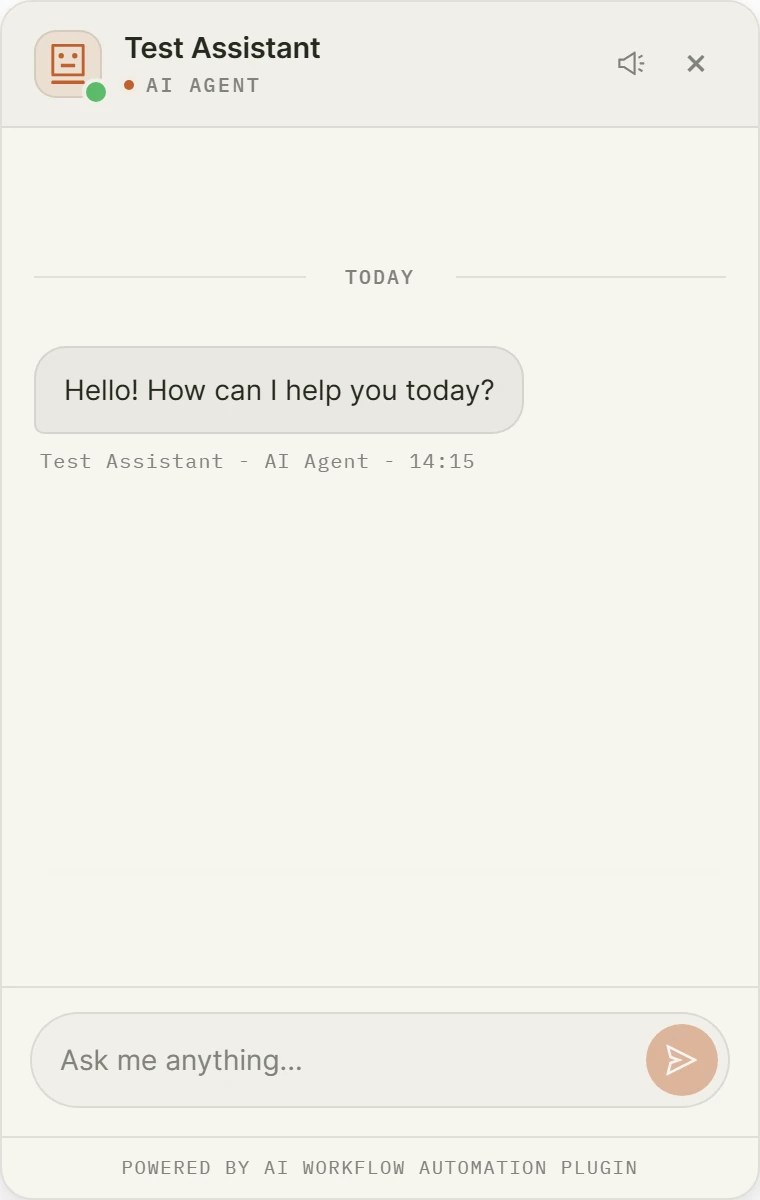
Test each action individually before you go live. Ask the bot the question that should trigger the action, then check that the downstream node fired with the right field values.
How do you set up human handoff so nothing falls through?
Human handoff pauses the agent and puts a real person into the conversation. While handoff is active the bot stops answering and only relays messages between the visitor and your team. When the operator resolves the conversation, control returns to the bot.
Handoff is configured on the Chatbot Node’s Handoff tab, and AI Workflow Automation supports four providers:
- Native, which routes to the Operator Inbox inside wp-admin and needs no external account.
- Chatwoot, which needs a base URL, account ID, inbox ID, and API token.
- Zendesk Sunshine Conversations.
- Intercom, with assignment to a teammate or a team.
Three trigger modes decide when handoff fires: “Agent decides plus visitor keyword” (the default), “Agent decides only”, and “Visitor keyword only”. For the keyword paths you enter comma-separated phrases such as “talk to a human, speak to a person, live agent”, and natural-language intent detection catches rephrasings that do not match a keyword exactly.
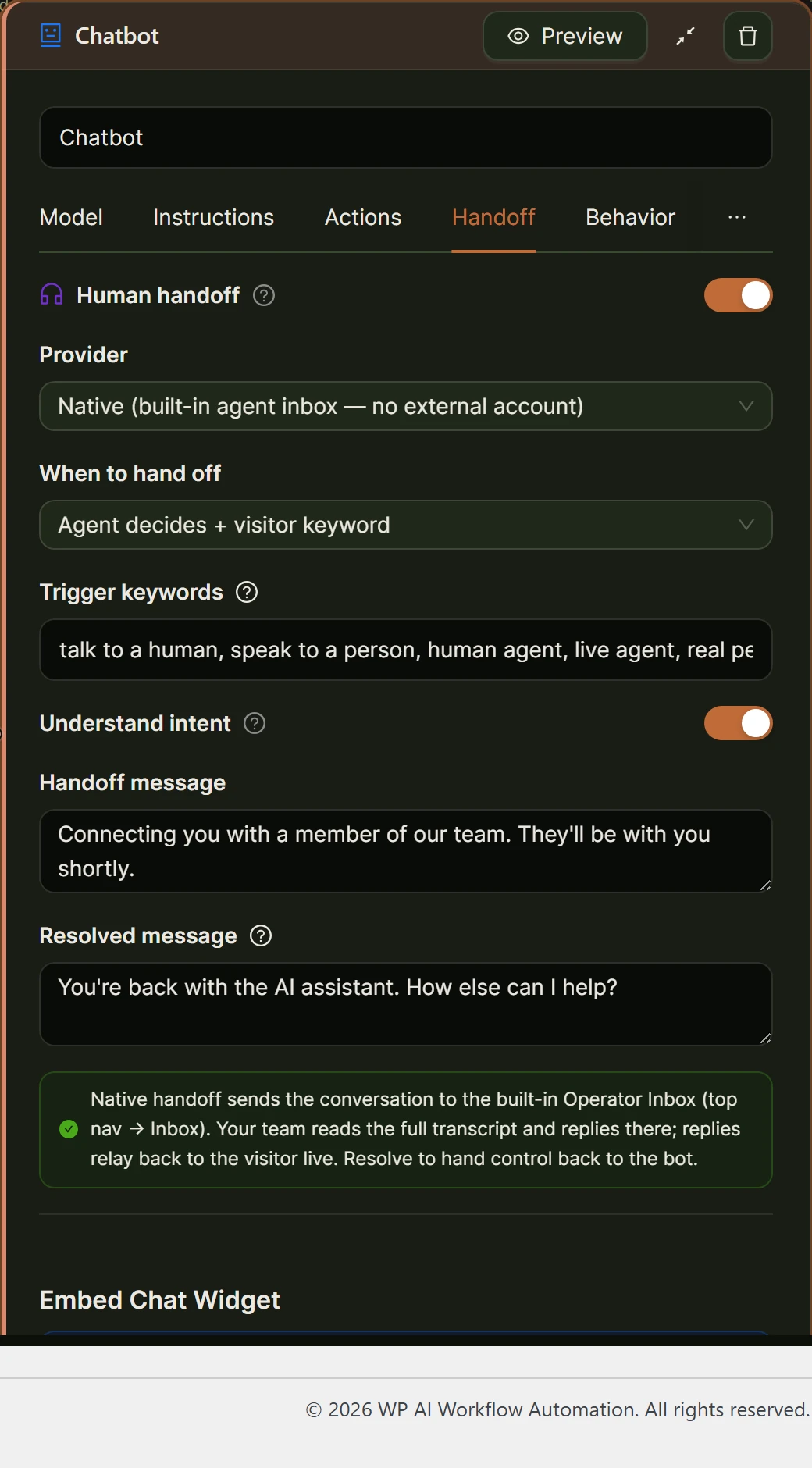
The visitor sees two messages you control. The handoff message defaults to “Connecting you with a member of our team”, and the resolved message to “You are back with the AI assistant. How else can I help?”
On the team side, the Operator Inbox lives behind the Inbox link in the wp-admin top navigation, with a badge showing pending items. Each conversation carries a status of Waiting, Live, Bot, or Approval. Operators read the full transcript labelled Visitor, Bot, or You, reply in real time, and click Resolve to hand control back.
For asynchronous approvals inside a longer workflow rather than a live chat, use the Human Input Node instead. It offers “Approval Required” or “Modification Required”, assignment by user or by role, and Approve and Revert buttons that branch the workflow down two different paths. Assigned users get an email and see a counter on the Tasks menu.
How do you connect the chatbot to Slack, Google Sheets, Notion, and 2,700+ other apps?
The Connect an App node handles third-party integrations. It has two tabs. On the App tab you click “Add app”, search the registry, and authenticate through hosted OAuth sign-in or an API key. On the Action tab you pick the connected account and the action, for example “Add single row” for Google Sheets or “Send message” for Slack.
Action fields load dynamically per app and accept variable tags, so a lead-capture action on the chatbot can feed the visitor’s name and email straight into a Notion database or a Slack channel. Connect an App runs in both local and cloud modes and costs 1 credit per execution.
For a plain HTTP endpoint rather than a listed app, use the API Call Node instead. It exposes URL, Method, Headers, Query params, Body, Auth (none, basic, bearer, or apiKey), and a retry count from 0 to 5. If you are weighing this against an external automation platform, I wrote separate breakdowns of AI Workflow Automation vs Zapier and AI Workflow Automation vs n8n.
How do you keep an action-taking chatbot safe?
Every tool in the Capabilities table has three governance controls, and I recommend using all three on any tool that writes data or costs money.
- Enabled. A disabled tool is never offered to the model, so it cannot be called even if a visitor asks for it by name.
- Require approval. The agent stops mid-run at the point it wants to call the tool. The exact call and its arguments are locked and sent to the Operator Inbox, where an operator clicks Approve or Reject. Approving resumes the conversation from the pause point.
- Rate limit. Caps how many times a tool may run per hour. Setting 0 means unlimited, so set a real number on anything with a cost attached.
Three more rules worth following. Keep the content search tools read-only, which they are by design. Set the maximum model turns per message so a confused agent cannot loop through tools indefinitely. And write the system prompt to escalate rather than guess: a bot that hands off on uncertainty costs you one operator minute, while a bot that invents an answer costs you a refund.
The failure mode that hurts is not a bot that says “I do not know”. It is a bot that confidently takes the wrong action on a customer’s account.
Frequently asked questions
Can a WordPress chatbot take actions without a paid subscription?
Yes. AI Workflow Automation is free on the WordPress.org plugin directory and runs workflows locally on your own server by default. You connect your own OpenAI, Anthropic, or OpenRouter API key and pay that provider directly for usage. Platform credits are optional and only apply to cloud execution and the Connect an App node.
What is the difference between an AI chatbot and an AI agent?
A chatbot is a conversational interface, while an agent is an architecture. IBM describes an AI agent as a system that autonomously performs tasks on behalf of a user. A chatbot without tools, memory, or reasoning can only reply. Add tools it may call on its own initiative and the same widget becomes an agent.
How does human handoff work in a WordPress chatbot?
Handoff pauses the AI and relays messages between the visitor and a human operator. In AI Workflow Automation you pick a provider (Native Operator Inbox, Chatwoot, Zendesk Sunshine Conversations, or Intercom) and a trigger mode, then operators pick up conversations from the Inbox in wp-admin and click Resolve to return control to the bot.
Can the chatbot look up WooCommerce orders and products?
The built-in “Search products (WooCommerce)” tool queries your published, catalogue-visible products and shows interactive product cards with price and Add to cart. It is read-only and off by default. Order lookups are not a built-in tool, so you build them as a custom action wired to an API Call node with the appropriate authentication.
Where to go next
Install AI Workflow Automation from the WordPress.org plugin directory, add a Chatbot Node, and switch on one tool before you switch on five. If you want to see an action-taking agent in a live conversation first, the AI chatbot page has a working widget you can talk to, and the Agent Actions and Tools documentation covers every field in the Capabilities table.