Custom database tables let you store workflow results as structured rows inside your WordPress database. Instead of only displaying an answer, a workflow can save each run into a table you define, with your own columns, ready to browse or export later.
This pairs with the Output node: set its type to Save to a database table and point it at one of your tables.
When to use it
- Collecting form submissions that an AI step has cleaned up or categorised.
- Logging generated content, scores, or extracted fields for review.
- Building a simple dataset over time that you can export to CSV.
Create a table
- Open the Tables area in the plugin.
- Choose a name and add your columns. For each column, set a name and a type.
- Save. The table is created in your WordPress database.
Every table automatically includes an id column (an auto-incrementing primary key) and a created_at timestamp, so each saved row is uniquely identified and time-stamped without any extra setup.
Column types
- Text for words, sentences, or any string value.
- Number for numeric values such as scores or amounts.
- Date and time for dates.
Tables you create are stored under a dedicated plugin prefix, so they sit alongside but separate from WordPress core tables.
Write to a table from a workflow
- Add an Output node and set its type to Save to a database table.
- Select the target table.
- Map each column to an upstream value. Each column takes its own field, the same way the Post node maps fields, so you can pull one column from an AI answer and another from the trigger.
Saving to a database table runs locally on your WordPress site. See Save to Database for the output side in detail.
Browse and export
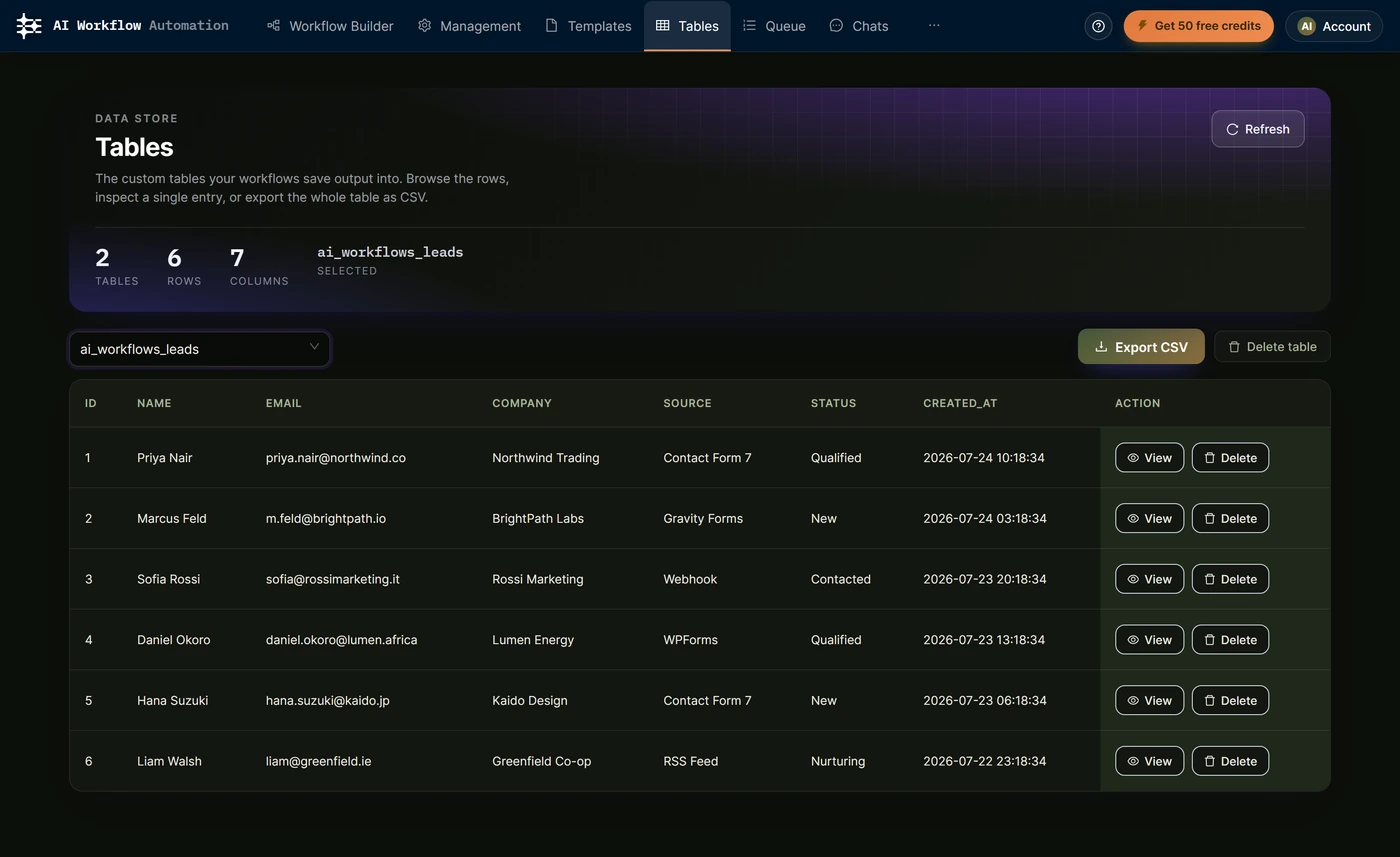
From the Tables area you can view the rows in a table, export them to a CSV file, and delete individual rows or an entire table when you no longer need it.