An AI content workflow for WordPress is a sequence of automated steps (research, drafting, SEO tuning, imagery, human review and publishing) that carries a target keyword through to a finished post without leaving wp-admin. AI Workflow Automation, a free WordPress plugin, builds this sequence visually: each stage is a node you drag onto a canvas and connect, with a person checking the result before anything goes live.
We build this plugin, so here is the plain version of what it automates and what it still needs a person for. AI Workflow Automation is a free WordPress plugin with a visual drag-and-drop builder that runs AI workflows, agents, and chatbots inside your own site, using your own API keys, with no external subscription required. It gets a post from keyword to a review-ready draft. It does not replace Google Search Console for finding out whether that post actually ranked.
What is an AI content workflow for WordPress?
An AI content workflow for WordPress is the chain of steps between picking a topic and having a finished post sitting in wp-admin: gathering facts, drafting an outline, writing the full draft, a human check, tuning for target keywords, sourcing an image, and publishing. Treating it as a chain of separate steps, instead of one long prompt, is what makes each stage inspectable and each mistake catchable before it goes live.
A single chat prompt can produce a paragraph, but it cannot show you which sentence came from which source, swap the image without regenerating the text, or pause for someone to approve the draft. A pipeline of separate nodes keeps every stage visible and editable on its own, which matters once you publish more than the odd one-off post. For other ways the plugin handles writing, images, and publishing, browse the content creation section of this site.
What tools automate an AI content pipeline, from keyword research to publishing?
Eight stages carry a post from a target keyword to a live URL, and each one maps to a specific node in AI Workflow Automation rather than one do-everything AI call: research, brief, draft, review, SEO, image, publish, and measure. Local mode runs all of it free on your own provider key; an optional cloud mode runs workflows on our hosted engine for credits if you would rather not manage a key.
| Stage | What happens | Node in the builder |
|---|---|---|
| Research | Gather sourced facts on the topic | AI Research node |
| Brief | Turn research into a short outline with named fields | AI Model node, structured output on |
| Draft | Write the full piece to a target length | Write an Article node |
| Review | A person approves or edits before anything else runs | Human Input node |
| SEO | Rewrite the approved draft around target keywords | Optimize SEO node |
| Image | Add a photo or an AI-generated image | Unsplash Image or Media Generator node |
| Publish | Create the WordPress post as a draft, scheduled, or live | Create Post/Product node |
| Measure | Track clicks, impressions, and position once it is indexed | Google Search Console, outside the plugin |
Local mode uses your own OpenAI or OpenRouter key and costs nothing beyond what your provider charges directly. In cloud mode, per-node credit costs vary: the AI Model, Summary Generator, Extract Information, and Optimize SEO nodes each cost 2 credits per run, Write an Article costs 3, Media Generator costs 10, and AI Research is the most expensive at 40 credits, since it runs live web research. Structural nodes such as Human Input and Create Post/Product cost nothing in either mode.
For the image stage, Unsplash Image finds a stock photo and runs only in Local mode, while Media Generator creates an original image, video, or audio file and runs in either mode. See generating featured images automatically for a closer look at that step alone.
Where should a human stay in the loop?
A person should sit between the draft and anything public: the Human Input node pauses a workflow and waits for someone to approve or edit the content before it moves on. It offers two modes, Approval Required for a straight yes or no, and Modification Required when a reviewer needs to edit the text directly, and each task can be assigned to a specific user or to a whole role.
Pending tasks collect on the Tasks page in wp-admin, and the assigned reviewer gets an email with a content preview and a direct link. Placing that check right after the draft, before SEO and publishing spend more effort on it, means nobody tunes keywords into a piece that was wrong to start with.
There is a search-quality reason for this too, not just a production one. Google’s own guidance on creating helpful, reliable, people-first content is direct about what it penalizes: “If you use automation, including AI-generation, to produce content for the primary purpose of manipulating search rankings, that’s a violation of our spam policies.” A pipeline with nobody reading the output before it publishes is exactly that setup, whether or not that was the intent.
How do you build this pipeline inside WordPress?
Building this pipeline takes the plugin installed and activated, plus an API key from your AI provider added in Settings; nothing else is required to run it free in Local mode. The steps below wire up a research-to-published pipeline for one blog post on a single canvas.
- Create the workflow. Open AI Workflows in the wp-admin sidebar, start a new workflow, and name it.
- Set the trigger. Drag a Trigger node onto the canvas and set it to Manual, with your target keyword or topic typed in as the starting text.
- Add research. Drag an AI Research node onto the canvas, connect it to the trigger, and reference the topic with
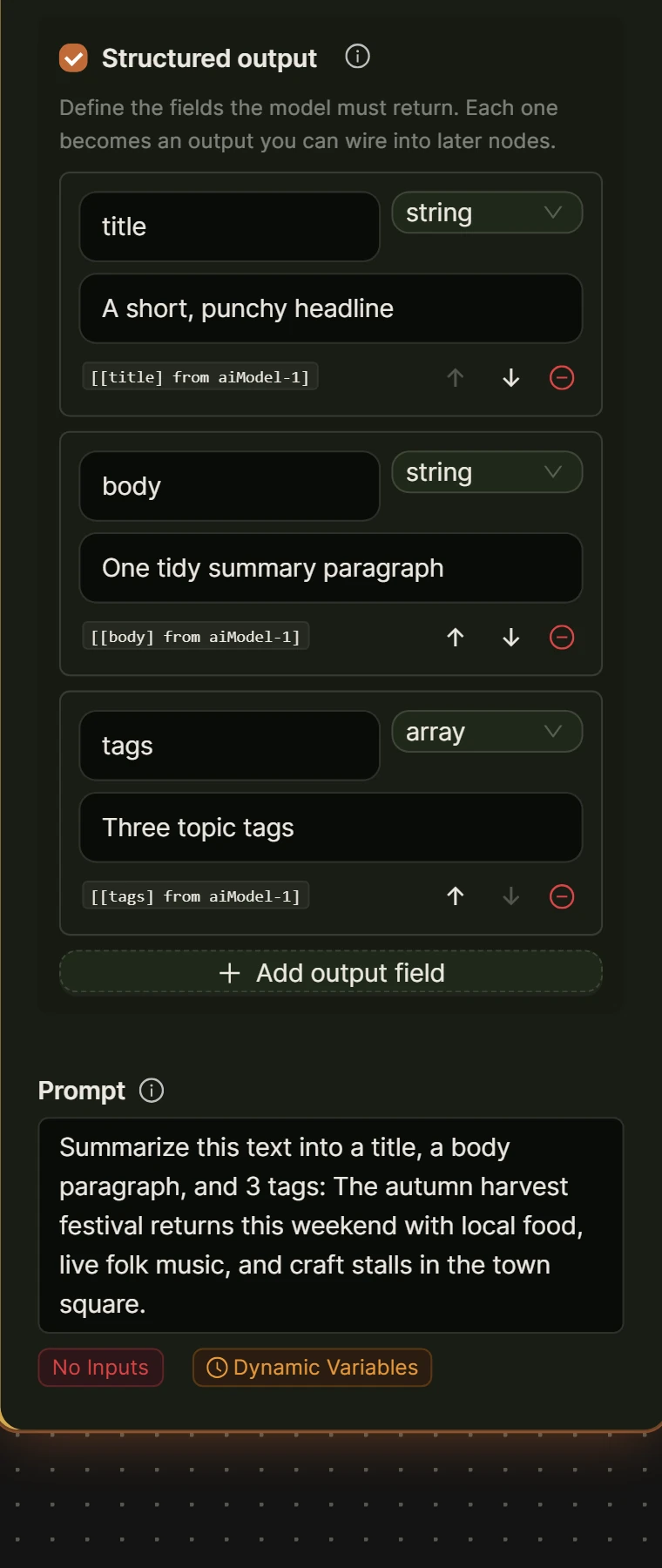
[Input from trigger-1]. Pick Sonar Pro for better citations on an ordinary blog topic. - Turn research into a brief. Add an AI Model node, connect it to the research node, and turn on structured output with fields for title, outline, and angle, so the next step gets named data instead of one long block of text.
- Draft the article. Add a Write an Article node, connect it to the AI Model node, set Content to
[[outline] from ai-1], and set Word count to your target length. - Add the review step. Drag a Human Input node into the chain, set its input type to Modification Required, and assign it to an editor or a role that can approve posts.
- Optimize for SEO. After the review step, add an Optimize SEO node and set SEO keywords to your target terms, comma-separated.
- Add an image. Drag an Unsplash Image node onto the canvas and set Search term to match the topic.
- Publish. Add a Create Post/Product node, set Post type to post and Post status to draft, and map post_title and post_content to the fields your AI Model and Write an Article nodes produced. WordPress’s own documentation on post statuses describes future as content “scheduled to be published in a future date,” which is what the node uses to queue a post instead of publishing it the moment the run finishes. See how to schedule automated content in WordPress for the full setup.
- Save and run. Save the workflow, click Run, and watch each node complete in the live execution panel before opening the draft.
How do you turn keyword research into a brief the AI can draft from?
Turning research into a brief means asking the AI Model node for named fields instead of one paragraph of prose: turn on its structured output option and define a schema with a field for the title, one for the outline, and one for the angle or tone. Each field then becomes its own reference downstream, for example [[outline] from ai-1], instead of a block of text you would otherwise parse by hand.
This is the same mechanism the data flow and variable handling documentation recommends for filling a post’s title, excerpt, and content from one node: a schema field per target, referenced directly. If your source text did not come from a structured AI node, a scraped page or a submitted form, for example, the Extract Information node does the same job in reverse, pulling named fields out of text that already exists.
Does the plugin report on rankings and traffic after you publish?
No, not inside AI Workflow Automation itself, and that is worth saying plainly. The plugin’s Cost Management dashboard and Usage Center track what a workflow spent, in provider tokens or platform credits, not how a published post performed in search. Once a post is live, ranking, click, and impression data lives in Google Search Console.
Search Console’s own documentation describes what its Performance report covers: “The Performance report shows important metrics about how your site performs in Google Search results,” broken down into clicks, impressions, click-through rate, and average position. That is the tool for the measure stage, and it is worth checking a few weeks after a post goes live rather than the same day, since a fresh URL needs time to be crawled and indexed.
Frequently asked questions
What is an AI content workflow?
An AI content workflow is a set of connected automated steps, typically research, drafting, editing, SEO, and publishing, that moves content from an idea to a finished, published version, with AI handling parts of the work and a person checking the result. Inside WordPress, each step can be a separate node you open, test, and adjust on its own, rather than one prompt trying to do the whole job at once.
Is AI-generated content bad for SEO?
Not inherently. The spam policies Google enforces target automation, AI included, used specifically to manipulate search rankings, not the use of AI as such. What tends to hurt rankings is unedited, generic AI output published at volume with nobody checking it for accuracy or usefulness, which is why a review step before publishing matters more than the fact that AI wrote the first draft.
Do I need to edit AI-generated blog posts before publishing them?
Yes. Treat an AI draft the way you would treat a draft from a junior writer: useful as a starting point, not ready to publish untouched. A workflow can include a dedicated review step, using something like a Human Input node set to Approval Required or Modification Required, that pauses before publishing and puts the draft in front of a person, so nothing goes live without someone reading it first.
How do I track SEO performance for content published through an AI workflow?
The same way you would track any published content: through Google Search Console, which reports clicks, impressions, click-through rate, and average position for each page once it is indexed. AI Workflow Automation tracks what a workflow spent to produce the content, in provider tokens or in platform credits, not how the finished post performed in search, so pair the two: the plugin for production, Search Console for results.
The fastest way to see whether this fits your routine is to build the smallest version: one trigger, one Write an Article node, one review step, one Create Post/Product node set to draft. Install AI Workflow Automation free from the WordPress plugin directory, and for the fuller picture of what it automates around a blog post, see automating blog posts with AI in WordPress.