To add an AI shopping assistant to WooCommerce that can add products to a cart, you need a chatbot whose agent has a governed product search tool that returns clickable results. AI Workflow Automation, a free WordPress plugin, builds this with a single Chatbot node: turn on the WooCommerce search capability, and shoppers can browse, compare, and add real items to their cart without leaving the chat window.
We built the Chatbot node to behave like a good in-store assistant rather than a search box with a personality: it holds a normal conversation, and when you give it the right tool, it also acts. AI Workflow Automation is a free WordPress plugin with a visual drag-and-drop builder that runs AI workflows, agents, and chatbots inside your own site, using your own API keys, with no external subscription required. This guide covers what the assistant can do on a WooCommerce store today, how to set one up, and where a conversation should go to a person instead.
What is a WooCommerce AI shopping assistant?
A WooCommerce AI shopping assistant is a chat widget on your store that can search your live product catalog, show shoppers rich results, and let them add an item to their cart, instead of only answering questions in plain text. In AI Workflow Automation, that assistant is the Chatbot node, and it is an agent: it can hold an ordinary conversation, or, once you give it capabilities, take real actions during one.
The product search tool is off by default, and it is hidden entirely on sites where WooCommerce is not active, so a plain content or support chatbot does not suddenly grow a shopping feature you never asked for.
Product findability is worth taking seriously before you build one. Baymard Institute’s ongoing tracking puts the average documented online shopping cart abandonment rate at 70.22 percent, and while abandonment has many causes, a shopper who cannot quickly find or understand a product is not going to convert by accident. If recovering the carts you already have is more urgent than adding an assistant, our piece on AI agents for abandoned cart recovery covers that side of the same problem.
What can it actually do on your store?
On a WooCommerce store, the search capability lets a shopper describe what they want in plain language, see results as image-and-price cards, and add an item straight from a card, without ever landing on a category page first. The same node can also pull up content cards from your posts and pages, and it can offer quick-reply chips so a visitor can tap a question instead of typing one.
The Search products tool can search by keyword, filter by category, or show only items on sale, and it shows up to six products at a time in a carousel. Each card carries the product image, name, price, a View button, and an Add to cart button. Searching itself never touches the cart. WooCommerce’s own developer documentation describes cart endpoints as public endpoints built “for the development of customer-facing cart, checkout, and product functionality,” and a tap on a card’s Add to cart button puts the item in that same cart, the one a shopper would otherwise build by browsing your shop pages.
See the full list of what a card can show, including product carousels and quick replies, in the docs on interactive chat messages.
| Tool | What the shopper sees | On by default |
|---|---|---|
| Search products (WooCommerce) | Product cards in a carousel: image, name, price, View, Add to cart | No, and hidden without WooCommerce |
| Search posts and pages | Content cards: title, image, excerpt, Read link | No |
| Knowledge base search | Answers pulled from an attached knowledge base | Only if one is attached |
| Quick response buttons | Tappable chips that send a preset message | No, set on the Design tab |
| Hand off to a human | Moves the conversation to a person | No, set on the Handoff tab |
How do you build a WooCommerce shopping assistant, step by step?
Building a WooCommerce shopping assistant means configuring a single Chatbot node across a few tabs: which model answers, what it is allowed to search, how it introduces itself, and where a stuck conversation goes. Before you start, WooCommerce needs to be active on the site, and you need either your own OpenAI or OpenRouter key, or a free connected account to spend credits instead.
- Create the workflow. Open AI Workflows in wp-admin, start a new workflow, and name it at the top.
- Add the Chatbot node. Drag it onto the canvas from the Communication group in the node palette.
- Choose the model. On the Model tab, set the AI source to My API keys or Credits, then pick a model from OpenAI or OpenRouter.
- Write the instructions. On the Instructions tab, describe the assistant’s role in plain language, for example: “You help shoppers find products in our store, answer sizing and shipping questions from the knowledge base, and never guess at an order status.”
- Turn on product search. On the Actions tab, find Search products (WooCommerce) in the Capabilities table and switch it to Enabled. Set a Rate limit per hour if you want to cap how often it runs.
- Add quick replies. On the Design tab, under Quick Response Buttons, add a few chips such as “Best sellers” or “What’s on sale,” each with the message it should send.
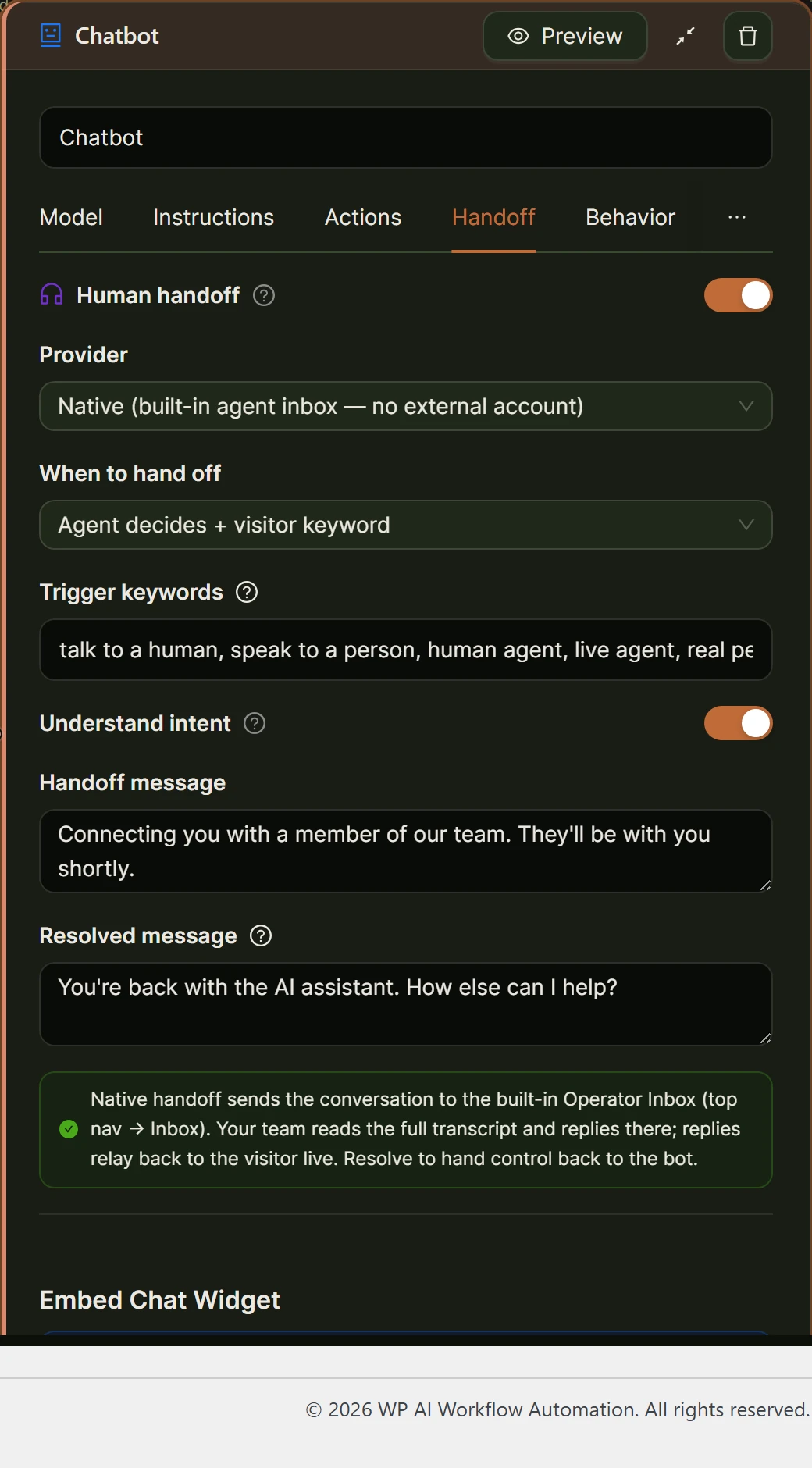
- Set the handoff path. On the Handoff tab, turn on Human handoff and choose Native for the built-in Operator Inbox, or Chatwoot, Zendesk Sunshine Conversations, or Intercom if your team already uses one.
- Save and preview. Click Save. A shortcode appears on the node, and the node’s own preview lets you test search and add-to-cart before anyone sees it live.
- Publish it. Copy the shortcode and paste it into a page or a shortcode block, or add it through Appearance, Widgets instead. See deploying the chat widget for position and theme options.

How do you keep the assistant from doing too much?
Keeping a WooCommerce shopping assistant from doing too much starts with the Capabilities table on the Actions tab, where every tool the agent can use, including Search products, carries three controls: Enabled, Require approval, and a Rate limit capped per hour, with 0 meaning unlimited.
OWASP’s guidance on excessive agency in LLM applications warns about “damaging actions to be performed in response to unexpected, ambiguous or manipulated outputs from an LLM” when a system hands a model more permission than a task needs. The shopping assistant is built the safer way round. The only capability the model itself calls is Search products, which is read-only, and it still sits behind Enabled, Require approval, and Rate limit controls. Add to cart is not something the model can trigger on its own; it is a button on a card, and the cart only changes when the shopper clicks it.
That split matters more than it looks. A search that returns the wrong products is an annoyance. A tool that could add items or apply a coupon on its own would be a mistake with real money attached, and it is exactly what the current design avoids.
Does the assistant know what a shopper is looking at?
Yes, when you turn on page context, the assistant can see the page it is embedded on, including its title, URL, and a content summary. On a WooCommerce product page it also receives the product’s price, SKU, stock status, and categories, so it can answer a question about the exact item someone is already viewing.
Turn this on under the Behavior tab, or with the include_page_context shortcode attribute if you are placing the widget on specific pages only. Without it, the assistant still searches your catalog through the Search products tool; it just cannot see what is already on screen unless the shopper mentions it.
What happens when a shopper asks about an order?
Nothing automatic, and that is by design. The Search products tool searches your published catalog, not order records, so the assistant has no capability that looks up where an order stands or what was purchased. Trying to answer anyway would mean guessing, which is worse than saying so.
Route those questions to a person with Human handoff on the Handoff tab. Add order-related phrases as trigger keywords, such as “where is my order” or “track my order,” and leave agent-decided handoff on as well so the assistant recognizes an order question phrased differently. The conversation moves to the built-in Operator Inbox, or to Chatwoot, Zendesk Sunshine Conversations, or Intercom if you already route support through one of those.
Frequently asked questions
Does a WooCommerce AI shopping assistant cost anything to run?
The plugin itself is free, and the Chatbot node always runs on your own WordPress site. On the Model tab you choose how its replies are billed: My API keys sends the bill straight to your own OpenAI or OpenRouter account at that provider’s own rates, and Credits meters against your free connected account instead, where a chatbot reply costs 3 credits. New accounts start with 50 free credits.
Can the assistant look up an existing WooCommerce order?
No. The Search products tool searches your published catalog, not customer order records, so the assistant cannot check where an order stands or what was in it. Route order questions to a person instead: turn on Human handoff on the Handoff tab, add phrases like “where is my order” as trigger keywords, and the conversation moves to the Operator Inbox or an external tool such as Chatwoot for your team to answer.
Will the AI ever add something to a shopper’s cart without them clicking anything?
No. Searching your WooCommerce store through the assistant never changes the cart by itself. A product card shows an Add to cart button, and the cart only updates when the shopper clicks that button. The model can retrieve and display products, but it cannot complete that step on its own, which keeps the one action with real money attached under the shopper’s control rather than the agent’s.
Does the chat widget work with any WordPress theme?
Yes. The widget renders inside an isolated container, so the theme’s CSS cannot leak into it and its own styling cannot leak out onto the rest of the page. That holds regardless of which theme or page builder the store runs, and the widget resizes for mobile screens on its own.
Install the plugin free from the WordPress plugin directory, and if the rest of your catalog still needs work, the guide to writing WooCommerce product descriptions in bulk covers the other end of the same store.