Overview
The Templates Modal is the first screen users encounter when starting a new workflow. It provides multiple ways to begin creating workflows and offers a curated collection of pre-built templates for common use cases.
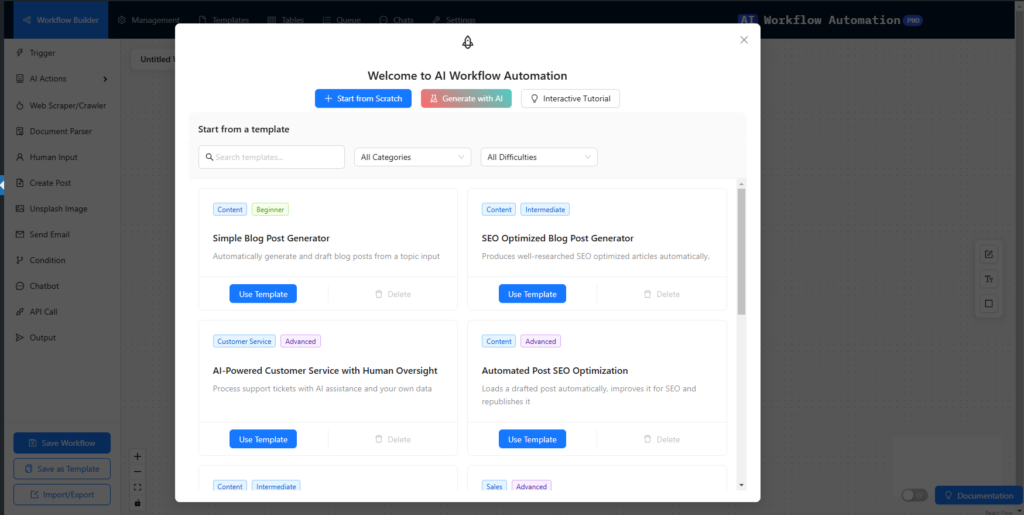
Getting Started Options
1. Start from Scratch
The “Start from Scratch” button allows you to begin with a blank canvas containing only a Trigger node. This option is ideal when you:
- Have a specific workflow in mind
- Want complete control over the workflow design
- Need to build something unique
- Are experienced with the workflow builder
2. Generate with AI
The “Generate with AI” button opens an AI workflow generator that can create workflows based on natural language descriptions. This feature is perfect when you:
- Have a general idea but aren’t sure how to implement it
- Want to quickly prototype a workflow
- Need inspiration for workflow structure
- Are new to automation and need guidance
3. Interactive Tutorial
The “Interactive Tutorial” button launches a step-by-step guide that teaches you how to:
- Create your first workflow
- Connect nodes together
- Configure basic settings
- Execute and test your workflow Perfect for new users or those who want to learn the basics of the system.
Template Library
Search and Filter Options
Search Bar
- Located at the top of the template grid
- Searches through template names, descriptions, and tags
- Updates results in real-time as you type
- Helps find specific templates quickly
Category Filter
Available categories include:
- All Categories (default)
- My Templates (user-saved templates)
- Content Creation
- Data Processing
- Social Media
- Email Marketing
- Customer Service
- And more…
Difficulty Filter
Templates are labeled by difficulty level:
- Beginner (Green): Simple workflows with 2-3 nodes
- Intermediate (Blue): Moderate complexity with 4-6 nodes
- Advanced (Purple): Complex workflows with multiple branches
- Expert (Red): Sophisticated workflows with advanced features
Template Cards
Each template card displays:
- Template Name
- Brief Description
- Category Tag
- Difficulty Level
- Additional Tags
- Two action buttons:
- “Use Template”: Loads the template into the workflow builder
- “Delete” (only for user templates): Removes the template from your library
Template Types
Default Templates
- Pre-built by the system
- Cannot be deleted
- Cover common use cases
- Great starting points for customization
User Templates
- Created and saved by users
- Can be deleted
- Show a “My Template” tag
- Useful for saving frequently used workflows
Managing Templates
Using a Template
- Click “Use Template” on any template card
- The template loads into the workflow builder
- All nodes and connections are preserved
- Customize as needed for your use case
Deleting User Templates
- Find the template you want to remove
- Click the “Delete” button on the template card
- Confirm the deletion
- Template is permanently removed from your library
Best Practices
Choosing Templates
- Start with your use case in mind
- Consider the difficulty level
- Read the template description thoroughly
- Look for templates with similar functionality to your needs
- Be prepared to customize the template
When to Use Each Option
- Start from Scratch: When you need a highly customized workflow
- Generate with AI: When you want quick solutions or need inspiration
- Templates: When your use case matches a pre-built solution
- Tutorial: When you’re new to the system or need a refresher
Tips for Success
- Template Exploration
- Browse all categories to understand available options
- Use search to find specific functionality
- Pay attention to difficulty levels
- Getting Started
- New users should start with the Interactive Tutorial
- Begin with simpler templates and progress to more complex ones
- Use AI generation for quick prototypes
- Template Management
- Save successful workflows as templates for future use
- Delete unused templates to keep your library organized
- Share effective templates with team members
Technical Notes
- Templates preserve all node configurations except sensitive data
- API keys and passwords are not included in templates
- User templates are stored in your WordPress database
- Default templates are regularly updated with new features
Support and Resources
- Access documentation through the “Documentation” button
- Contact support for template-related issues
- Join the community forum to share and discover templates
- Check for regular updates with new template additions
By effectively using the Templates Modal and its features, you can significantly speed up your workflow creation process and learn from pre-built examples. Whether you’re a beginner or an expert, the Templates Modal provides the right starting point for your automation needs.