The builder is where you design, run, and manage workflows. It uses a redesigned dark theme across the canvas, node cards, and every settings and list page. This tour names the main areas so the rest of the documentation makes sense.
The top bar
The bar across the top holds the workflow name, save and run controls, and the execution mode switch where you choose Local or Cloud for this workflow. Your account and credit status sit here too, so you can see usage without leaving the canvas.
The canvas
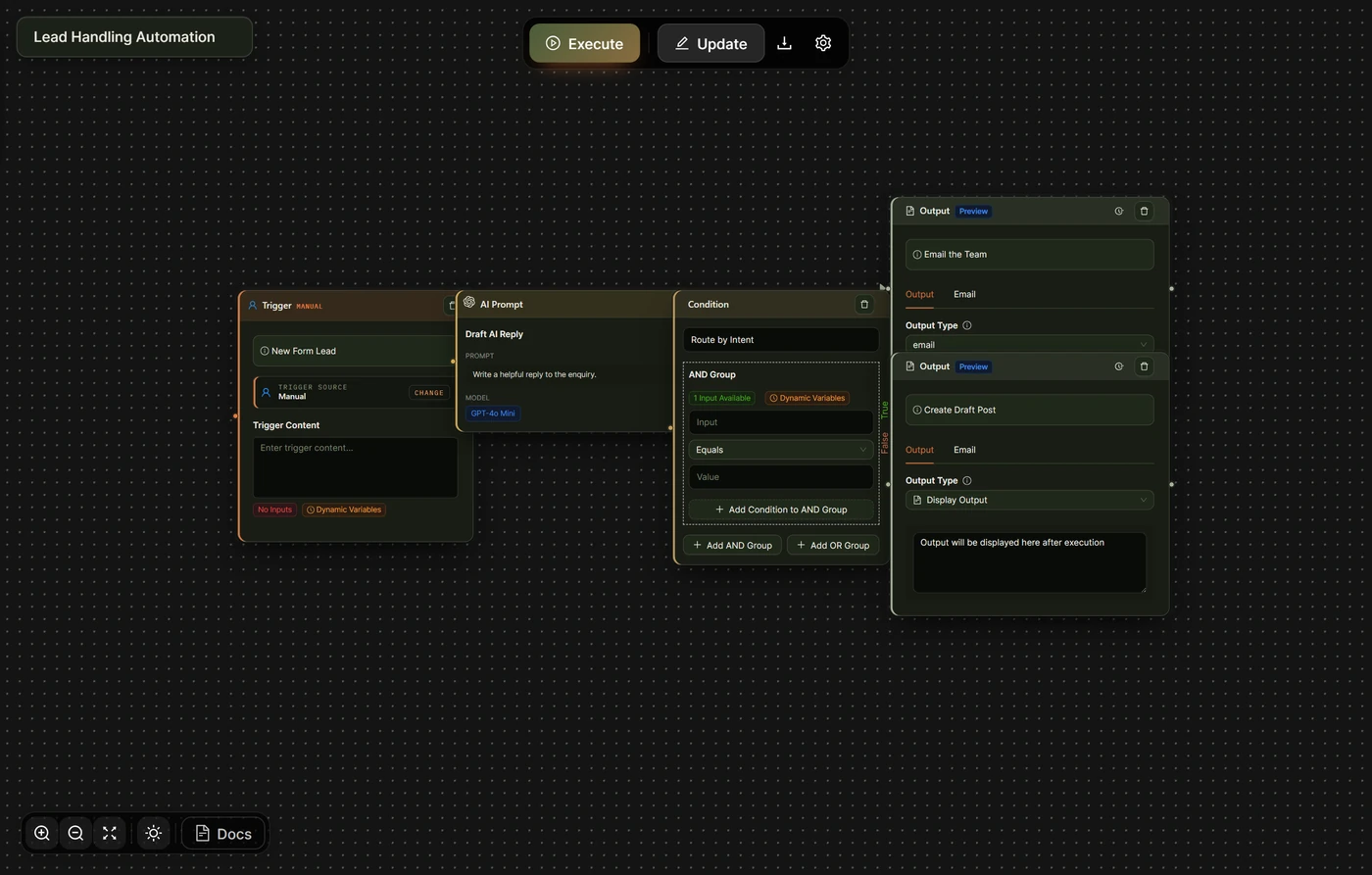
The center is the canvas: an infinite, pannable, zoomable surface where nodes live. You drag nodes around, draw edges between their handles to connect them, and drop sticky notes and annotations to document your work. Panning, zooming, and fit-to-view controls sit at the edges of the canvas.
The node palette
A sidebar lists every available node, grouped by category (Core, AI Actions, Data Processing, Content and Media, Logic and Control, Communication). Drag a node from the palette onto the canvas to add it. See Nodes and categories for what each one does.
The configuration rail
Click a node to open its configuration in the right rail. This is where you set a node’s fields: the model and prompt for an AI node, the output type for an Output node, the trigger type, and so on. Fields that accept data from earlier steps use friendly variable pills; type / in a field to insert one. See Data flow and variables.
The AI assistant command bar

An always-open command bar lets you talk to an in-canvas AI assistant. You can ask questions about your workflow, or have the assistant edit the canvas directly from a description, for example adding and connecting nodes for you. See The in-canvas AI assistant.
The live execution panel
When you run a workflow, a panel slides in from the side and shows each node executing in real time, with its status, timing, and expandable input and output. It is the fastest way to see what a run actually did and to debug a step. See Watch a run live.
Managing your workflows
Outside a single workflow, the AI Workflows area lists all your workflows so you can open, duplicate, schedule, or delete them. Human approvals appear under the separate Tasks menu in the WordPress sidebar.
Onboarding and help
New installs open with a short welcome walkthrough and on-canvas coach-marks. You can re-open them at any time from the Help menu inside the builder.