A WordPress agency can add an AI chatbot to every client site without billing clients for a new SaaS subscription: AI Workflow Automation, a free WordPress plugin, runs its chat widget locally on each site using that client’s own OpenAI or OpenRouter API key, or the agency covers it through a shared Business plan that pools credits across up to 50 connected client sites.
Agencies that already run WordPress sites for clients do not need another vendor relationship to add AI chat. AI Workflow Automation is a free WordPress plugin with a visual drag-and-drop builder that runs AI workflows, agents, and chatbots inside your own site, using your own API keys, with no external subscription required. The chatbot lives inside infrastructure you already manage, and the only new invoice is optional.
How can an agency avoid billing clients for another SaaS subscription?
An agency avoids a new SaaS bill by running the chatbot in free local mode, where the client’s own AI provider key pays for every reply and the plugin never charges a subscription. AI Workflow Automation installs at no cost on any number of WordPress sites, needs no account for local mode, and the Chatbot node always runs on the site it is built on, so there is no per-client hosting fee to pass through.
The client adds their own OpenAI or OpenRouter key under Settings, on the AI Provider and API Settings tab, and pays that provider directly for whatever the chatbot uses. That is the client’s own usage cost, not a markup you resell. Providers bill API usage per token, pay as you go, not a flat subscription, according to OpenAI’s pricing documentation, so cost tracks actual use.
Keys are encrypted at rest in the site’s own WordPress database and never reach our platform. Keeping each client’s key on that client’s own site, rather than pooling every client into one shared tool, also limits the damage if one site is ever compromised: one key to rotate, not your whole roster.
Should a client hold their own key, or should the agency cover it with a shared plan?
Whether to use per-client BYOK or the agency’s shared Business plan mostly comes down to how many sites you run and whether you want separate provider accounts for every client. BYOK costs nothing on the plugin side and works on any number of sites, but it asks each client to create and fund their own OpenAI or OpenRouter account. Business trades that setup work for one bill and a pooled credit balance.
| Free local mode (BYOK) | Business plan (shared credits) | |
|---|---|---|
| Who pays for AI usage | Each client, directly to their provider | The agency, from the plan’s credit pool |
| Sites covered | Unlimited, no account needed | Up to 50 connected sites, one organization |
| Setup per client | Client pastes their own provider key | Add the site from the Sites console |
| Monthly cost to the agency | 0 US dollars | 59 US dollars, or 490 US dollars per year |
| Credits included | Not applicable, no credits are spent | 9,000 credits per month, pooled across sites |
| Fits best | A handful of clients, or clients who want their own provider relationship | Many client sites, one invoice, per-site budgets |
A single Pro subscription only connects one production site, so it fits a project you run directly, not a client roster. Business is built for agencies: up to 50 connected sites under one account, with priority support. A new account starts with 50 free credits, enough to demo a working chatbot before anyone commits. A chatbot reply on Credits costs 3 credits, so the monthly allowance stretches across many client conversations before a top-up is needed.
How do you set up a chatbot for a client site?
Setting up a client’s chatbot means choosing an AI source, writing that client’s instructions, and deciding where escalations go, all inside one Chatbot node. For the full single-site build with screenshots, see the customer service agent walkthrough; here is the agency version, aimed at repeating this per client without starting from zero each time.
- Add the AI source. Either the client pastes their own key under Settings, or you connect the agency’s Business account so the site draws from the shared pool.
- Drag the Chatbot node onto the canvas from the node palette’s Communication group, inside a new or existing workflow.
- On the Model tab, choose the AI source: “My API keys” for the client’s own key, or “Credits” for the agency’s pool, then pick a model: OpenAI direct, or one of the hundreds available through OpenRouter, Claude models included.
- Attach a knowledge base built from that client’s own pages, PDFs, or pasted text, so answers come from their content, not a generic script.
- Write the instructions on the Instructions tab: the business name, tone, and what the bot should not promise.
- Turn on Handoff and choose where escalations go: the built-in Operator Inbox, or the client’s existing Chatwoot, Zendesk Sunshine Conversations, or Intercom, if they already run one.
- Match the client’s brand on the Design tab: colors, position, and bot name. The small Powered by link stays regardless, more on that below.
- Save, copy the shortcode from the node, and paste it into the client’s page, post, or a widget area to deploy the widget.
What should the chatbot include beyond a system prompt?
A client-ready chatbot needs three things beyond a good prompt: a knowledge base built from that client’s own content, a way to hand off questions the bot should not answer alone, and somewhere your team can see what the bot is doing. AI Workflow Automation covers all three on the Chatbot node, without adding another vendor to the client’s stack.
Every action you enable on the Actions tab becomes a connectable output handle, so a chat can trigger the rest of a workflow. A common pairing is a “Get a quote” action wired to a Connect an App node that adds the lead to the client’s Google Sheet or posts to their Slack channel. Connect an App brings over 2,700 third-party apps in as action steps, but it needs the site connected to the free platform account, since sign-in runs through Composio.
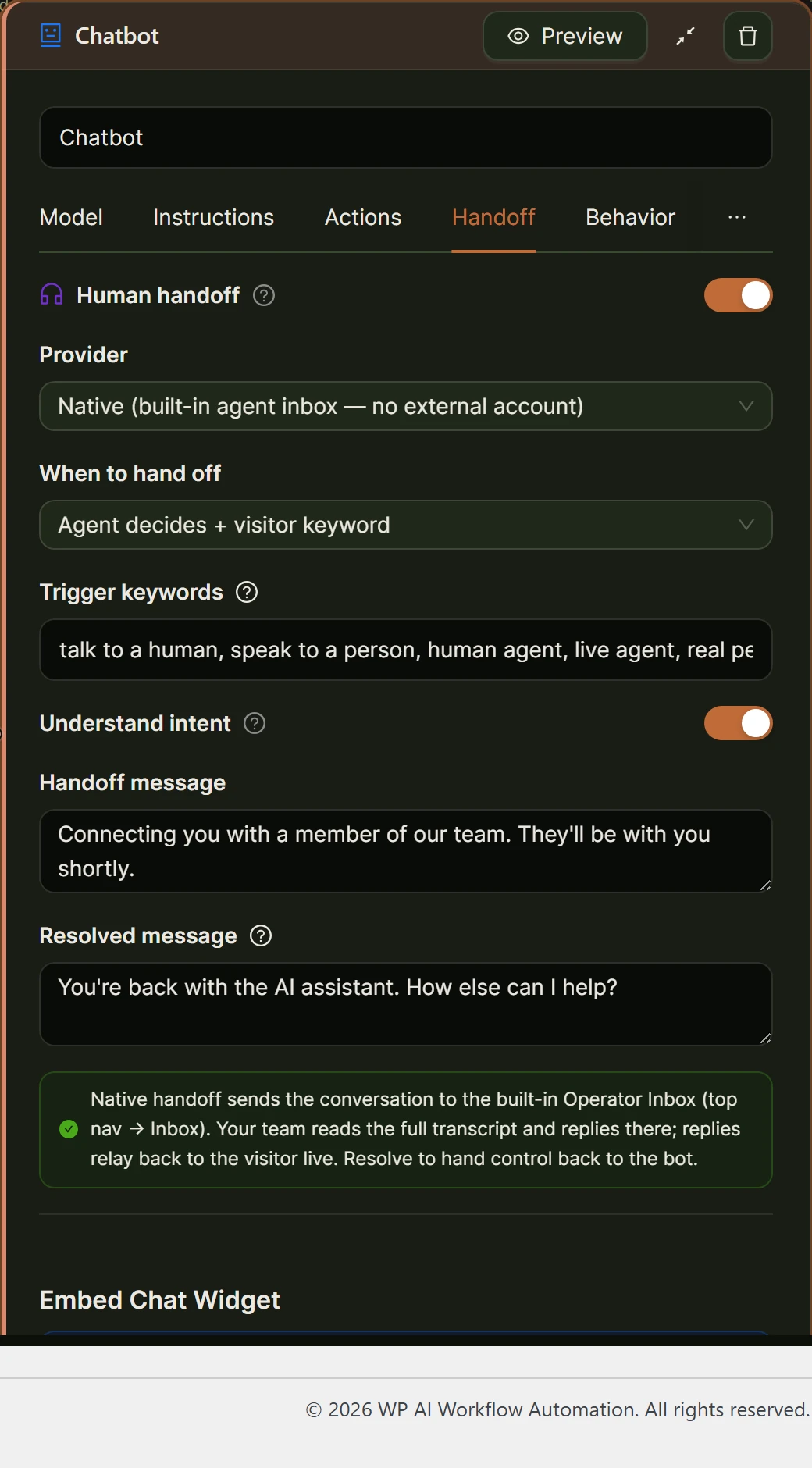
Human handoff is what stops the bot from guessing when it should not. Turn on Human handoff on the Handoff tab and choose a provider: the built-in Operator Inbox needs no external account, while Chatwoot, Zendesk Sunshine Conversations, or Intercom route into a help desk the client may already run. Set the trigger to agent-decided, an exact keyword, or both.
The Operator Inbox, reached from Inbox in the top navigation, is where handed-off conversations and pending tool approvals land, with a badge showing how many are waiting. Open a conversation to read the transcript, labeled Visitor, Bot, and You, reply, then choose Resolve; the bot takes back over and the visitor sees the resolved message you configured.
Can you remove the Powered by link and present the chatbot as your own?
No. The chat widget always carries a small Powered by link, on every plan, and it cannot be removed or sold as white label. What you can style is the widget’s colors, position, and bot identity to match each client’s site, and on the Business plan, the plugin’s own builder screens can carry your agency’s identity instead of ours, which helps if a client ever logs into their own wp-admin.
Set this expectation before you quote a price, not after. Describe what you deliver as an AI assistant you configured, tuned, and manage on the client’s own site, built on a plugin the client could technically run themselves. The honest pitch is the time and the tuning, not exclusive ownership of the technology underneath it.
How should an agency price and manage this across many client sites?
What to charge is the agency’s call; the plugin has no reseller pricing of its own. What is billable is the work: discovery of what the bot should and should not say, a knowledge base built from the client’s content and kept current, action wiring into the client’s tools, handoff configuration, and ongoing monitoring through the Operator Inbox as conversations reveal gaps in the instructions.
Managing many sites happens from the Sites console on the Business plan. Add a site from the site itself, or provision it ahead of time with a site key. Each connected site can carry a per-site credit cap, a monthly ceiling on shared-pool spending, which stops one busy client draining the balance meant for everyone. Per-site usage is visible from the same console, useful for spotting an outlier or justifying what you bill a client.
All connected sites draw from one organization balance: the plan’s monthly allowance plus any top-ups, pooled and divided by whatever caps you set. Watch the total in the Usage Center, and see the fuller mechanics on the plans and billing page before committing a client roster to one bill.
Frequently asked questions
Can I white label the AI Workflow Automation chatbot for my agency clients?
Not entirely. The Business plan lets your agency brand the plugin’s builder screens, but the public chat widget your clients’ visitors talk to always keeps a small Powered by link, on every plan, and it cannot be removed or sold as unbranded. Style the widget’s colors, position, and bot name to match each client’s site instead, and set that expectation with the client before you quote a price.
Do I need a separate account for every client site?
No. Free local mode needs no account at all, so a client can run their own chatbot on their own provider key with nothing to sign up for. If you would rather manage many clients under one bill, connect a single Business account and add each client’s site from the Sites console; every connected site shares that credit pool, and you can cap what any single site is allowed to spend.
What happens to a client’s chatbot if they stop working with our agency?
In local mode, nothing changes: the chatbot runs on the client’s own WordPress site using their own API key, so it keeps working whether or not your agency is still involved. If the site was connected to your Business account, remove it from the Sites console; the client can then connect their own free account, or add their own key and keep the chatbot running locally.
Can a client’s AI chatbot hand off to a real person on their own team?
Yes. The Handoff tab on the Chatbot node routes escalations to the built-in Operator Inbox inside wp-admin, or to a client’s existing Chatwoot, Zendesk Sunshine Conversations, or Intercom account if they already run one. Either way, the bot stops answering while a person is in control, and control returns to the bot once the person marks the conversation resolved.
The fastest way to know whether this fits your client roster is to build one chatbot on one site and let it handle real questions for a week. Install AI Workflow Automation free from the WordPress plugin directory, and see the customer service agent walkthrough for the single-site build in full before you repeat it across a client list.