Interactive messages
Your chatbot can reply with more than plain text. When it uses a search tool, it shows the visitor rich, interactive cards inside the chat widget. This turns a support chat into a concierge that helps people find content and products without leaving the conversation.
You enable these on the Actions tab of the Chatbot node. See Agent actions and tools.
Content cards
The Search posts and pages tool searches your published posts and pages and shows content cards, each with a title, image, excerpt, and a Read link. Use it when visitors are looking for articles, guides, documentation, or pages on your site. This tool is off by default; turn it on in the Capabilities table.
Product cards and carousels (WooCommerce)
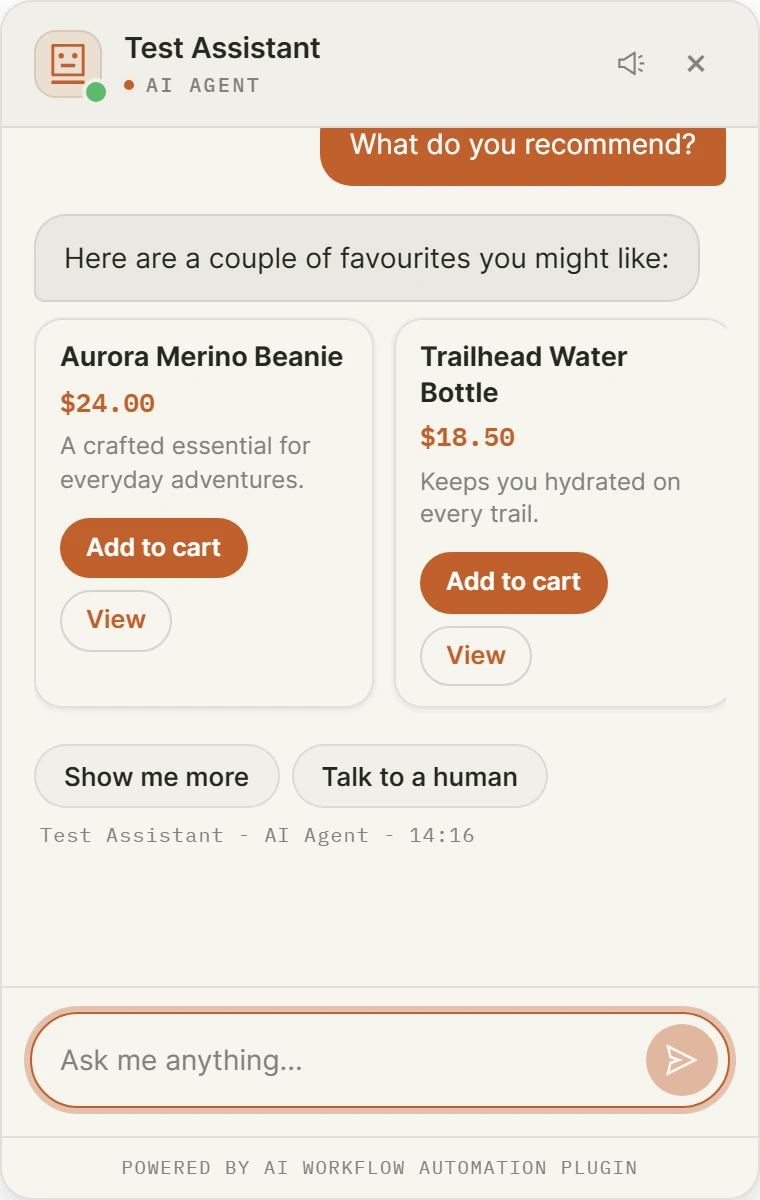
The Search products tool searches your WooCommerce store and shows interactive product cards in a carousel. Each card has the product image, name, price, an Add to cart button, and a View button.
- The agent can search by keywords, filter by category, or show only products on sale, and it shows up to six products at a time.
- Searching never changes the cart. The cart only updates when the visitor clicks Add to cart on a card.
- This tool is off by default, and it is hidden entirely when WooCommerce is not active.
Quick-reply chips
Quick response buttons are tappable chips shown in the widget that send a preset message when clicked. They are a fast way to guide visitors toward common questions. Configure them under the Design tab, in Quick Response Buttons: give each a button label and the message it sends.
How cards are produced
When the agent calls a search tool, the cards render in the widget for the visitor, while only a short text summary of the results is fed back to the model. That keeps the conversation cheap and fast, and it means the visitor sees a clean, interactive result rather than a wall of text.
Writing tip for links
If you want the agent to include a link in its own text (rather than in a card), tell it in the system prompt to write links in Markdown, like [See our returns policy](https://example.com/returns). The widget renders Markdown, so this makes the link clickable.