The AI Model node sends a prompt to an AI model and returns its response. It is the core building block of most workflows. In the node palette it appears as AI Prompt. It supports OpenAI, Anthropic, OpenRouter, and other providers, plus optional knowledge-base retrieval, web and file search tools, vision image inputs, and structured multi-output.
When to use it
Use it whenever you need a model to generate, rewrite, classify, or reason over text: draft a reply, expand an outline, answer a question with your own knowledge base, or turn one input into several named fields.
Choosing a model
Open the Model tab and pick a model. The list is loaded from a live catalog, so it stays current. Use the reload button to refresh it and the search box to filter.
- WordPress AI (site default): uses your site’s own configured AI provider. This requires WordPress 7.0 or later with a provider set up under Settings, AI Connectors.
- OpenAI (Direct): native OpenAI models. A bare model id with no slash routes directly to OpenAI.
- Via OpenRouter: models from Anthropic, Google, Meta, Mistral, Perplexity, and many others. A provider/model id (with a slash) routes through OpenRouter.
Writing the prompt
Type your prompt in the Prompt box. Insert data from upstream nodes as variable tags using the “/” picker or by typing them:
Summarize the following text:
[Input from trigger-1]
See Data Flow and Variable Handling for the full tag syntax, including named fields with [[field] from node-id].
Structured output (multi-output)
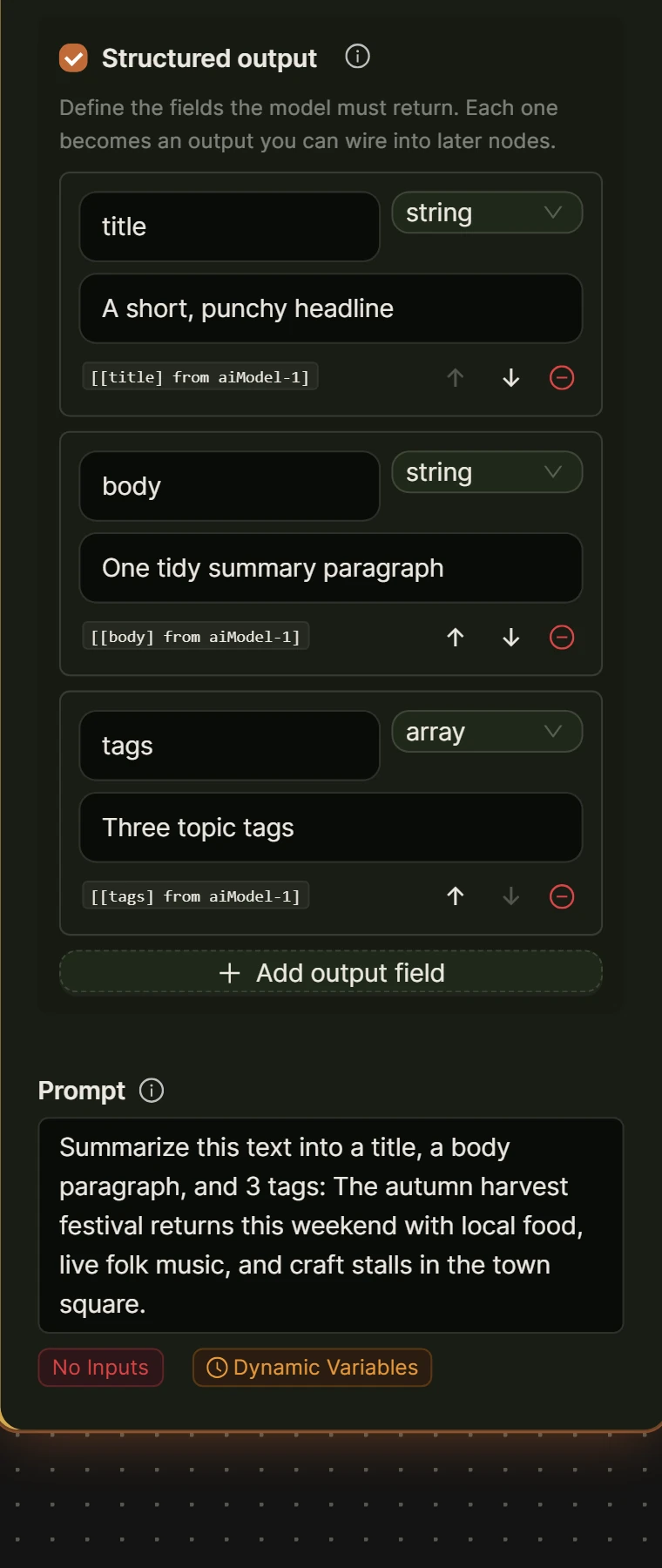
By default the node returns one block of text, referenced as [Input from ai-1]. Turn on Structured output in the Model tab to return a JSON object with named fields instead. Add one field per value you need, each with a name, a type (string, number, boolean, array, or object), and an optional description.
Each field then becomes its own addressable output:
[[title] from ai-1]
[[excerpt] from ai-1]
[[tags] from ai-1]
This is the reliable way to split one AI result into several fields for a multi-field consumer such as a Post Node. You do not need a separate Extract Information Node or parser step when you use structured output. If structured output is off, a [[field]] tag only resolves when your prompt explicitly instructs the model to return strict JSON with that exact key.
Knowledge Base (RAG)
Enable Knowledge Base (RAG) to ground answers in your own content. Pick a knowledge base and set how many passages to retrieve (Top K). Create knowledge bases under Settings, Knowledge Base. This is provider-agnostic and works with any model. See Knowledge Base (RAG).
OpenAI tools
When you select a direct OpenAI model, two extra tools appear:
- Web Search: let the model search the live web. You can set the context size and an optional location (city, region, country) to localize results.
- File Search: let the model search an OpenAI vector store. Choose the vector store and a maximum number of results.
These tools are only available on direct OpenAI models.
Vision (images)
Open the Images tab to pass image URLs to a vision-capable model. Add an image URL directly, or insert a variable tag to use an image produced upstream. Use this to describe, caption, or reason over images.
Generation settings
The Settings tab controls generation parameters: temperature, top_p, top_k, frequency penalty, presence penalty, repetition penalty, and max tokens. Leave the defaults unless you need finer control over creativity and length.
Local, Cloud, and credits
The AI Model node runs in both Local vs Cloud execution modes. The workflow’s execution mode decides where the AI call is billed: in Local mode it uses your own provider key (BYOK) and you pay the provider directly, and in Cloud mode it runs on the hosted engine and spends platform credits. On Cloud, this node costs 2 credits per run.
Example
Summarize an incoming support message and split the result into a subject line and a reply:
- Trigger (form) captures the message.
- AI Model node with structured output on, fields
subjectandreply, prompt referencing[Input from trigger-1]. - Send Email node using
[[subject] from ai-1]and[[reply] from ai-1].